What is "alt text"?
Alt text is the text that's read out loud that describes the image.
How to apply "alt text":
Step 1. Identify the image's function and context
Determine the context of your image, such as whether it is functional, informative, or decorative, and where the image will be displayed. Use these resources to help:
- Alt Decision Tree from the W3C
- Alternative Text from WebAIM, with definitions for functional images and decorative images.
Step 2. Include an alt text attribute for every image
If the image is entirely decorative or if it is described in nearby text, mark it as decorative. In Drupal, Word, and PowerPoint, a checkbox is available to mark an image as decorative, rather than providing text to describe it.
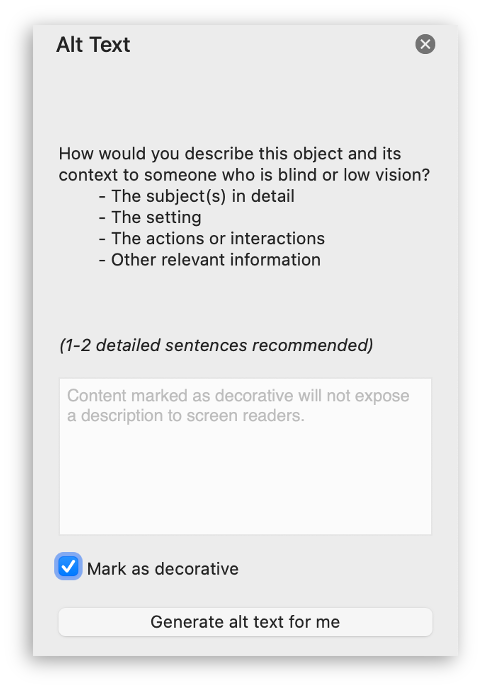
What Images Need Alt Text
Functional images that provide important functions such as navigation in addition to content
- Examples of alt text for functional images
- Jane Doe Lab Home Page
- UCSF Logo
Informative images with contextual information. Be accurate and succinct. Keep it to a few words or a short sentence or two.
- Examples of alt text for informative images
- UCSF lab researcher at work.
- Documentation and a neat lab is very important in research work.
Dr. Elizabeth Blackburn, Morris Herzstein Endowed Chair in Biology and Physiology in the department of Biochemistry and Biophysics.

What Images Do Not Need Alt Text?
Decorative Images that does not present important content, is used for layout or non-informative purposes, and does not have a function (e.g. is not a link).
Example 1: A graphic used solely for decorative purposes

Example 2: Images of people in a "yearbook-style" page with text describing the associated photos.

Additional Resources
Making data visualizations accessible.
- "Considerations for Accessible Data Visualizations"
September 18, 2024, recording and slide deck (PPT) - "Building Accessible Data Visualizations in Tableau"
October 17, 2024, recording and slide deck (PPT)
An alt-text decision making tool from the W3C.