This content is viewable by Everyone
News
Jabber IM chat feature to be deactivated Sept. 23
-
Author: Michael Marmon
- Date:
To streamline instant messaging and chat services across UCSF, Jabber IM chat functionality will be deactivated at 8 p.m. Wednesday, Sept. 23. Jabber softphone remains active and the preferred tool for making and receiving enterprise phone calls.
If you’ve been using Jabber IM chat to connect with colleagues, now is the time to familiarize yourself with UCSF’s approved messaging tool – Microsoft Teams. Teams provide secure, reliable, persistent chat that makes it easy to connect and collaborate with individuals and groups as well as participate in the Teams groups you belong to.
What else you need to know
Currently, the Jabber client displays several icons along the left side of the window, giving users quick access to features such as IM chat, Persistent Chat, and phone calling.
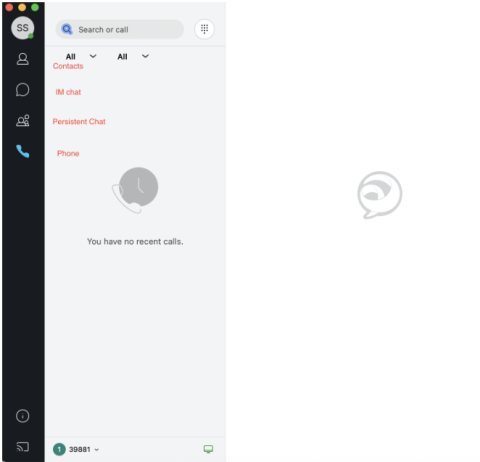
Once the configuration changes are applied on Sept. 23, users will receive a notification stating that new settings have been detected, and they must sign out.
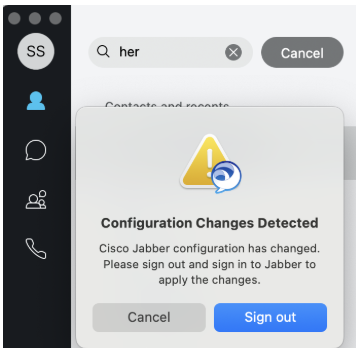
Users should sign out and reset their Jabber client to avoid any sign-in issues.
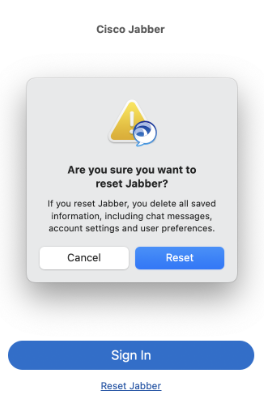
Once they click Sign out and Reset and log back in, the updated interface will load.
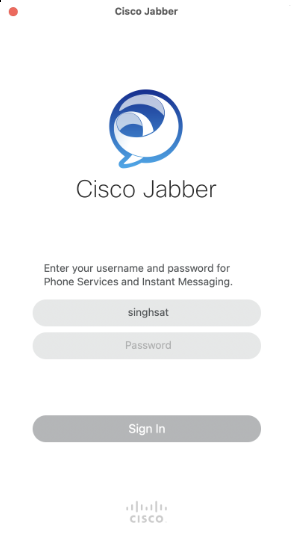
In this new view, the Contacts, IM chat and Persistent Chat icons will no longer appear – only the phone icon will remain visible and active. The calendar icon remains but is not active. The voicemail icon is where users can retrieve messages, set up greetings, etc.
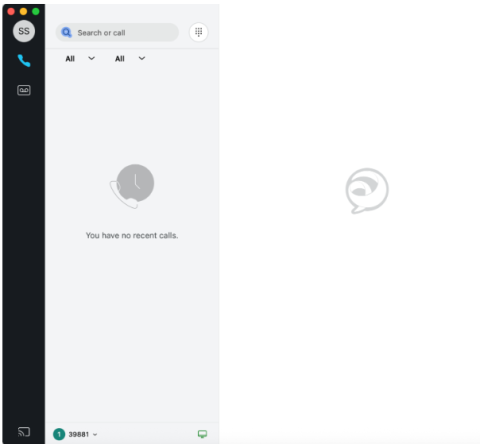
What’s changing at-a-glance
After Sept. 23:
- The IM chat and Persistent Chat functions will no longer be available in the Jabber client.
- Use Teams for persistent 1:1 and group chats.
- The Presence feature will be deactivated. Jabber will no longer display or automatically update availability status to let colleagues know whether you’re available, in a meeting, or out of the office.
- You will need to change your status indicator in Outlook for it to appear correctly in Jabber.
- The calendar icon will still appear along the left side of the Jabber.
- You can continue to access your personal calendar.
- The Contacts feature will be retired. Users will no longer be able to create new contacts.
- Any Jabber contacts you manually created and want to save will need to be reentered manually in Outlook. Those contacts cannot be dialed directly from Jabber.
- You can continue to search UCSF directory contacts when making calls through the Jabber softphone.
Support
To request Jabber softphone services or learn more about how it works, please visit the UCSF Telephone Services website.
To explore UCSF’s preferred collaboration platform – Microsoft Teams – and access training, video tutorials, and other resources, head over to the Microsoft 365 webpage.
For technical issues with Teams or other tools, please contact the IT Service Desk at 415-514-4100 or at help.ucsf.edu.
- Owning Team: IT DWS Unified Comms
-
Team Lead: May Chong