After the CipherCloud agent has been added on your Windows or Mac workstation, you will need to authenticate CipherCloud with your UCSF account. This page will assist you with navigating the process for accessing and logging into the CipherCloud agent.
NOTE: Every thirty days, your connection with CipherCloud will timeout and you will need to re-authenticate with CipherCloud.
Authenticating with CipherCloud for Box
Once you have installed CipherCloud to your Workstation, you will need to use your UCSF email address and password to authenticate with the application, the following steps will assist you with completing this process.
- Launch CipherCloud on your workstation. This may occur automatically after installation or when attempting to access a encrypted file (e.g., .ccsecure) within the Box Drive application.
- On the Log in to grant access to Box screen, select Use Single Sign On (SSO).
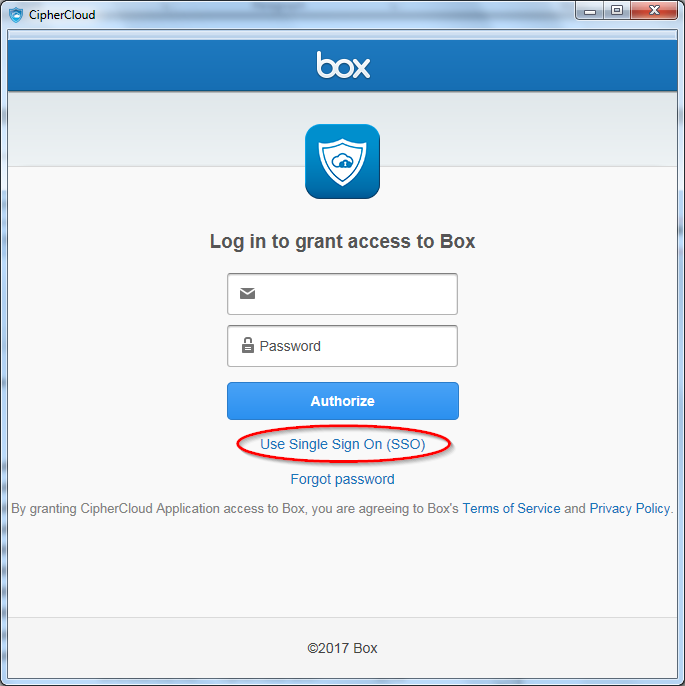
- A UCSF login screen will load, enter your UCSF email address and password.
- Once authenticated, the Grant Access to Box screen will load, select the Grant Access to Box button.
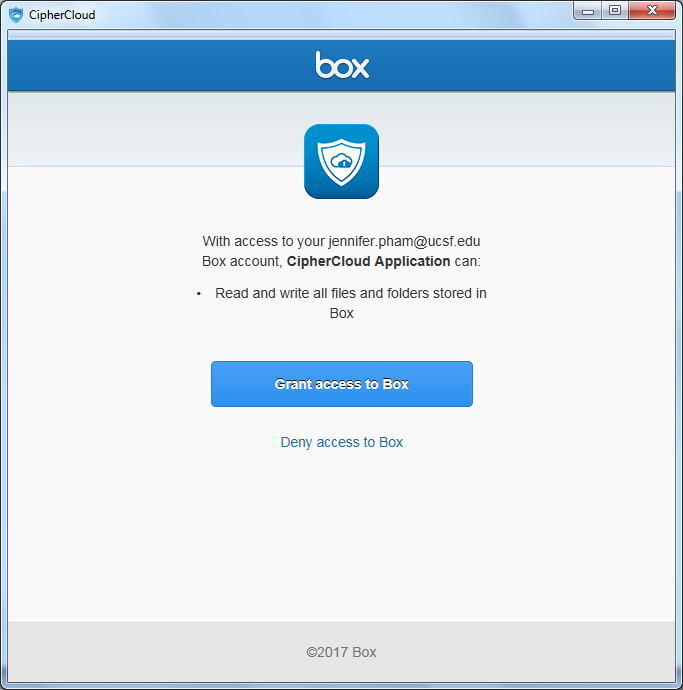
- Congratulations! You have successfully authenticated your Box account with CipherCloud. If you initiated this process by opening an encrypted file, it will open on your device.
NOTE: You will need to repeat this process once every thirty days as your account will timeout once a month.
Authenticating with CipherCloud for Microsoft OneDrive
- Launch CipherCloud on your workstation. This may occur automatically after installation or when attempting to access a .ccsecure file within the Microsoft OneDrive desktop application.
Enter your UCSF email address before clicking Proceed.
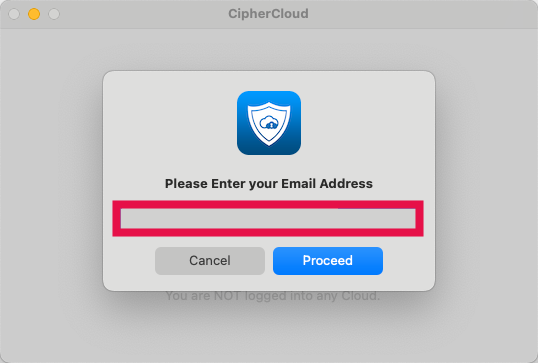
On the Microsoft Sign In screen, enter your UCSF email address.

The UCSF login screen will load, enter your UCSF password before clicking Verify.

- If prompted, authenticate with Duo Multi-factor Authentication.
- The CipherCloud screen will update to show that you are currently connected with Microsoft OneDrive.
- Congratulations! You have successfully authenticated your Microsoft 365 account with CipherCloud. If you initiated this process by opening an encrypted file, it will open on your device.
NOTE: You will need to repeat this process once every thirty days as your account will timeout once a month.