Overview
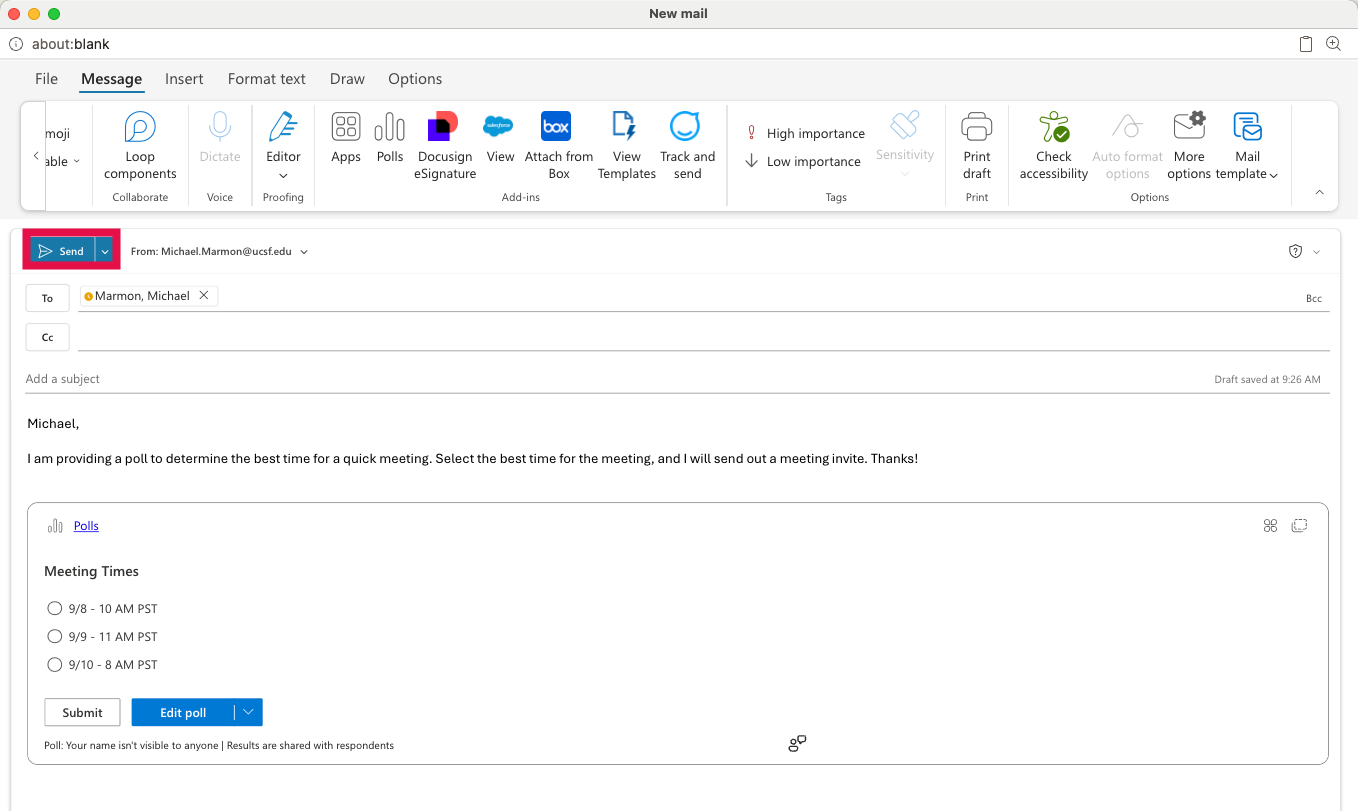
Polls in Outlook is a feature that lets you collect feedback or responses directly from recipients in an Outlook email. This page will assist with creating an Outlook Poll and sharing it with recipients.
Instructions for Creating Polls in Outlook
Step1
In Outlook, select New Email.
Step2
Enter recipients and a subject line for the message.
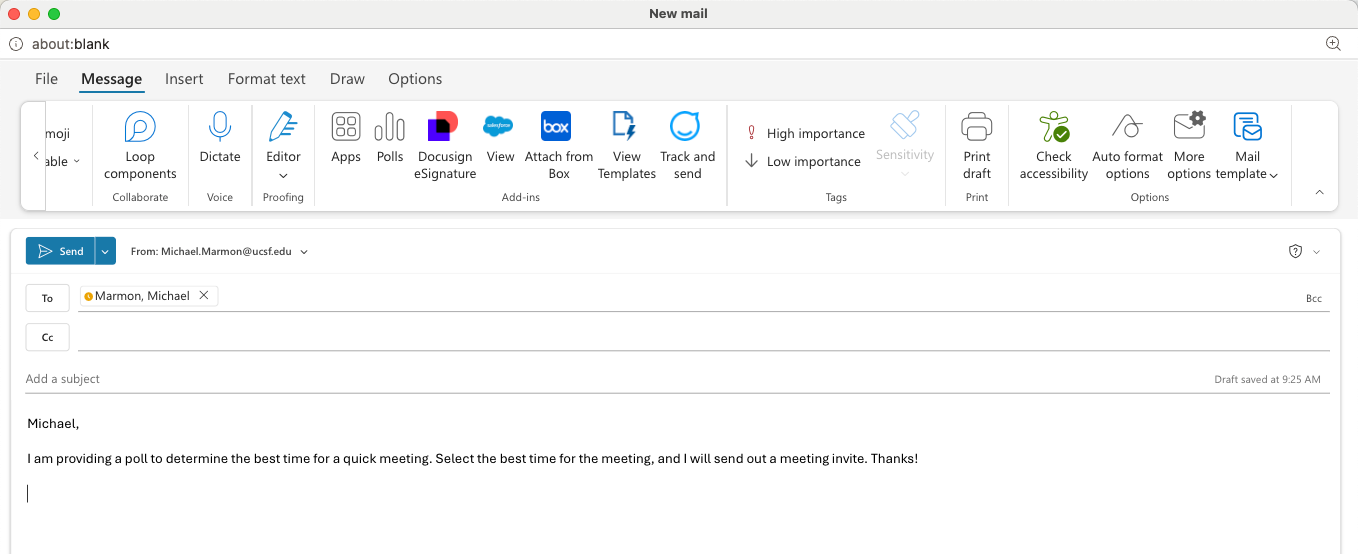
It is recommended to include your message before adding a Poll to provide recipients with context about the poll.
Step3
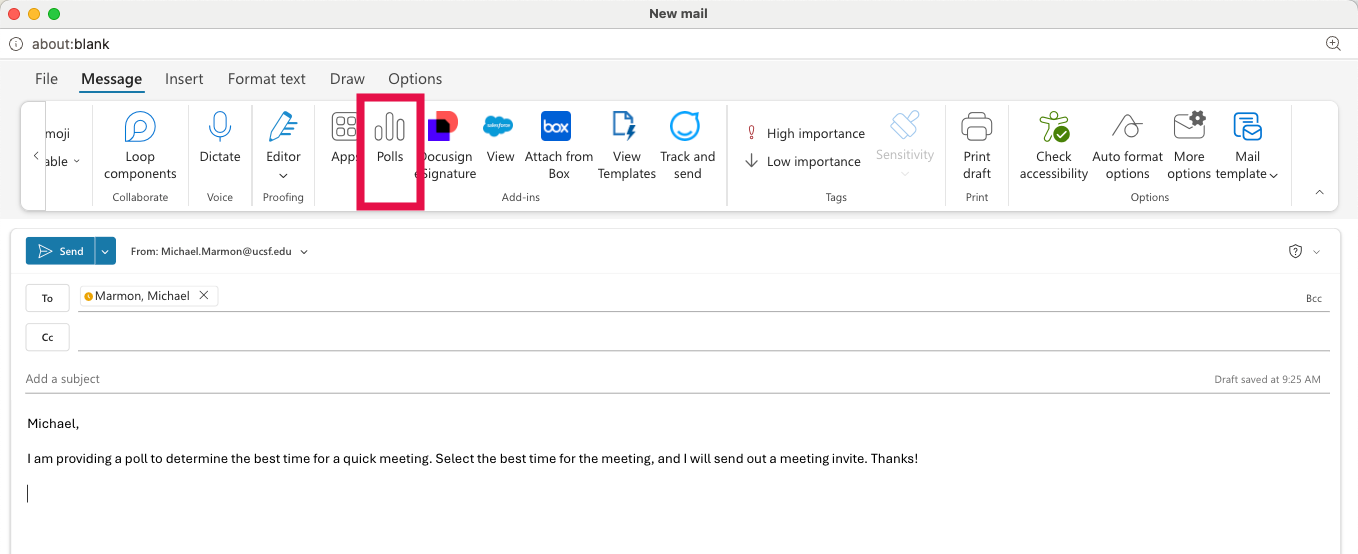
Select Polls.
Step4
In the Polls pane:
Enter a question with at least two answer options. NOTE: Select the Question dropdown to switch question type from Multiple Choice to Quiz, Word Cloud, Rating, or Ranking.
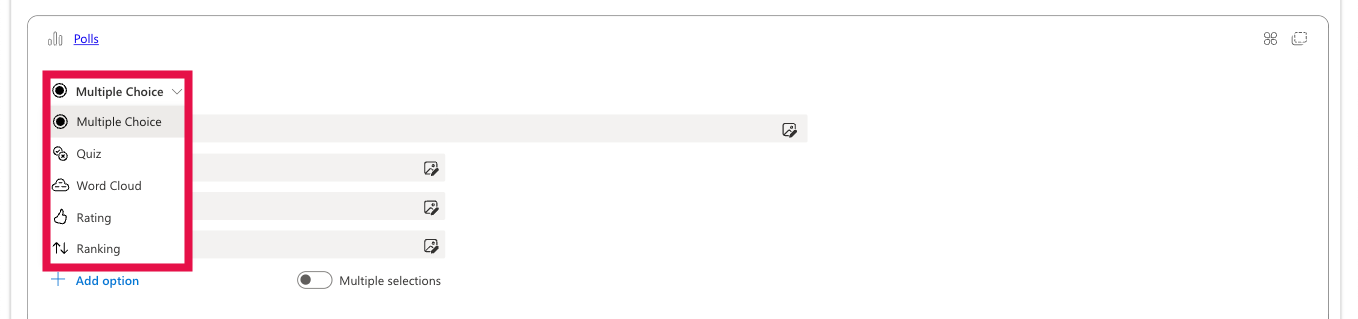
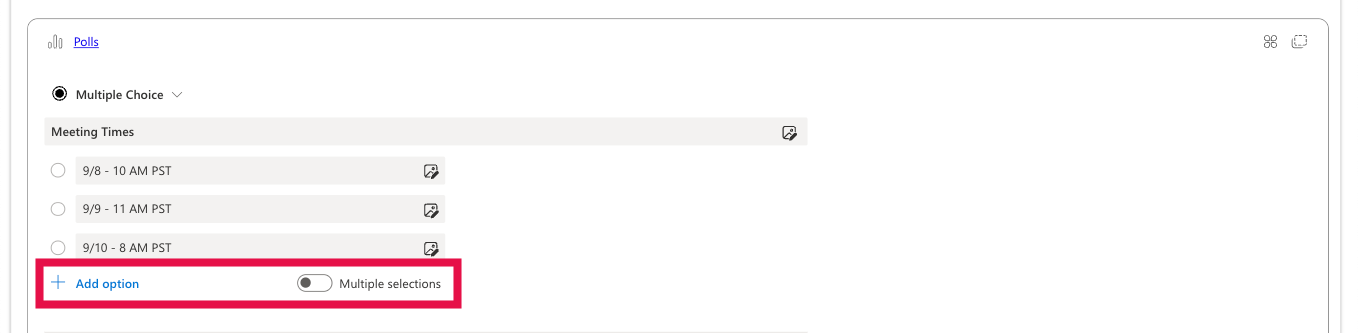
The Add option link will add additional answer options, and the Multiple answers toggle will allow recipients to select multiple options for a question when selected.
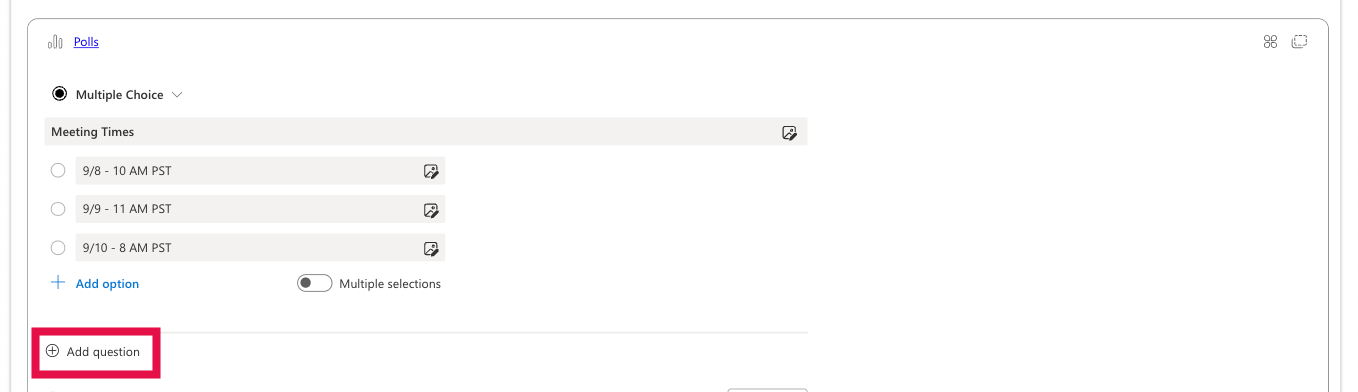
Click Add question to add additional questions to the Poll.
Step5
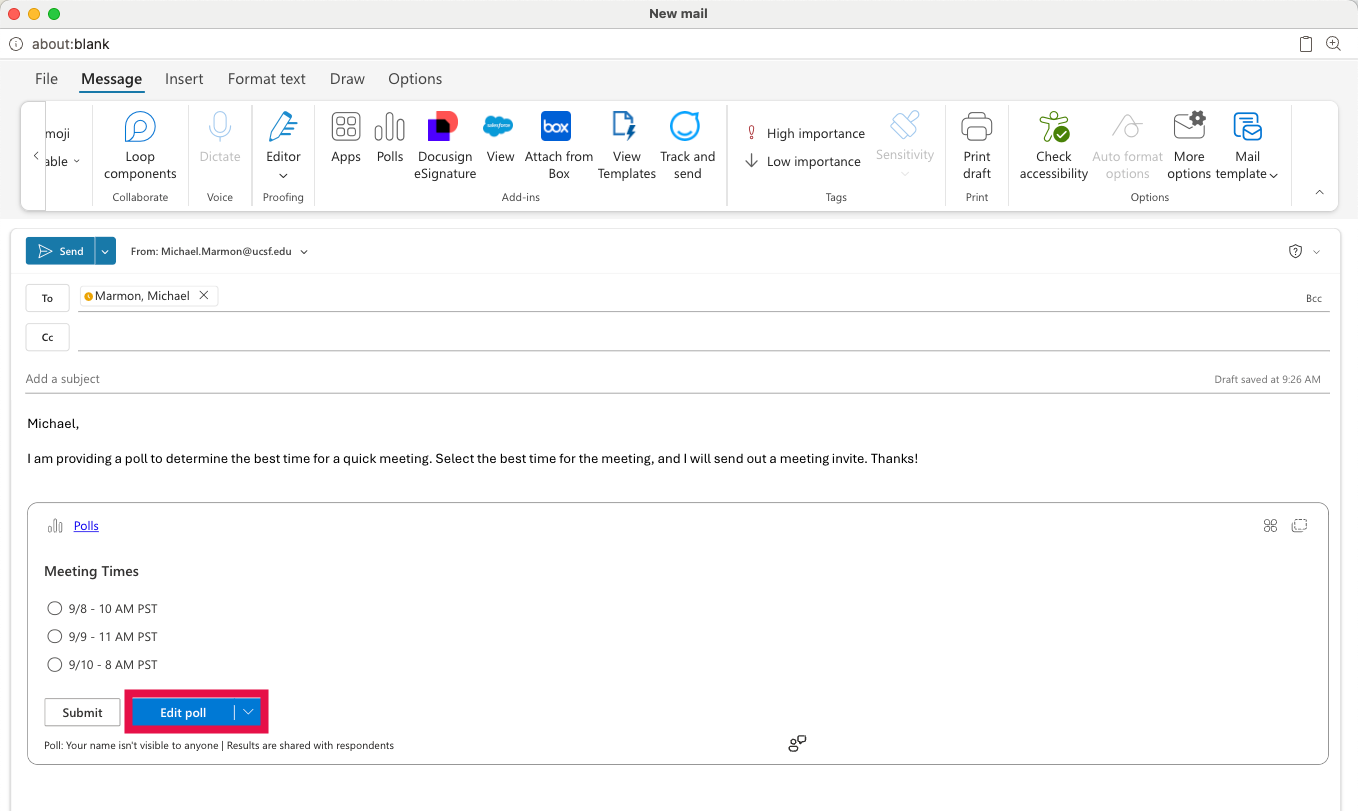
Select Preview to see review your poll.
If you need to edit the poll, select Edit Poll to adjust the poll.
Step6
Click Send.