Overview
Prior to using Box for Outlook, you will need to authenticate with Box. This page will demonstrate this process.
Introduction
Logging into Box for Outlook
Step1
Launch Outlook on your desktop or on the Web.
NOTE: To use Outlook desktop, you will need to be connected to UCSF network via VPN.
Step2
Select a new or existing message within your Inbox.
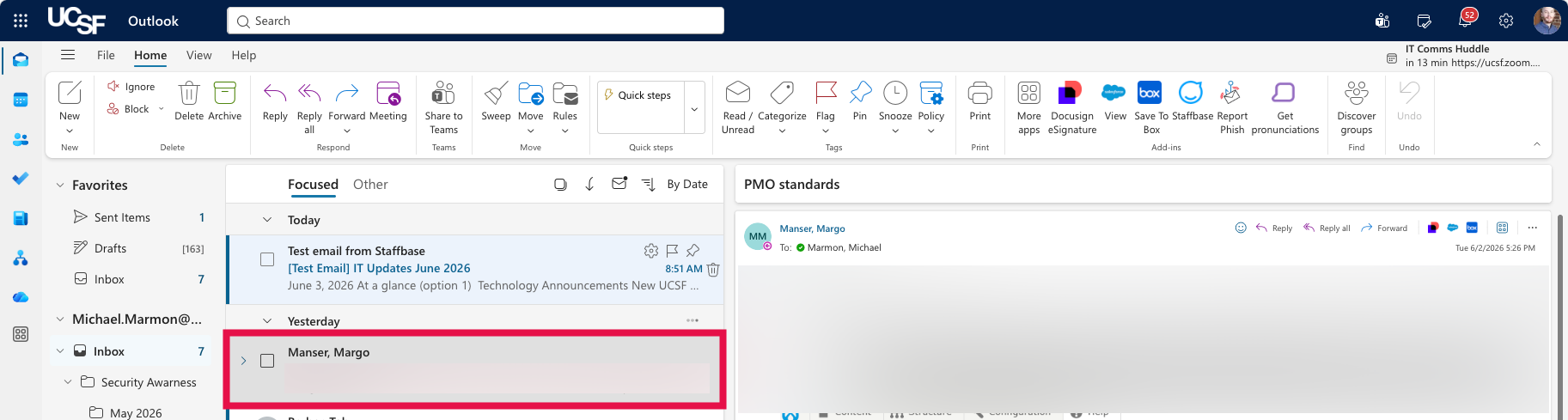
Step3
Select the Box icon.

If prompted with a Box wants to display another window prompt, click Allow.
Step4
In the Box information panel, click Log In.
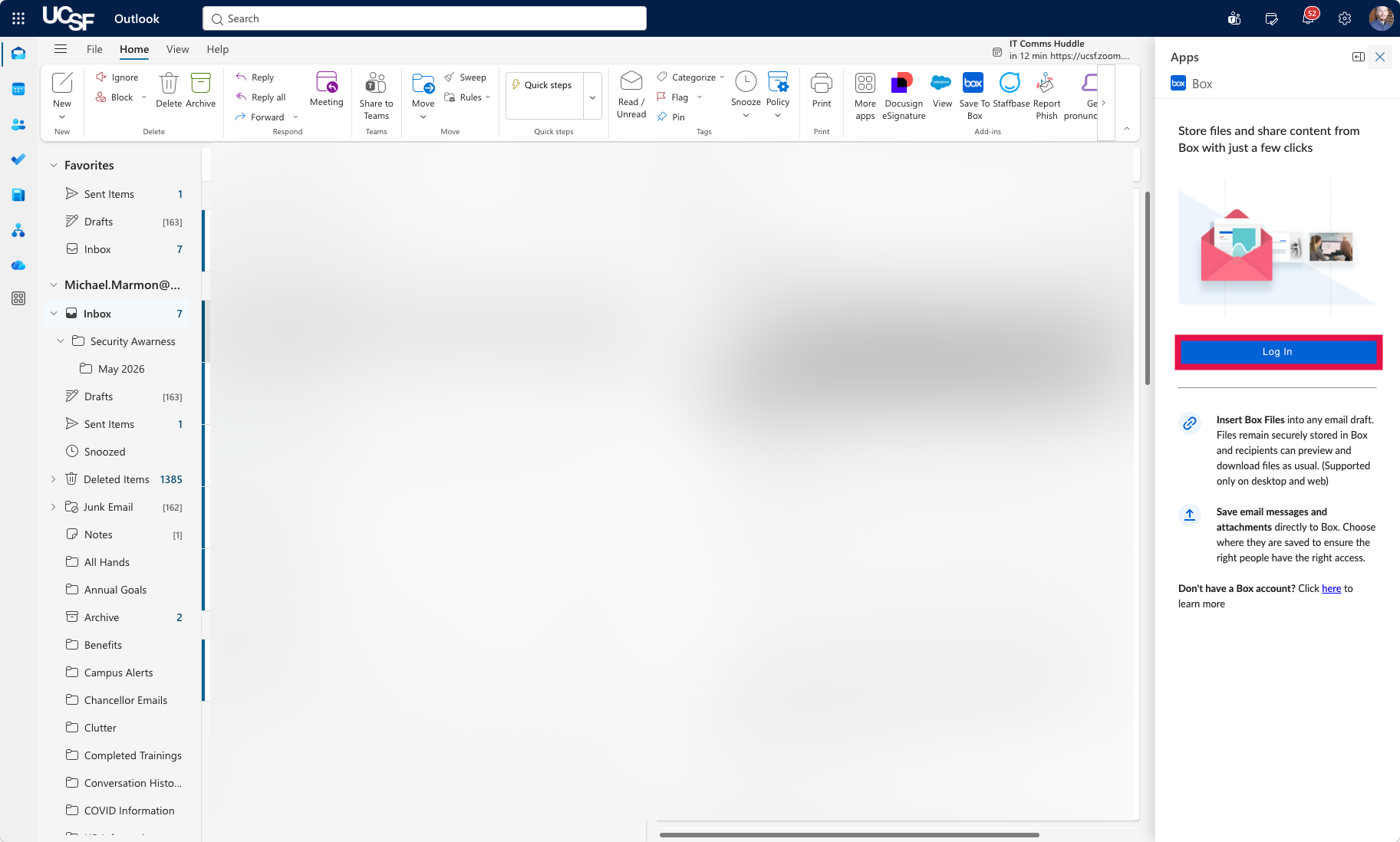
Step5
In the Log in to grant access to Box window, select Use Single Sign On (SSO).
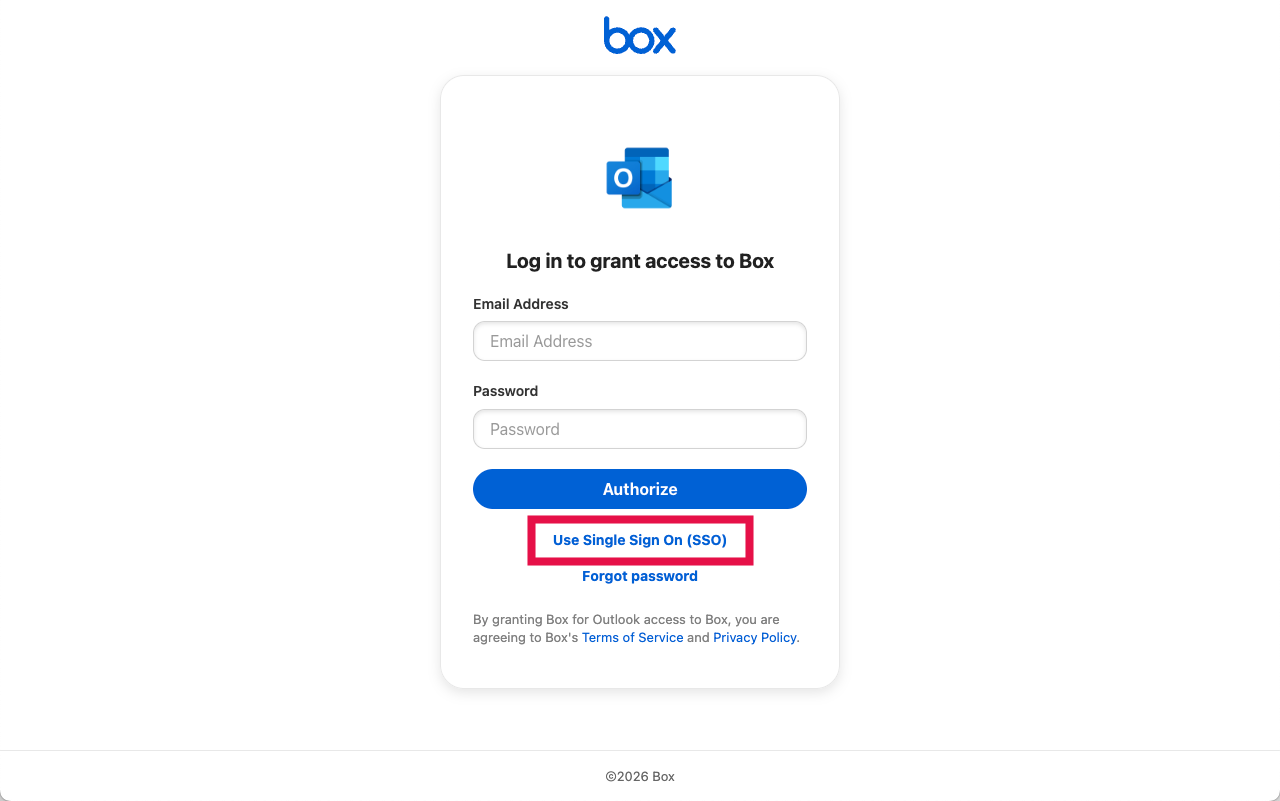
Step6
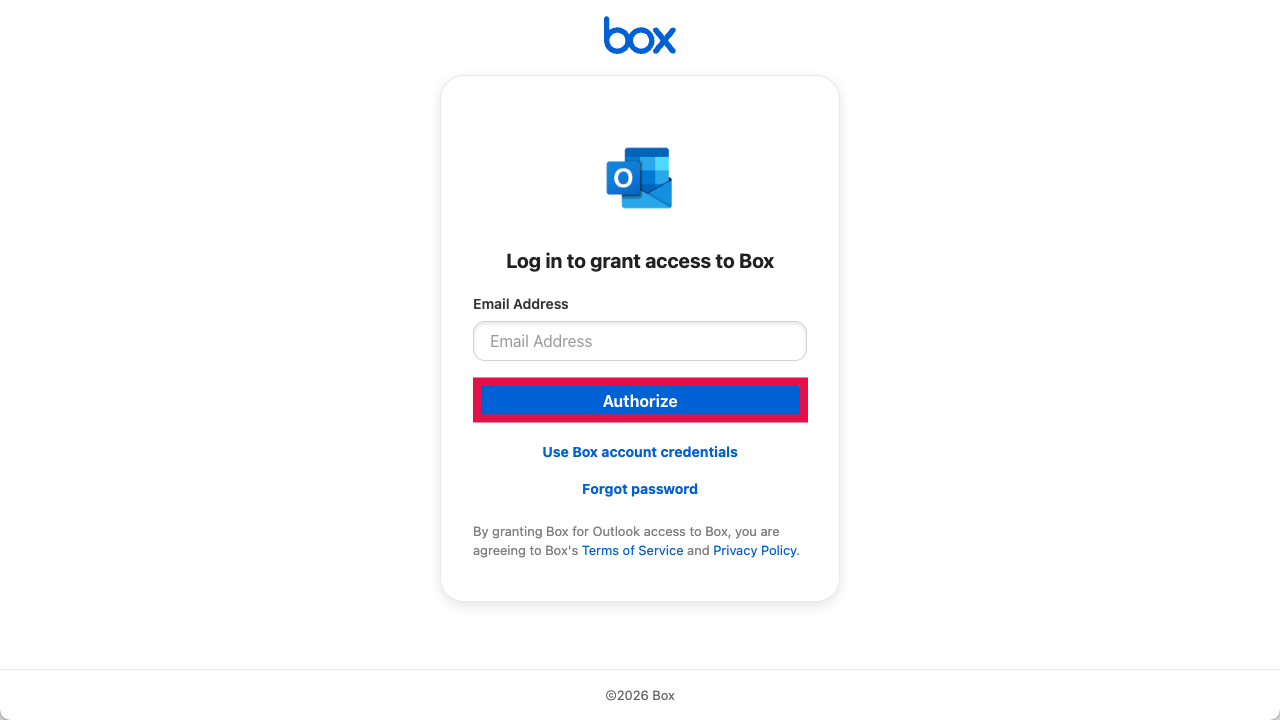
Enter your UCSF email address into the Email Address field, click Authorize.