Overview
There may be instances where you need to save email messages from Box to Outlook for archival purposes. This page will demonstrate the process in Box for Outlook.
Introduction
Saving Email Messages from Outlook to Box
Step1
Launch Outlook on your desktop or on the Web.
NOTE: To use Outlook desktop, you will need to be connected to the UCSF network via VPN.
Step2
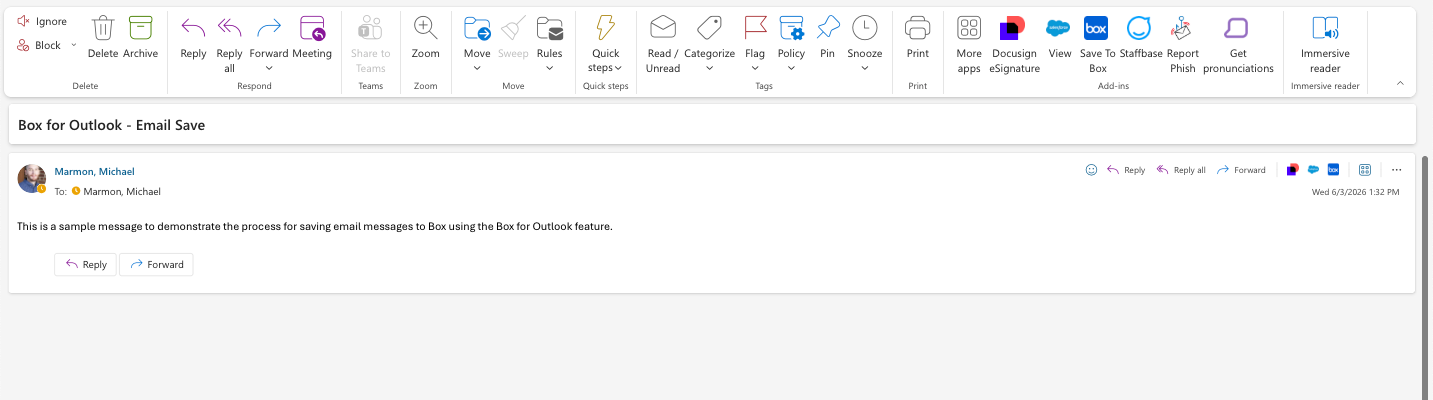
Open an existing message.
Step3
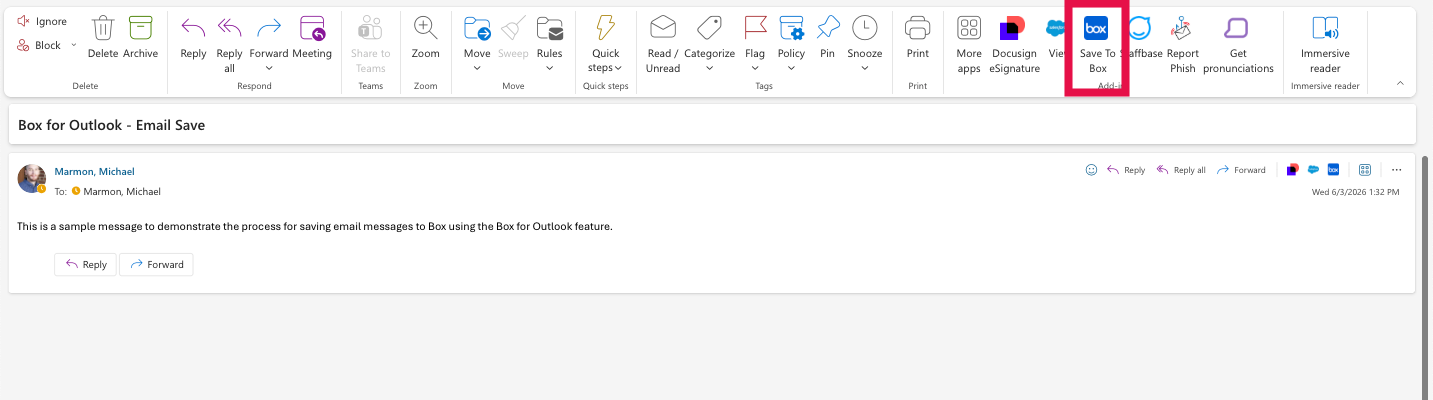
Select the Box icon.
Step4
If prompted to login in within the Box Information pane, login to Box.
Step5
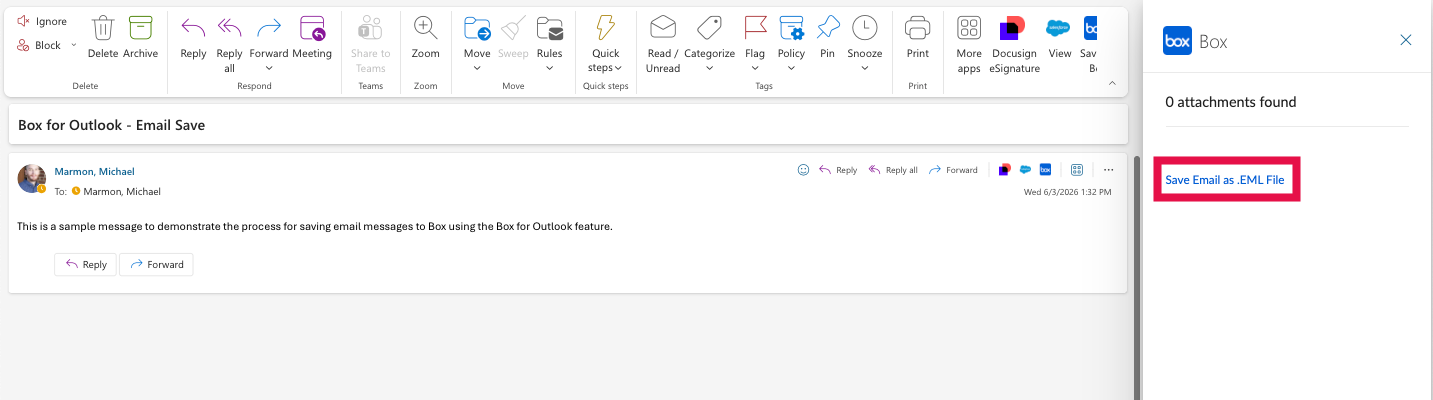
The Box pane will load displaying the file names of the attachments to save (if applicable), navigate to the bottom of the pane and select Save Email as .eml file.
NOTE: Check the Subject Line before saving as subject lines containing unsupported characters will cause an error. Simply update the subject to remove these characters before attempting the save process.
Step6
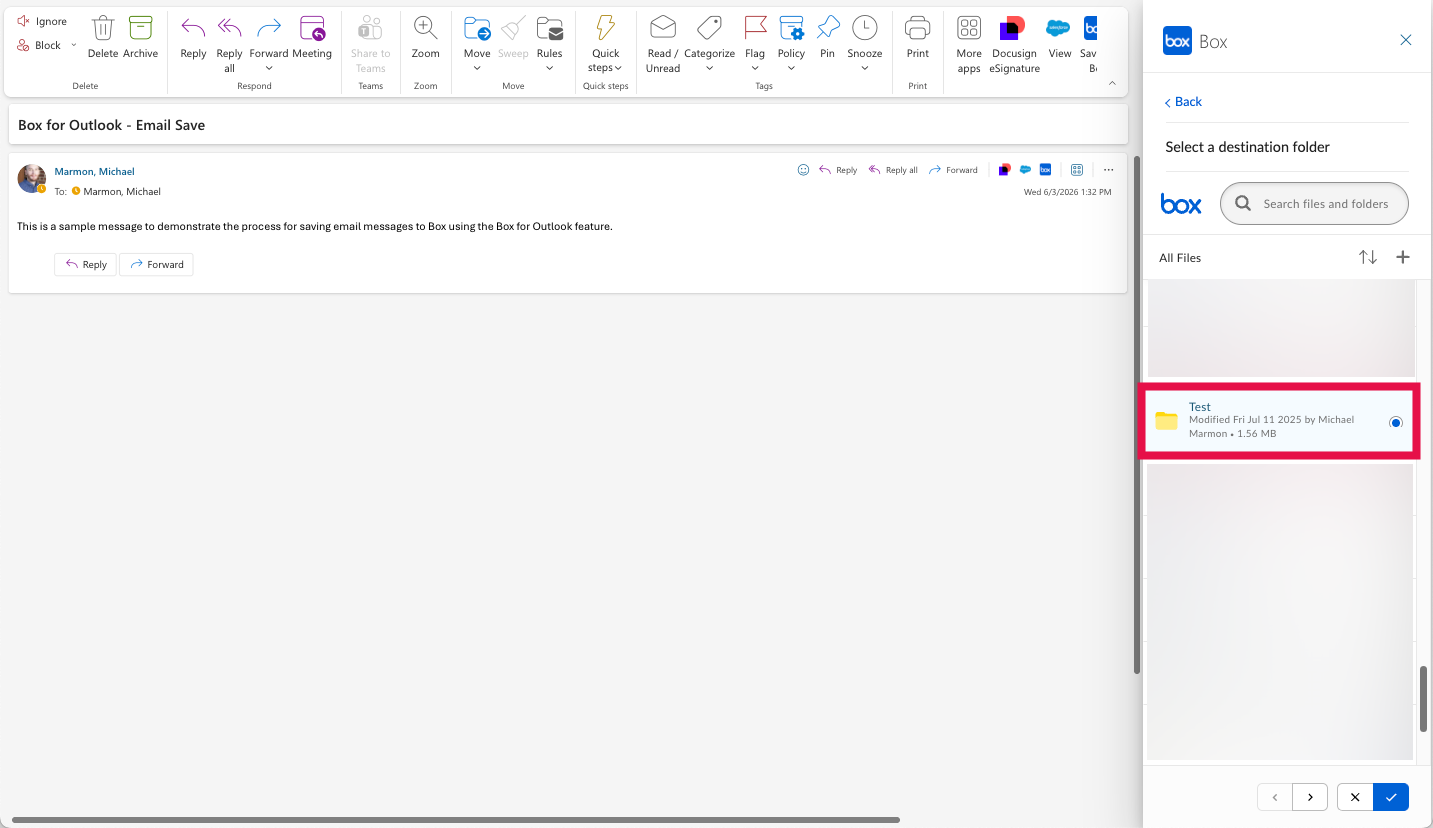
Select the radio button next to the destination folder in Box for the message.
Step7
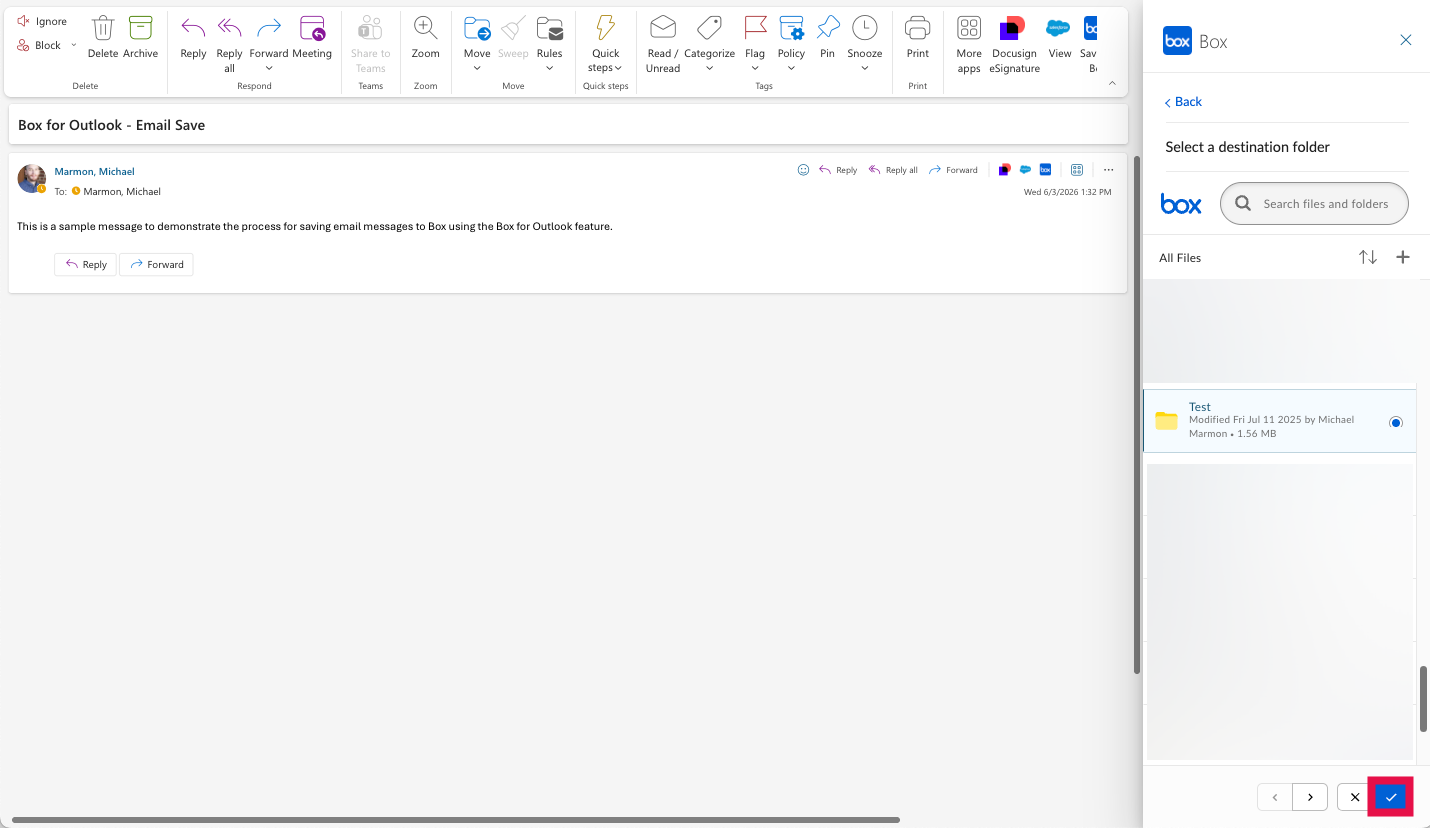
Below the list of folders, click the check box to save the message to the desired folder in Box.
NOTE: Click the X if you would to cancel the saving of an email message.
Step8
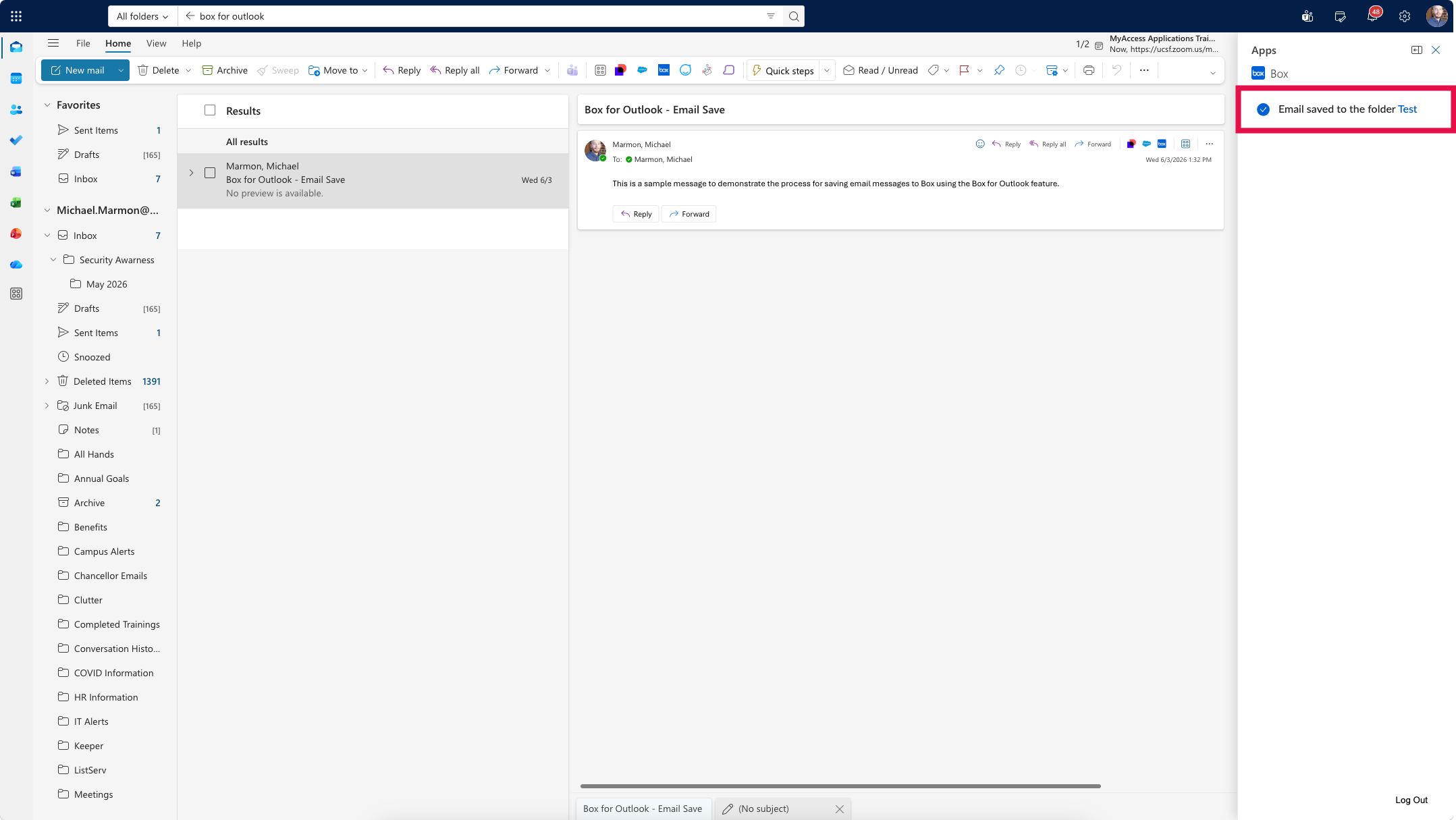
The Box pane will refresh and provide a confirmation that the email message has been saved to Box.