University of California San Francisco Give to UCSF

UCSF IT Technology

Main navigation

  • About Us
    • About Us
    • Mission Areas
    • IT Directory
    • Standards and Guidelines
  • Services
    • Services
    • Status
    • Security Announcements
  • Initiatives
    • Initiatives
    • AI at UCSF
    • IT Operating Model (ITOM)
    • Project One
    • Lift & Shift | Drupal 7-to-Drupal 10 Update Project
    • Digital Accessibility Compliance Project
    • Knowledge Management Project
    • Zoom Workspace
    • IAM Modernization Program
  • News & Events
    • News & Events
  • How-To Articles
  • Log In
Open Close Search
Open menu
Give to UCSF

Breadcrumb

  1. Home
  2. How To
  3. Microsoft Teams: Working With External Collaborators

This content is viewable by Everyone

Microsoft Teams: Working with External Collaborators

Save

Log in via MyAccess to save.

  • Audience: Affiliate, Nurse, Physician, Research Staff, Researcher, Staff, Technical Partner
  • Service Category: Email & Collaboration
  • Owner Team: IT DWS Collaboration
  • Service:
    Microsoft 365: Teams

Microsoft Teams is a collaboration application that facilitates conversations and work with individuals both internal and external to the UCSF enterprise. This page will assist you with adding external collaborators (e.g., Individuals outside of UCSF) to chats and channels within Microsoft Teams.

Adding External Collaborators to Teams' Channels

The process for adding external collaborators to channels within Microsoft Teams is simple and makes it easy to collaborate in real-time with individuals outside of the UCSF enterprise. Let's take a moment to review the steps for adding an external collaborator to a channel in Microsoft Teams. NOTE: External Collaborators will be able to be added to private channels in Microsoft Teams.

  1. Select the Teams icon in Microsoft Teams.
  2. Hover over the team name that you would like to add the external collaborator to.

    Adding a member to Teams channels
  3. Select the ... for the team before selecting the Add Member option.

    add member to Teams dropdown


  4. Enter the external collaborator's email address in the Type a name or email field.

    Teams enter external email address
  5. Click the Send Request button.

    Teams adding a member and send request button
  6. The external collaborator will receive an email providing access to the selected team in Microsoft Teams!

Adding External Collaborators to Teams' Chats

Once an external collaborator has been added to a team in Microsoft Teams, you can initiate direct chats with external collaborators as well. NOTE: You can add an external collaborator to a chat first but it is a best practice to add them to a team first.

  1. Select the Chat icon in Microsoft Teams.

    Teams chat icon
  2. Click the pencil and pad icon in the Chat window.

    Teams chat pen icon
  3. Enter the external collaborator's email address in the Enter name, email, group or tag field.
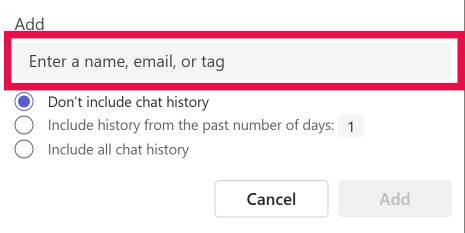
    Teams enter name for chat


  4. Enter the content of your message with the external collaborator before clicking the send button.

    Teams send message box
  5. The external collaborator will receive your direct chat message within Microsoft Teams!


Section Menu
Microsoft 365: Teams
  • Microsoft 365: Teams Training
  • Microsoft 365 Mobile Applications
  • Microsoft 365: Teams FAQs
  • Box to Teams Manual Migration Guide
  • Microsoft 365: Forms for Excel, Outlook, and Teams
  • Microsoft 365: Planner
  • Microsoft 365: Poll Everywhere for PowerPoint and Teams
  • Microsoft 365: Assignments for Teams
  • Microsoft 365: Shifts for Teams
  • Microsoft 365: Stream (on SharePoint)
  • Microsoft 365: Microsoft Whiteboard
  • Task Management in Office 365
Home

Footer Col 1

  • Status
  • Services
  • How To
  • News & Events

Footer Col 2

  • About
  • IT Directory
  • Standards & Guidelines

Footer Col 3

  • Get Help
  • Recognize IT Staff
  • Submit a Support Inquiry

    For emergencies and high priority issues please call the IT Service Desk (415) 514-4100

    • Facebook
    • Twitter
    • YouTube
    • Instagram

    © 2025 The Regents of the University of California