Frequently Asked Questions
UCSF prefers employees use a department-provided cell phone or a Jabber softphone. Learn more about Jabber.
As of July 2024, monthly phone lines are funded centrally by UCSF IT. This means phone line costs are no longer the responsibility of departments or individual staff. The centrally funded services include the devices and phone lines associated with Jabber softphones, desk phones, elevator phones, life safety phone lines, blue pole phones located on campus, red emergency phones. Devices and phone lines not covered centrally include Voalte, mobile devices, and pagers.
No. Departments remain responsible for ongoing management of phone numbers assigned as primary or main department lines, to individuals, and to any other shared lines.
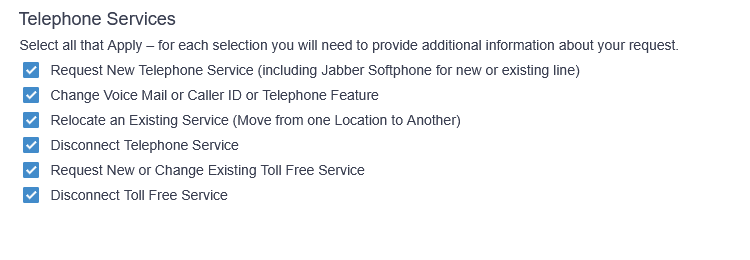
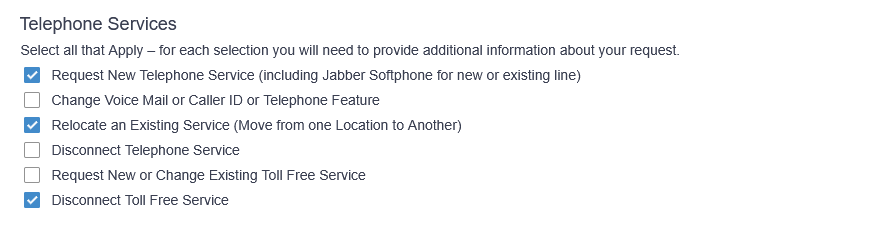
Yes. You can check multiple boxes (request multiple services) on the same request form. See examples below:
Example 1
Example 2
Yes. First select all applicable services on the form. The next screen will allow you to select each service for one or multiple users. See example below:
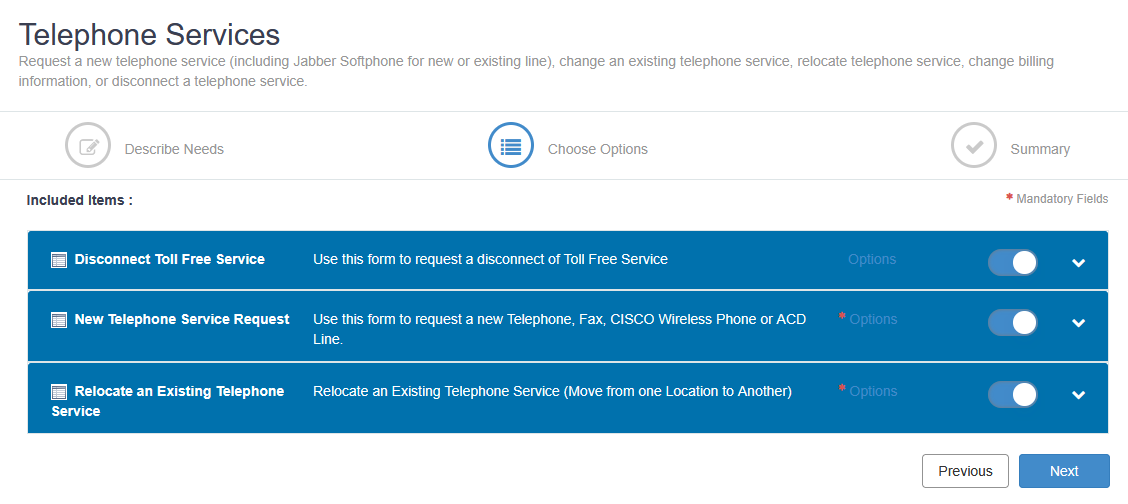
Expand the item by selecting the down arrow, then click Add.
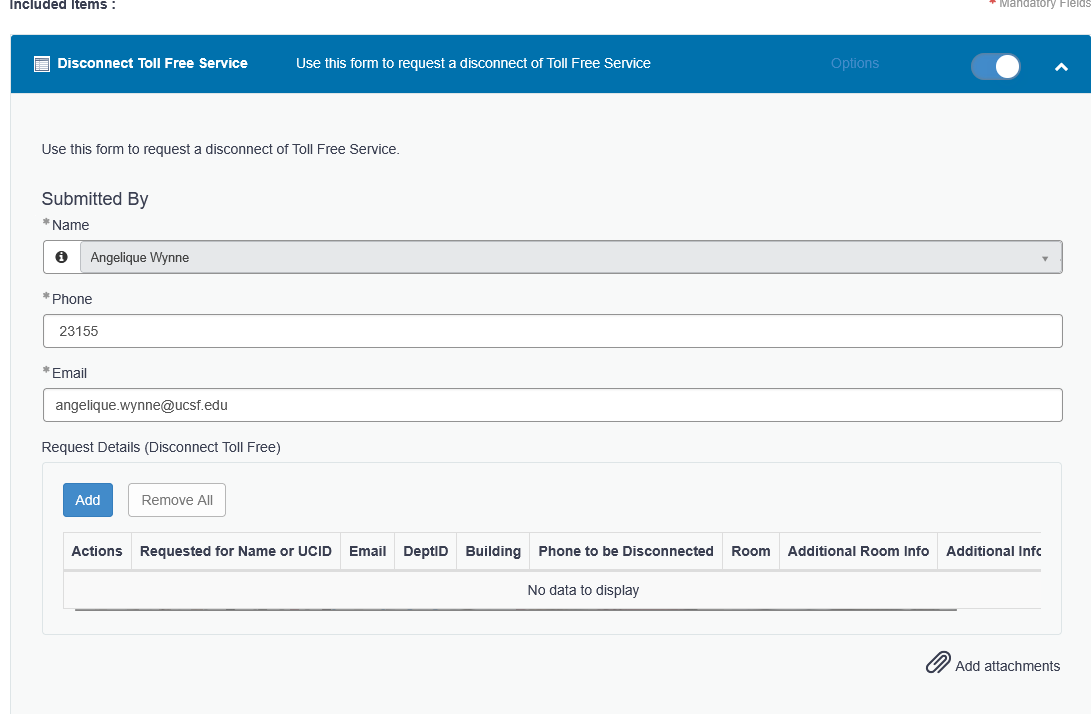
Fill in all required (*) information and any additional helpful information, then click Add again.
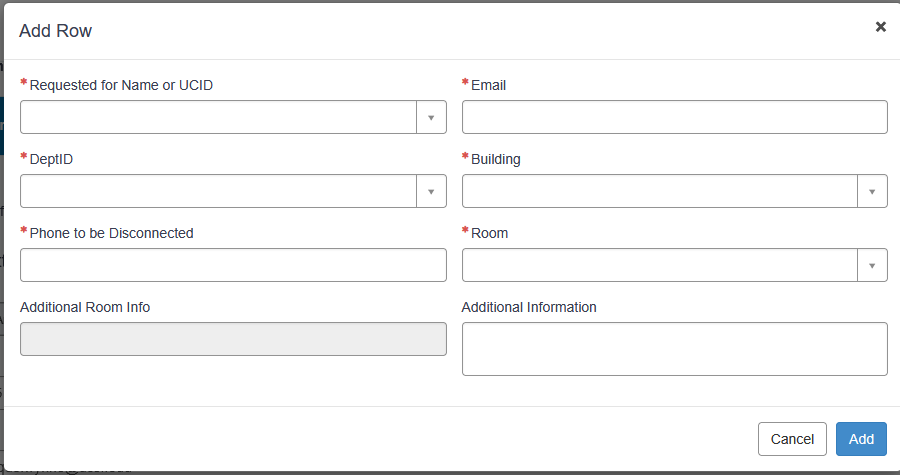
You will add a line item for this service. Add additional rows as needed by clicking Add under the specified service.
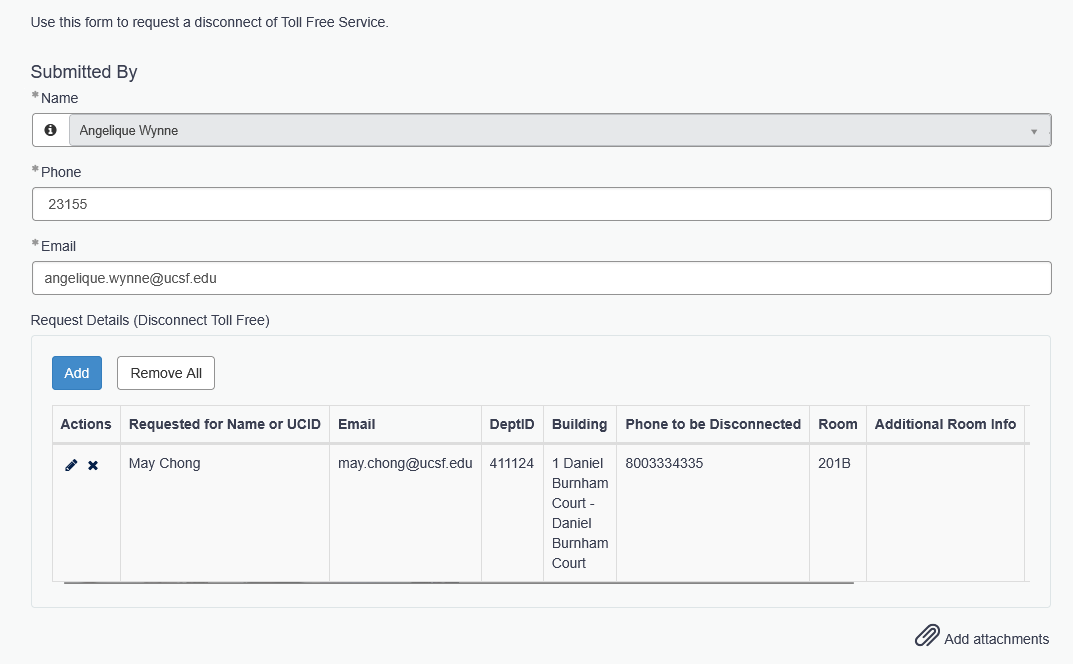
Once all service requests have been filled out, click Next at the bottom of the page to submit your request(s).

UCSF Telephone Services supports the Jabber softphone application and your Jabber phone number only. Personal or UCSF-provided cell phone numbers are not supported.
If your Jabber app is working on your mobile device and you can make and receive calls within the Jabber app, it is likely connected via Wi-Fi or cellular data and functioning as designed. Issues related to your actual cell phone number, mobile carrier service, or mobile plan are not supported by UCSF Telephone Services.
For assistance, please contact the IT Service Desk at 415-514-4100.
Contact your department or the IT Service Desk at 415-514-4100.
You can reset your voicemail PIN yourself as long as your voicemail is assigned to your UCSF username. This applies to Cisco desk phone and Jabber softphone voicemail only. It does not apply to the BCH Oakland voicemail system.
NOTE: This process does not apply to:
- BCH Oakland voicemail system. Report a BCH Oakland telecom issue by completing this form.
- Nortel-Avaya phones. For those phones, a ticket must be submitted.
Nortel/Avaya locations:- 900 Hyde Street, San Francisco
- 909 Hyde Street, San Francisco
- 1199 Bush Street, 1st floor, San Francisco
- 1777 Botelho Drive, suite 110, Walnut Creek
If you are able to reset your PIN using one of the options below, then your UCSF username is correctly associated with your voicemail box. Your UCSF username is typically the same username you use to log in to your computer. If this is a shared voicemail associated with a shared department email then you will need to have the username associated with that email address and access to the shared email account.
NOTE: This process does not apply to:
- BCH Oakland voicemail system. Report a BCH Oakland telecom issue by completing this form.
- Nortel-Avaya phones. For those phones, a ticket must be submitted.
Nortel/Avaya locations:- 900 Hyde Street, San Francisco
- 909 Hyde Street, San Francisco
- 1199 Bush Street, 1st floor, San Francisco
- 1777 Botelho Drive, suite 110, Walnut Creek
Option 1: Voicemail portal (Recommended)
Visit https://voicemail.ucsf.edu/ and log in with your UCSF credentials. You may be prompted to log in twice. Follow the on-screen instructions to reset your PIN.
Option 2: Reset by phone
- Call 415-514-8810.
- Enter your MB#/ID:
- Stanyan Hospital users: Full 10-digit MB#/ID
- All other users: Last 5 digits of your MB#/ID
- Press 1 to confirm your extension.
- A temporary PIN will be sent to the email address associated with your voicemail box. Note: This option only works if your voicemail account has a valid email address on file.
If you are unable to reset your PIN using the options above, please contact the IT Service Desk for assistance.
Find additional information in the voicemail set up frequently asked questions or all voicemail FAQs.
NOTE: This process does not apply to:
- BCH Oakland voicemail system. Report a BCH Oakland telecom issue by completing this form.
- Nortel-Avaya phones. For those phones, a ticket must be submitted.
Nortel/Avaya locations:- 900 Hyde Street, San Francisco
- 909 Hyde Street, San Francisco
- 1199 Bush Street, 1st floor, San Francisco
- 1777 Botelho Drive, suite 110, Walnut Creek
Submit a request when you are asking for a new service, a change to an existing service, or access to a feature you do not currently have (e.g., a new Jabber softphonesetup, call forwarding changes, or a phone move).
Submit a repair ticket when something that was previously working is no longer functioning as expected (e.g., you cannot make or receive calls and you were able to before, voicemail is not working and it’s assigned to you, or your Jabber app will not connect).