Overview
The process for accessing Canva as a non-learner user is simple. This page will walk you through the process for accessing Canva from start to finish!
These steps will demonstrate the process for accessing Canva as a non-learner user once you have received your invite to Canva.
NOTE: Canva should not be purchased for UCSF resource accounts as these email accounts cannot authenticate to Canva. Departments should purchase individual accounts to collaborate on projects in Canva.
NOTE: Canva will be going live on December 10th, 2025. Any early requests for accounts will not be processed until that date.
Accessing Canva as a Non-Learner User
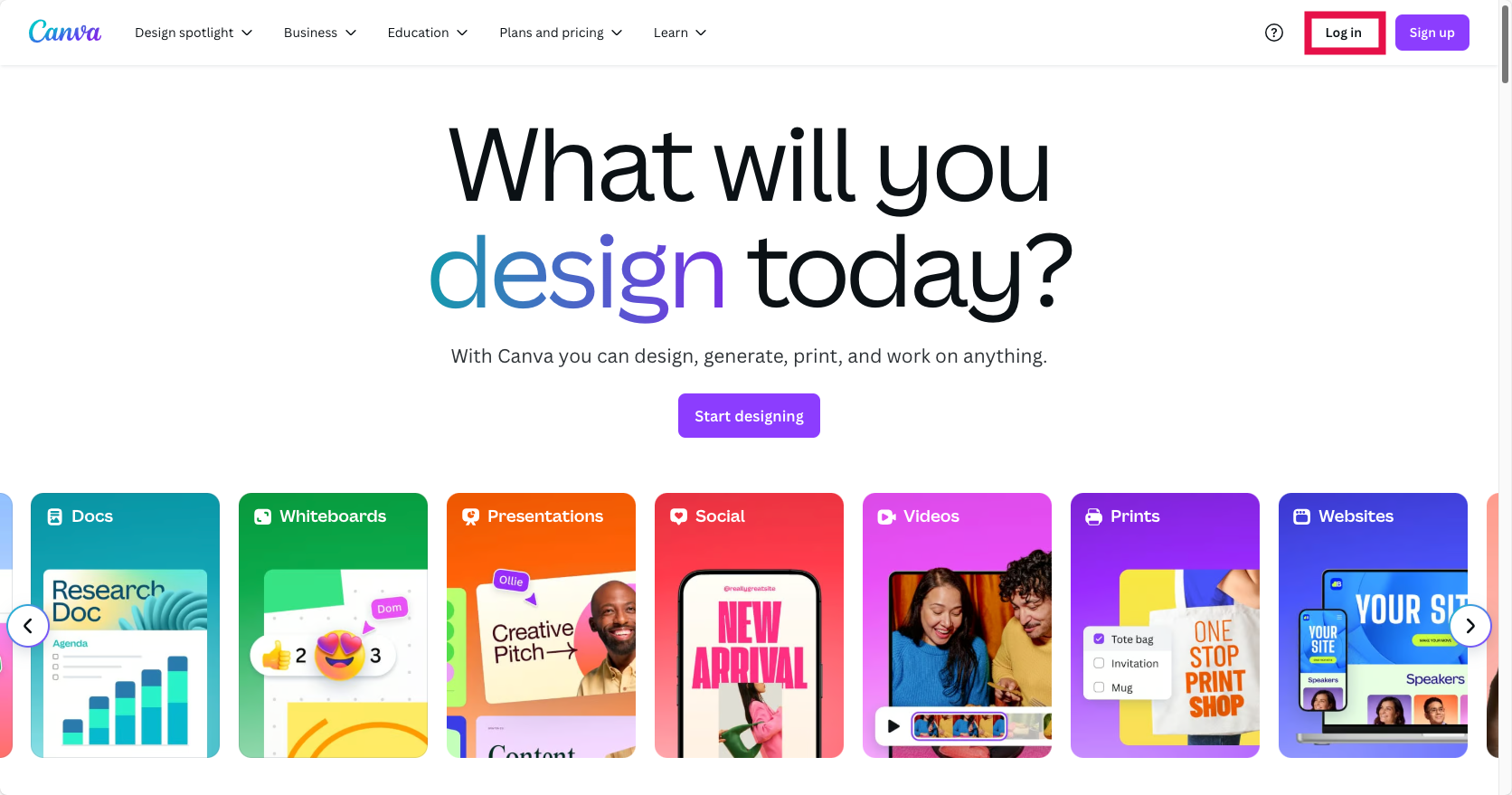
- Navigate to the Canva.com to log in.
Click the Login button.
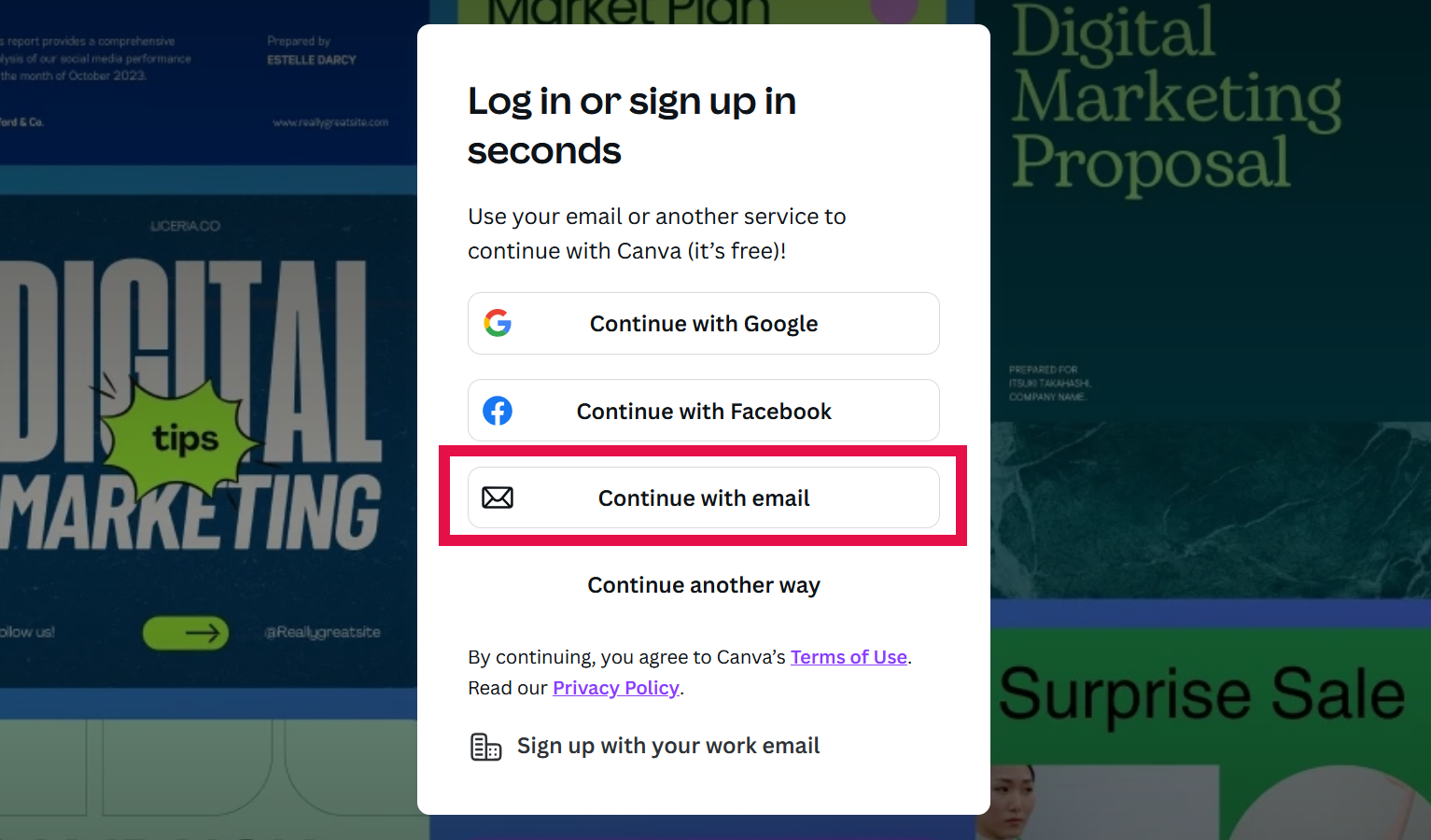
Click the Continue with email button.
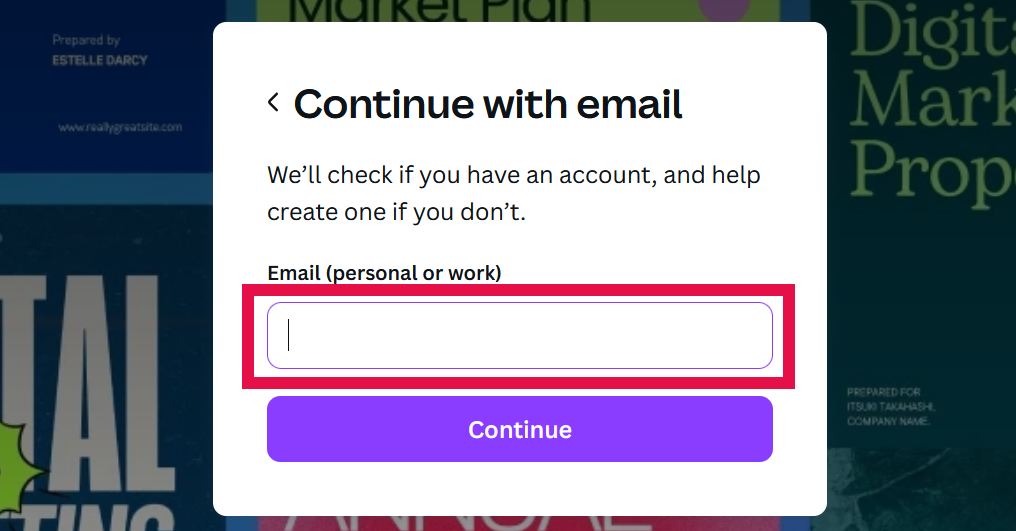
On the Continue with email screen, enter your UCSF email address before clicking the Continue button. NOTE: If this is your first time logging into Canva, you will receive a One time use code via email. Once you verify your account, you will be able to use the SSO option moving forward.
Click the Log in with SSO button.
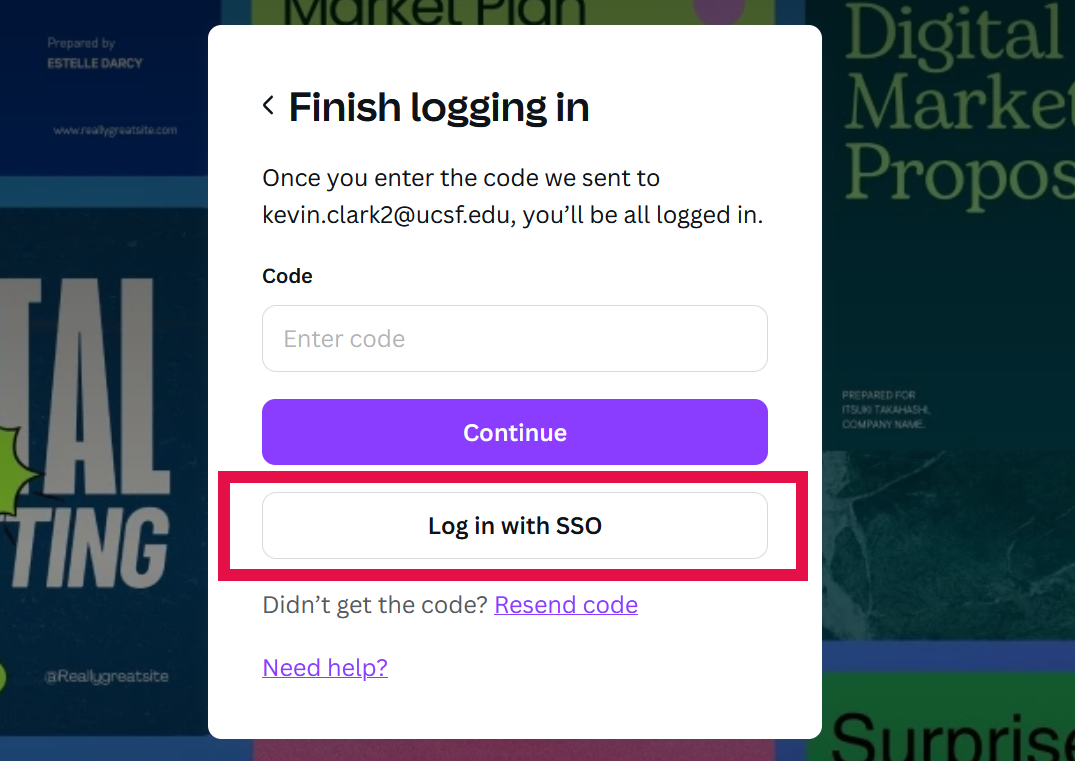
On the UCSF login screen, enter your UCSF Login Name and password before clicking the Sign in button.
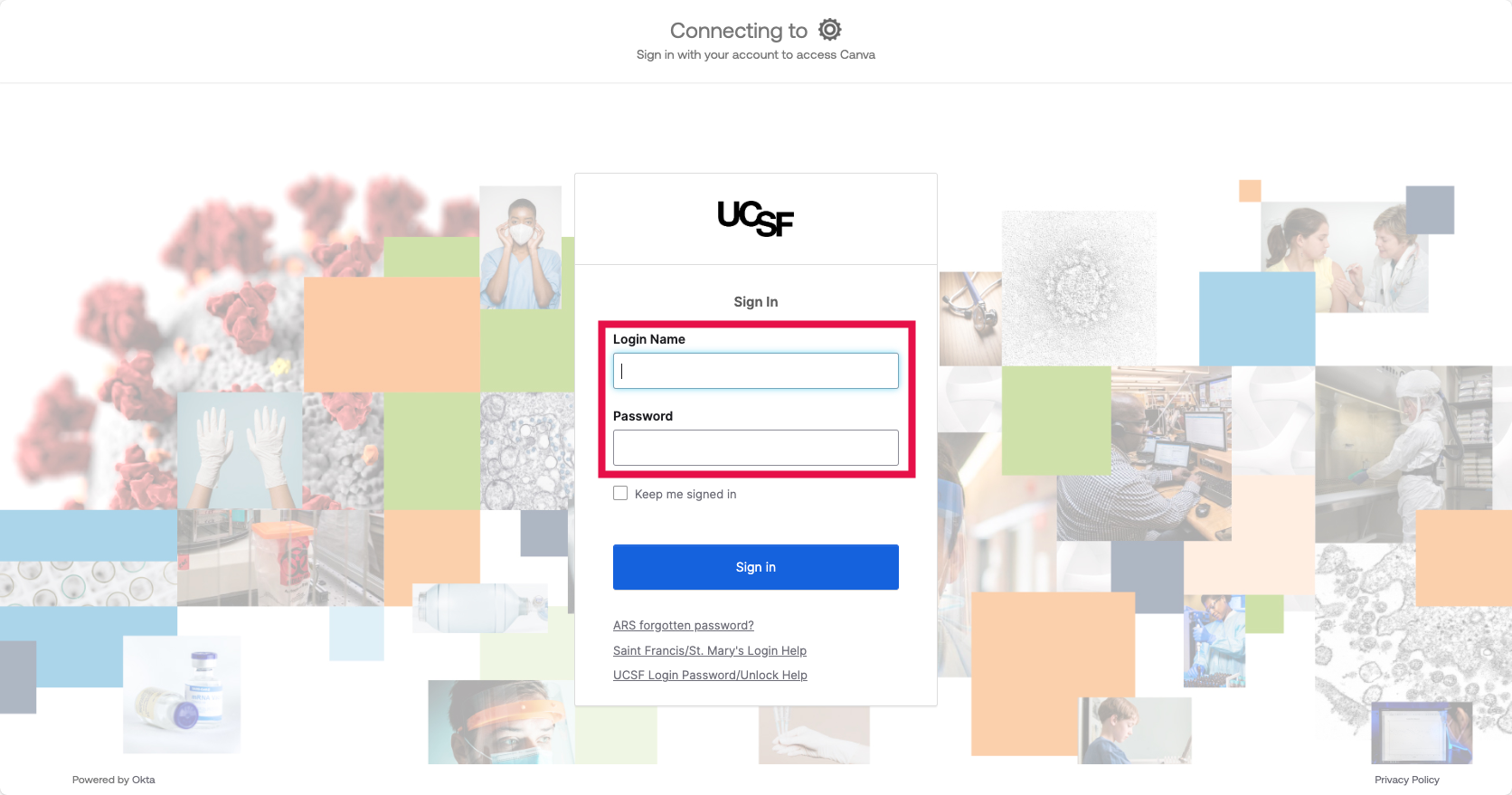
NOTE: You may be prompted to authenticate with Duo. Simply complete your preferred method of authentication to access Canva.
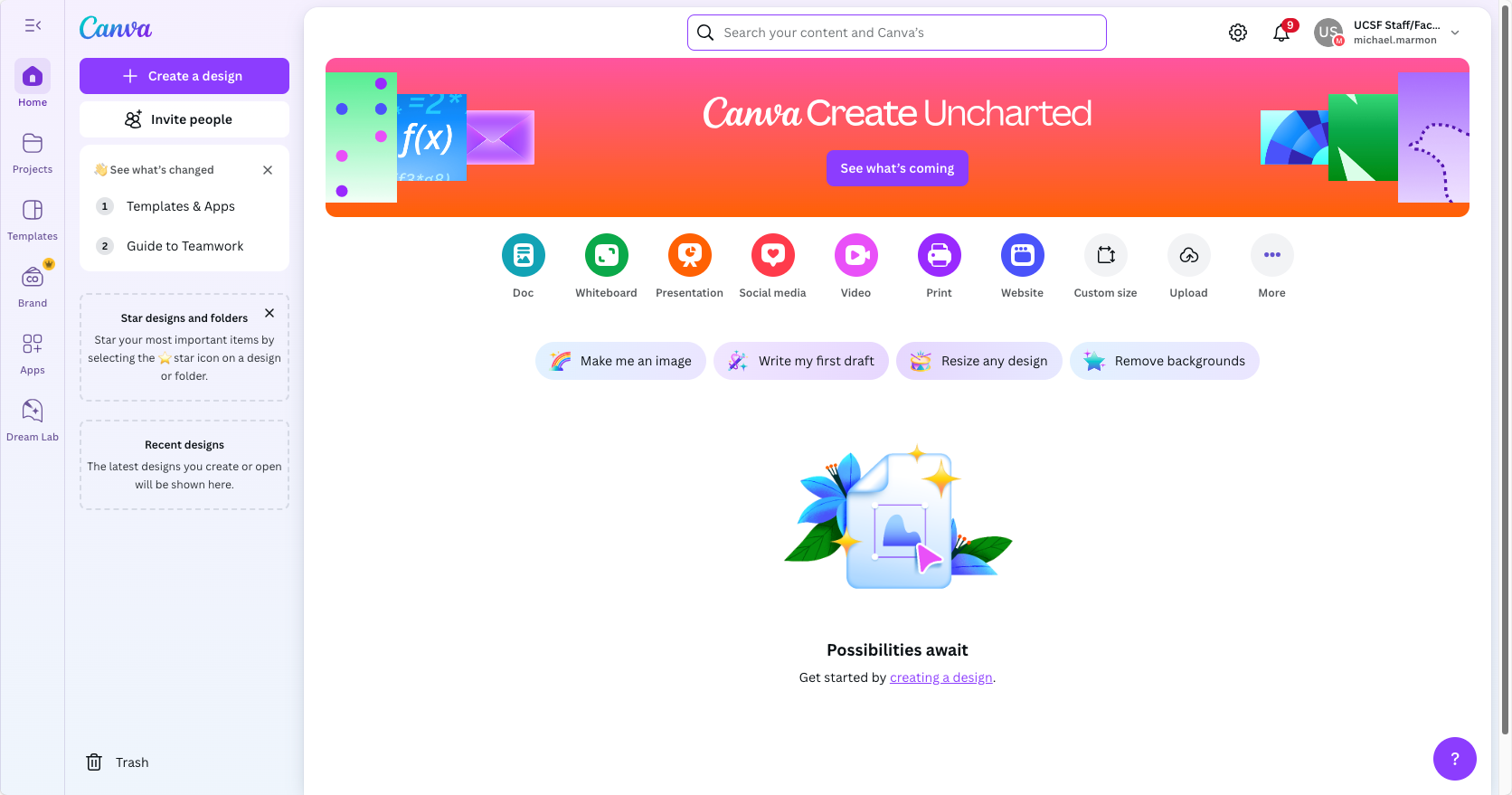
The Canva page will load successfully. Congratulations! You are now able to access and use Canva.
NOTE: UCSF prioritizes making all content accessible. When you create using Canva, check your work using the integrated design accessibility tool. Also consult UCSF’s Digital Accessibility Project for guidance on WCAG compliance.