This guide provides steps on how to sign up for your free UCSF Learner Canva account.
NOTE: Canva will be going live on December 10, 2025. Any early requests for accounts will not be processed until that date.
How to request a free license for learners
Submit a Canva Account Request Student Form that includes an attestation that P3/P4 data (PHI/PII) will not be included in any Canva project.
How to sign in to Canva.com
- Option 1 below is for those who don't currently have a Canva account.
- Option 2 is for those who already have a Canva account using a UCSF email address or using a personal email address.
Option 1: Sign Up via Canva.com
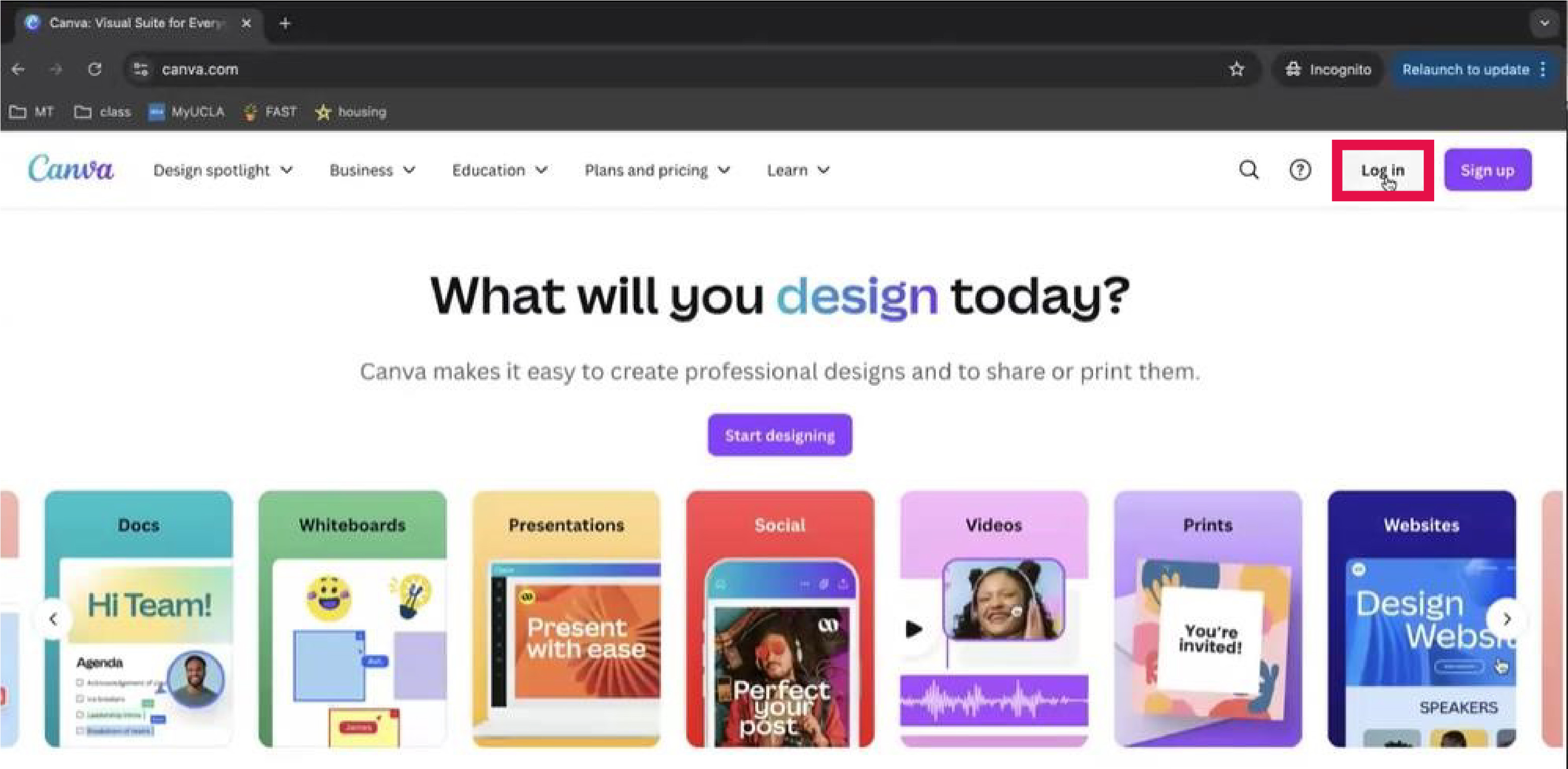
If you do NOT currently have a Canva account, you can sign up by going directly to Canva.com and clicking Log In in the top right-hand corner.
- Navigate to Canva.com.
Select the Log In option.
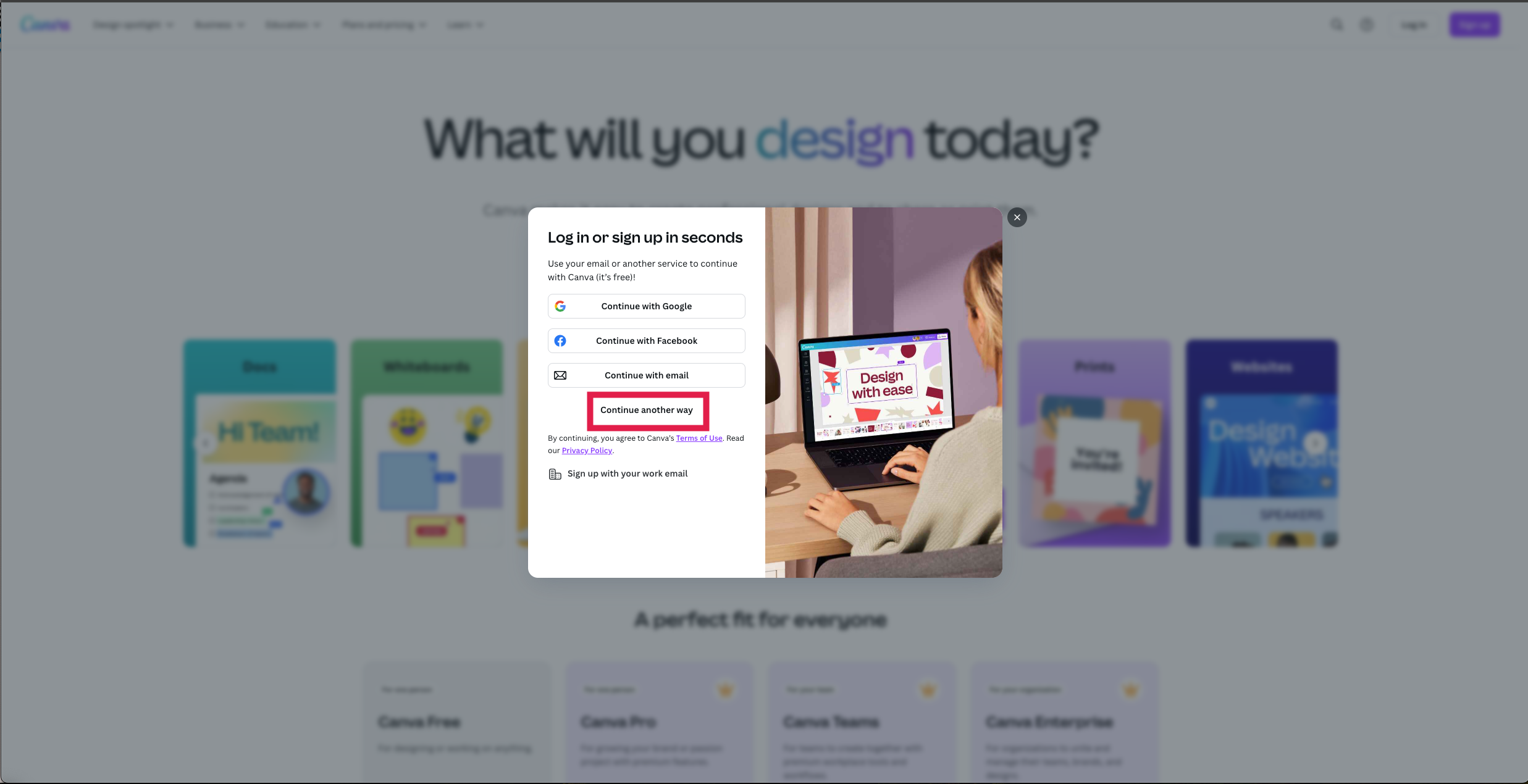
Select the Continue another way option.
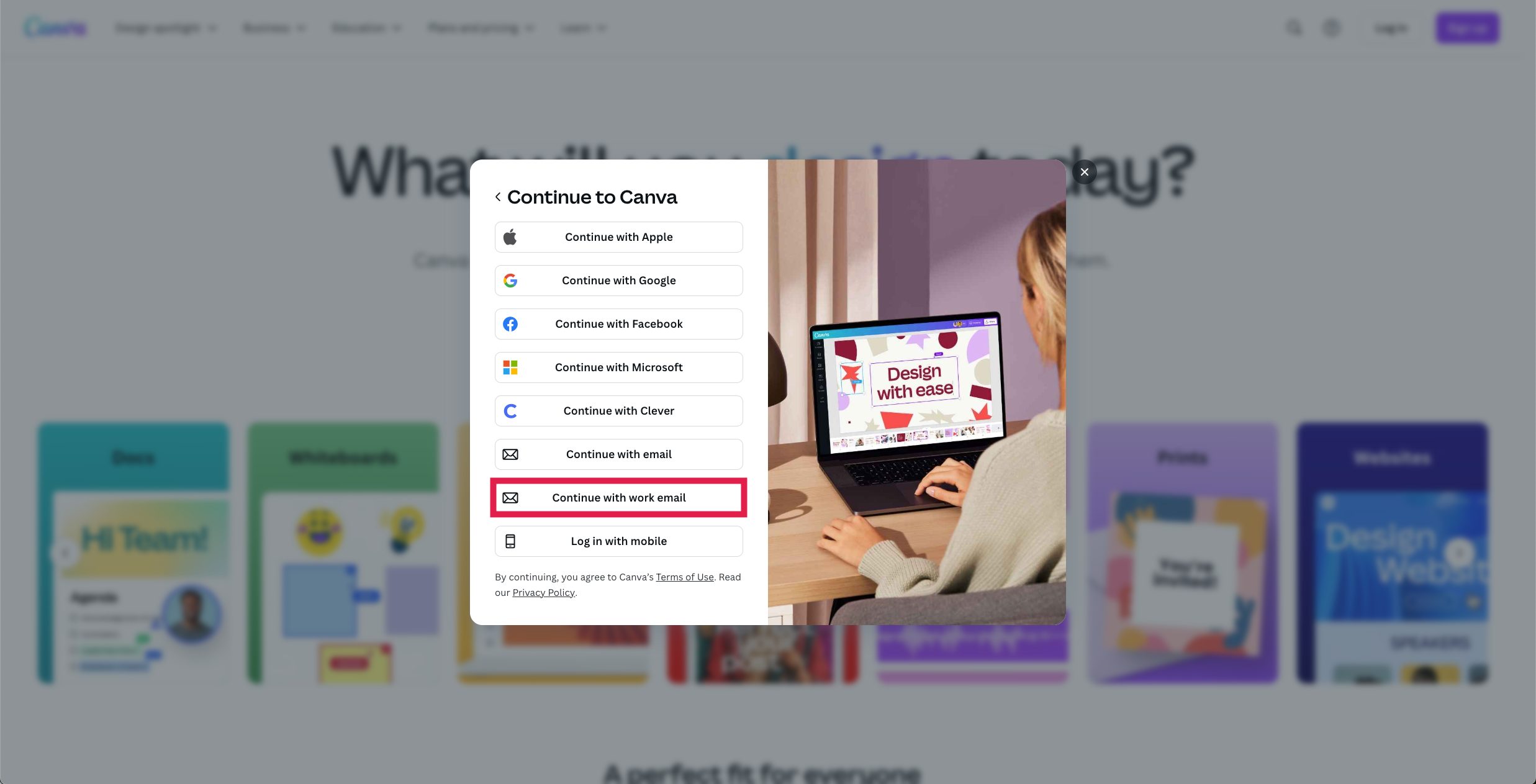
Select the Continue with work email option.
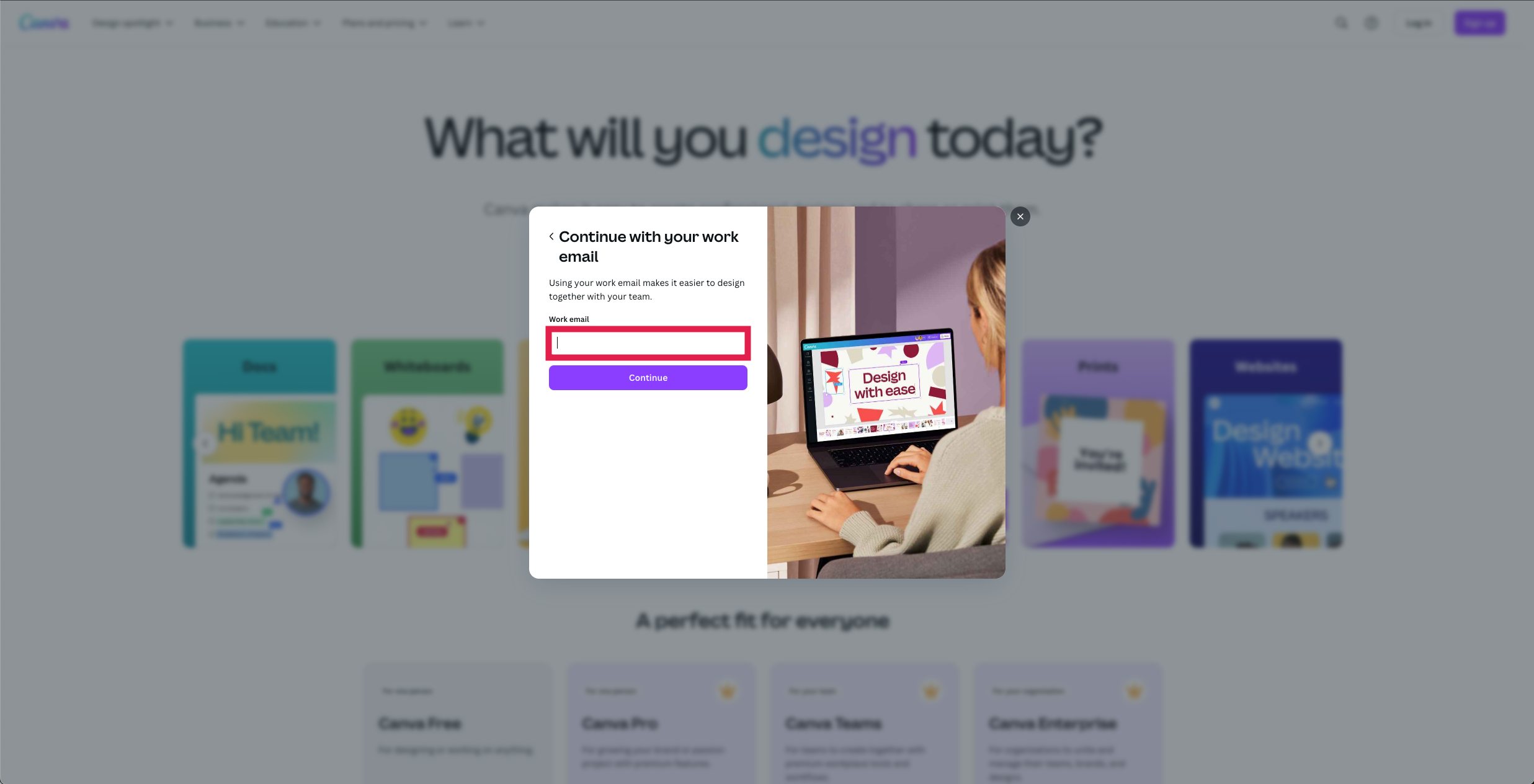
When prompted, enter your UCSF email address before selecting the Continue button.
- The main UCSF Canva page has loaded successfully! You are now able to start using Canva!
NOTE: UCSF prioritizes making all content accessible. When you create using Canva, check your work using the integrated design accessibility tool. Also consult UCSF’s Digital Accessibility Project for guidance on WCAG compliance.
Option 2: I have a Canva account currently
If you already signed up for a Canva account with your UCSF or personal email address, use the below steps to sign up for your free UCSF Learner Canva account.
Existing Canva account using a UCSF email address
If you have a Canva account associated with your UCSF email address, you can be added automatically to the Learner Team in Canva by logging into Canva.com.
NOTE: You can continue to access your personal account in your personal Team and if needed, transfer documents between your teams. Learn more about transferring designs between teams in Canva.
Existing Canva account using a personal email address
Merging existing account with new UCSF account
The following steps will demonstrate the process for merging your existing premium Canva license with your new UCSF account:
- Navigate to the Canva homepage.
- Select the Settings icon.
- Select the Your Account tab then Edit option on your email address.
- Retrieve the one-time password from the email address currently associated with your Canva account before entering it in the available field.
- With the field unlocked, enter your UCSF email address.
NOTE: If you originally purchased your existing Canva license with a credit card and you would like to request a prorated refund for your premium license, you will need to complete this required step.
Activating your UCSF account while maintaining your personal account
If you would like to keep your personal Canva account and would like to have a separate account with your UCSF email, simply log into Canva.com using your UCSF email address.
NOTE: If you plan on having a personal and a UCSF Canva account, remember that you can still transfer designs between those accounts. Learn more about transferring designs between accounts in Canva.