Overview
Service pages and How-To Articles use components or blocks to highlight and structure content. This article will highlight how to create text blocks on this type of content.
Introduction
A Text Block is component that allows users to structure content on Service and How-To pages on the IT Website. Text blocks have options for formatting and structuring text or leverage multimedia such as images and video.
Adding a Text Block to Content
Step1
Load a new or existing Service or How-To page.
Step2
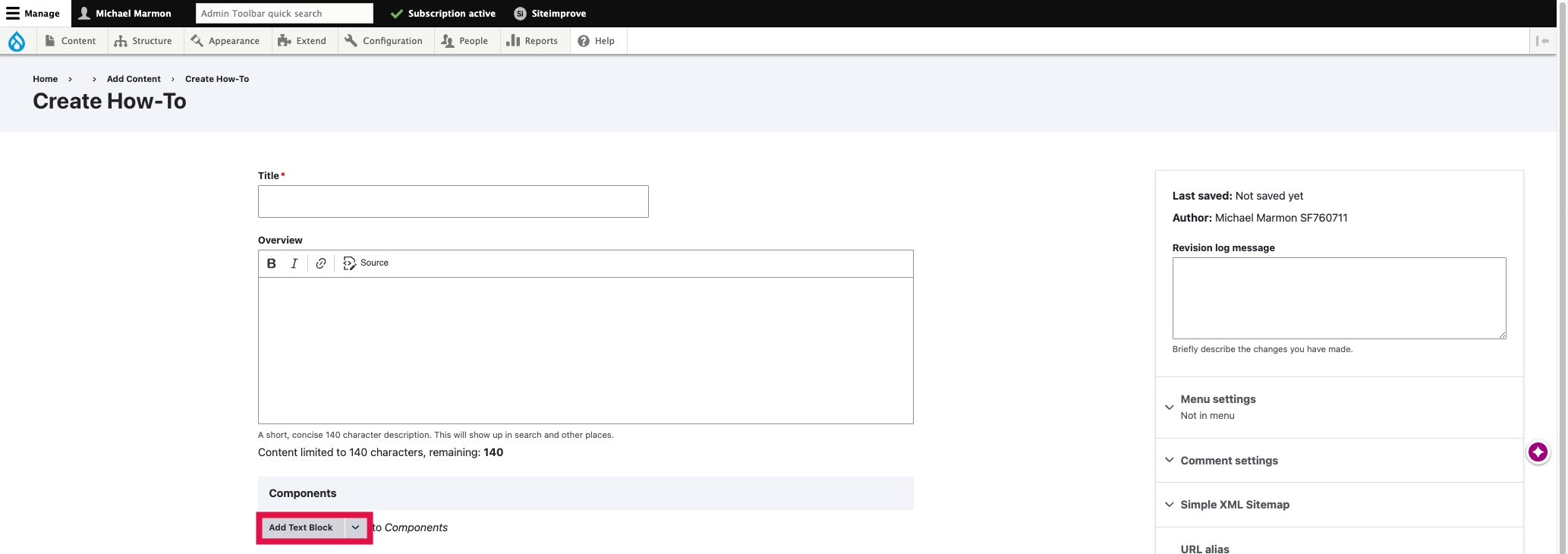
Select the Add Text Block option.
Step3
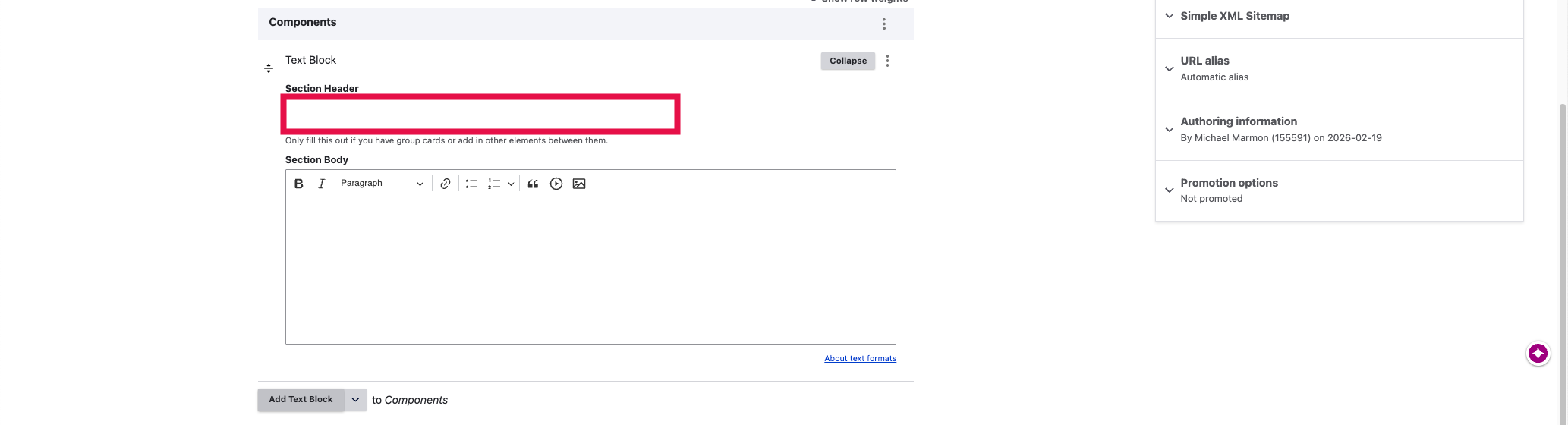
Enter a Section Header.
The section header will be added to the right-hand navigation.
Step4
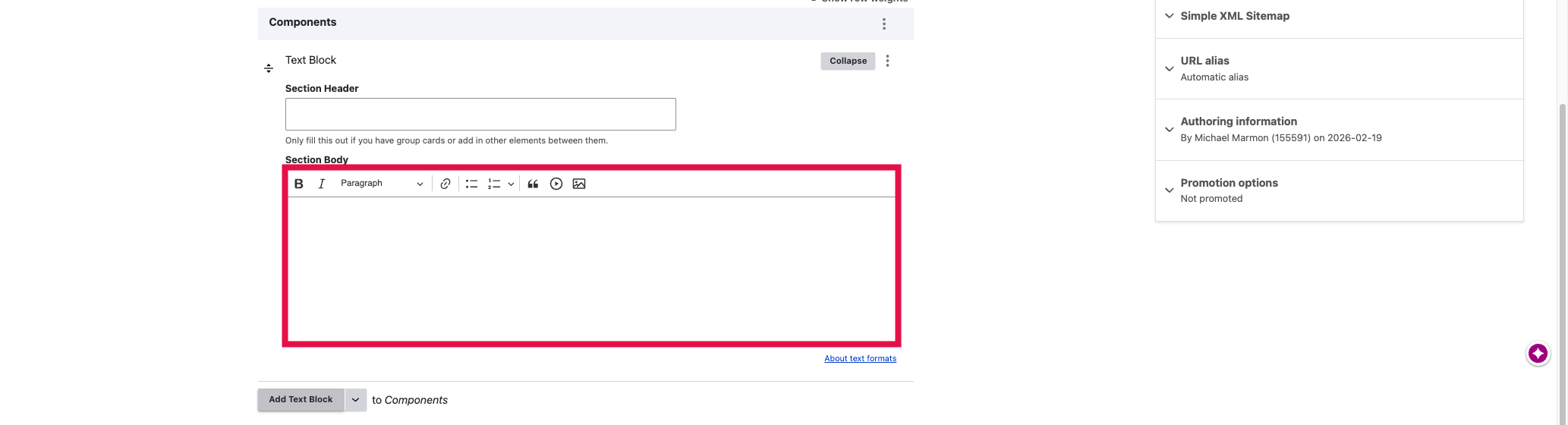
Enter the Section Body.
Enter the Section Body to highlight the information related to the title.
NOTE: You can add formatting the text as well as use images and videos within the Section Body field.
Step5
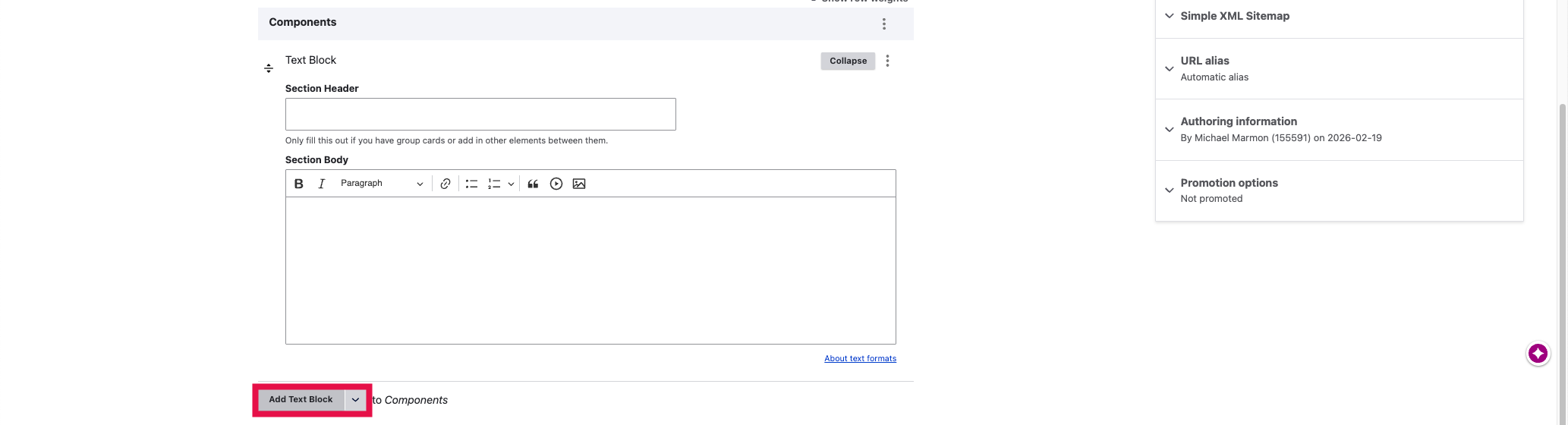
Click Add Text Block to add more Text Blocks.
NOTE: If you would like to include sections of different Text Blocks, select the Add Text Block option. Be sure to add an Section Header to separate each section of accordions thematically. You can use the slider on the Text Block to arrange it's order on the page.
Step6
Click Save to save your new or existing Service or How-To page.
