Overview
Step-by-step component on the IT Website provides content editors with a simple method by which to present step-by-step instructions for a process within an application or service.
Introduction
This component seeks to provide content editors with a simple and uniform method by which to walk users through a process using numbered steps.
Step by Step instructions can be added to new or existing Service or How-To content. Learn more about creating How-To content.
Adding Step-by-Step instructions to IT Website content
Step1
Add an Step-by-Step block to new or existing Service or How-To page.
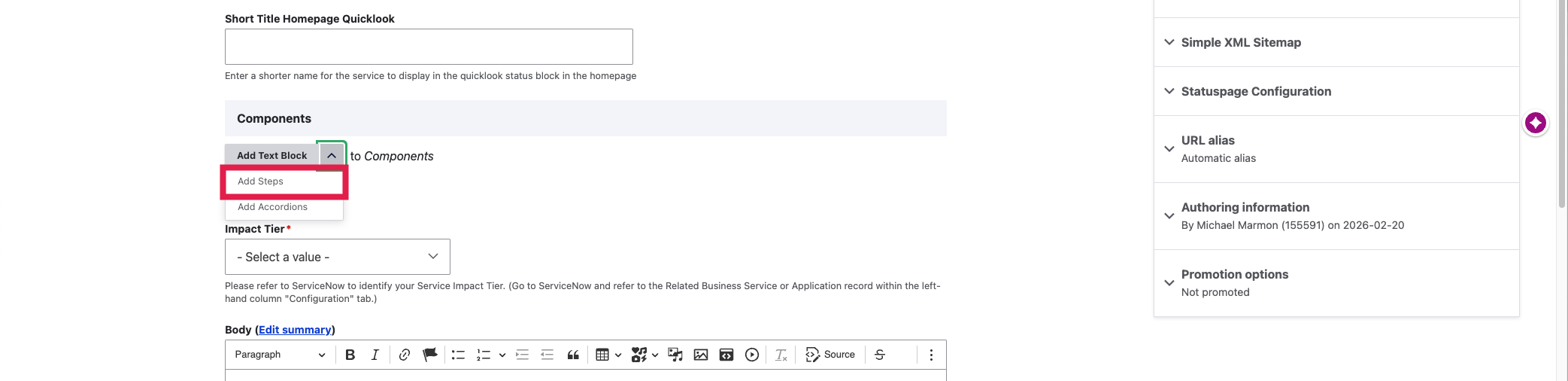
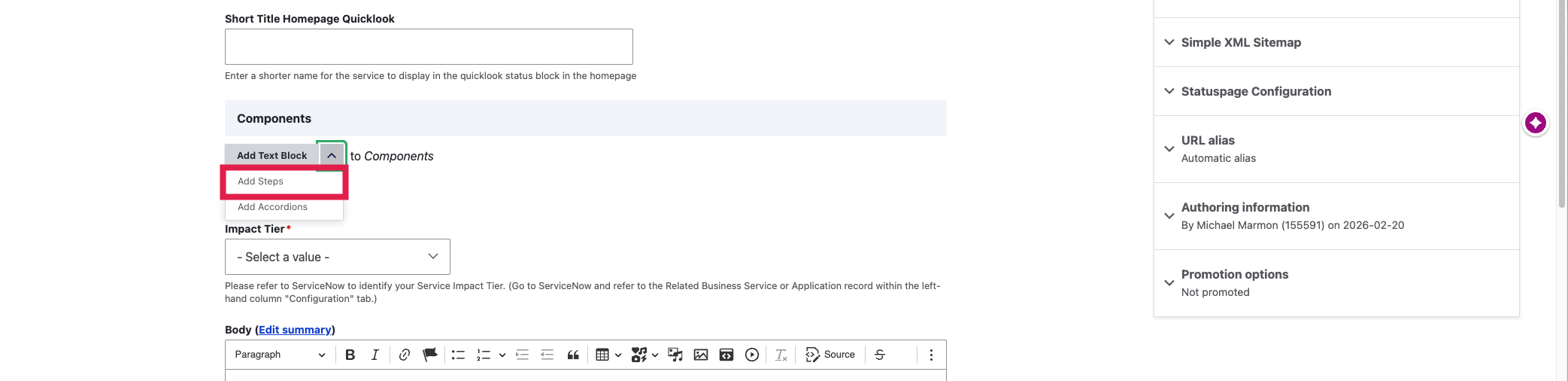
Select the downward arrow on the Add Text Block menu.

Step2
Select the Add Steps option.
Step3
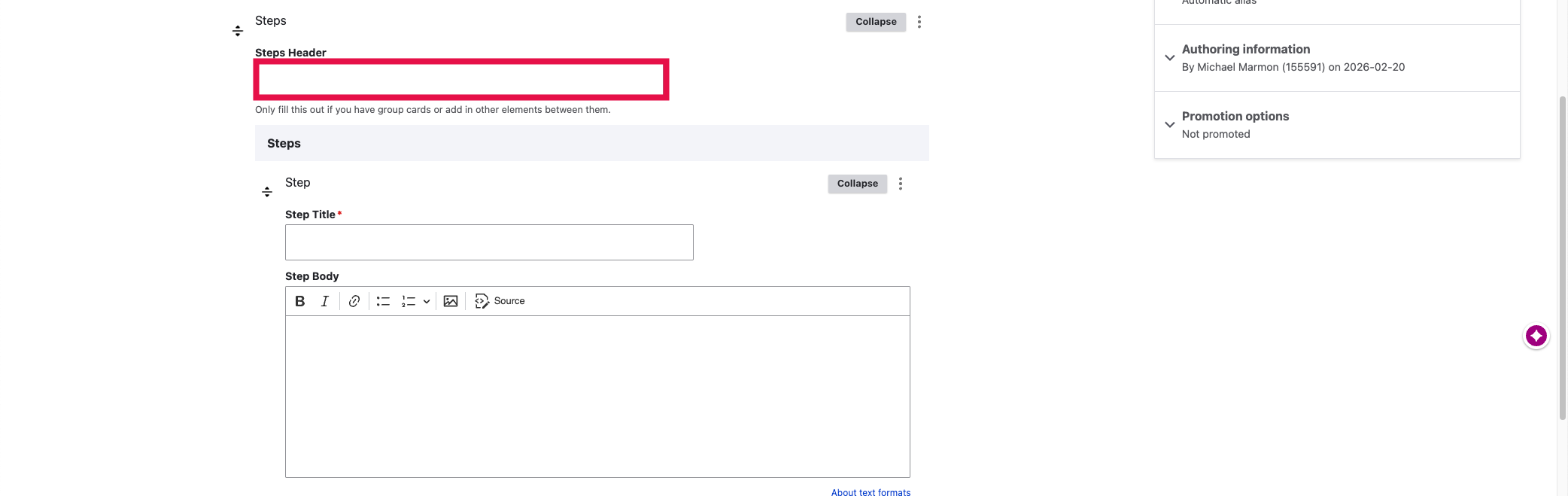
Add a Step Header (Optional)
Add a Steps Header, if you page on having multiple sets of steps on your Service or How-To page. The Steps headers will be used to create the right-hand navigation on Service or How-To pages.
Step4
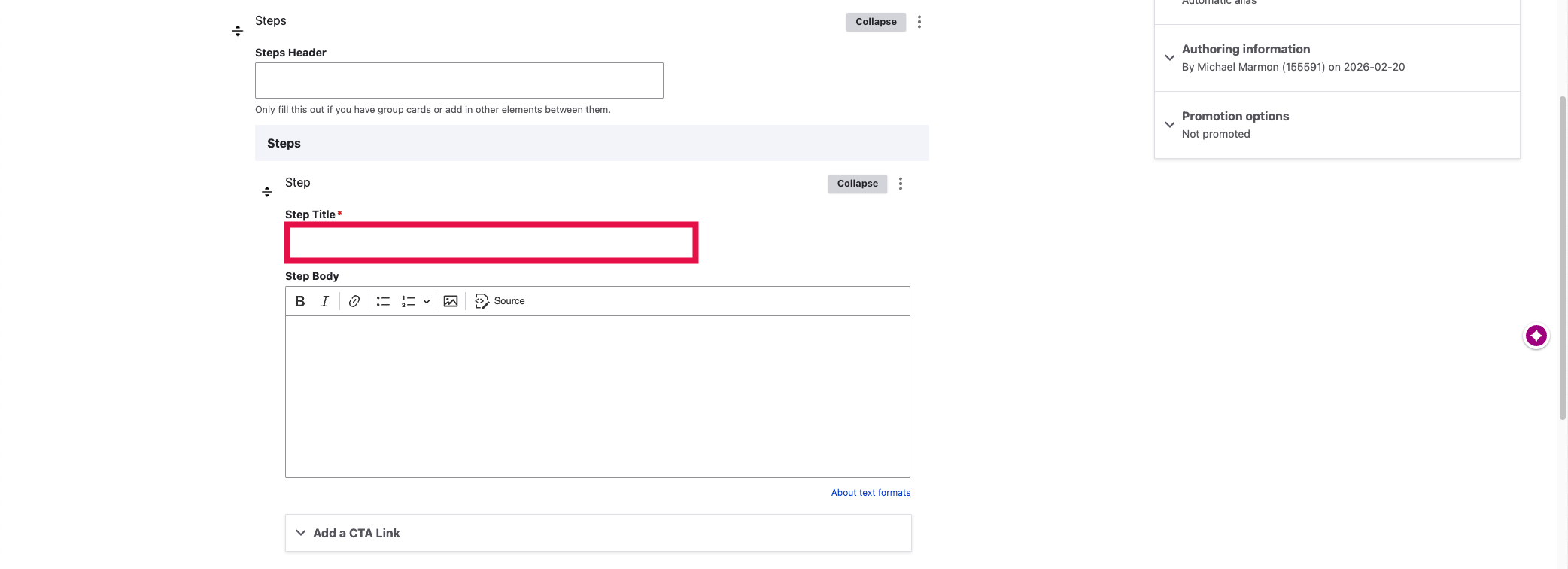
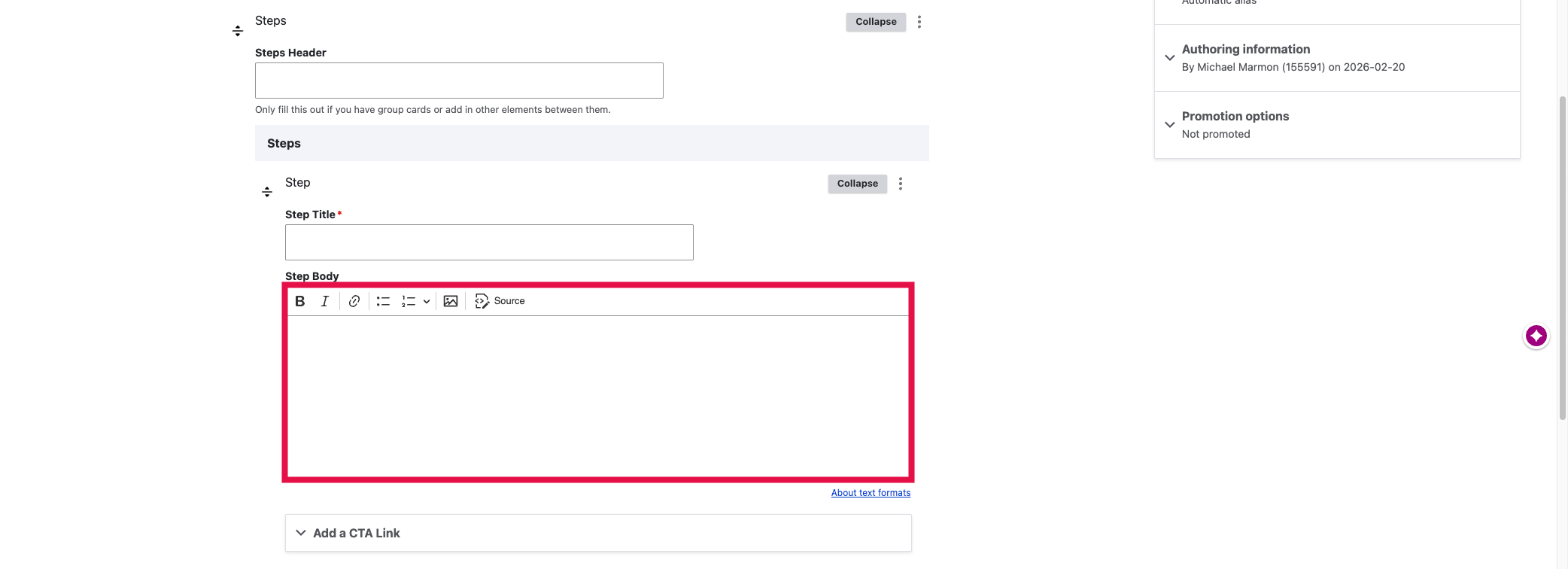
Add a Step Title
Enter a Step Title to highlight the content specific to that step (e.g., How do I create a Step?).
Step5
Enter the Step Body
Enter the Step Body to highlight the information related to that particular step.
NOTE: You can add format the text as well as use images and videos within the Step Body field. If you would like to add a Call to Action (CTA) button to link to other content, select the Add a CTA link option before entering a URL to the content and text for the button.
Step6
Click Add Steps to add more steps
NOTE: If you would like to include sections of different steps, select the downward arrow on the Add Text Block menu and the Add Steps to option. Be sure to add an Steps Title to separate each series of steps thematically.
Step7
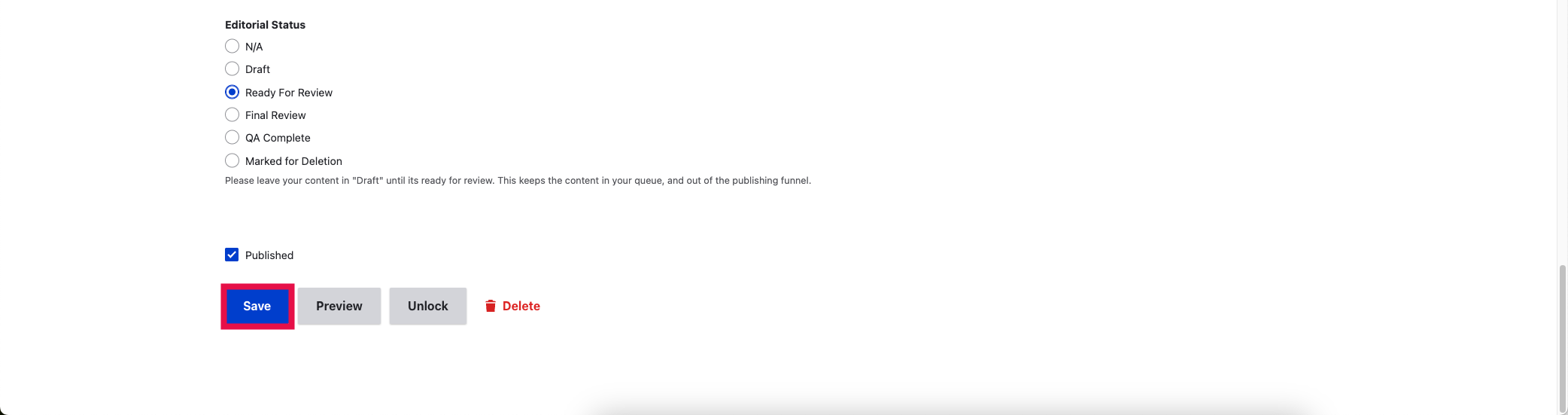
Click Save to save your new or existing Service or How-To page.