Overview
A Service page is a content type on the IT Website to highlight information as it relates to a UCSF IT offered service or application.
Introduction
A Service page should act as a landing page of sorts to provide end users with information about the service, highlighting applicable benefits, training links, and how to receive support for a service.
Each Service page should include the sections (as applicable):
- How to Request Access - How does a user gain access to the Service.
- Description - What the Service does.
- Benefits - Why should a user use the service or typical use cases.
- Support - Provide quick access for users to obtain support via email or direct them to the UCSF Service Portal.
- Requirements and Limitations - Highlight specific requirements for the application (e.g., browser or computer type).
Navigational Enhancements
The left-hand navigation that provided quick access to How-To articles associated with the Service has been updated to automatically include associated How-To articles via the See related How-Tos link and Get more Guidance section at the bottom of the page.
Right-hand navigation has been added to provide quick navigation to the sections within the Service page.
Composing a Service Page
Step1
Log into the IT Website.
Step2
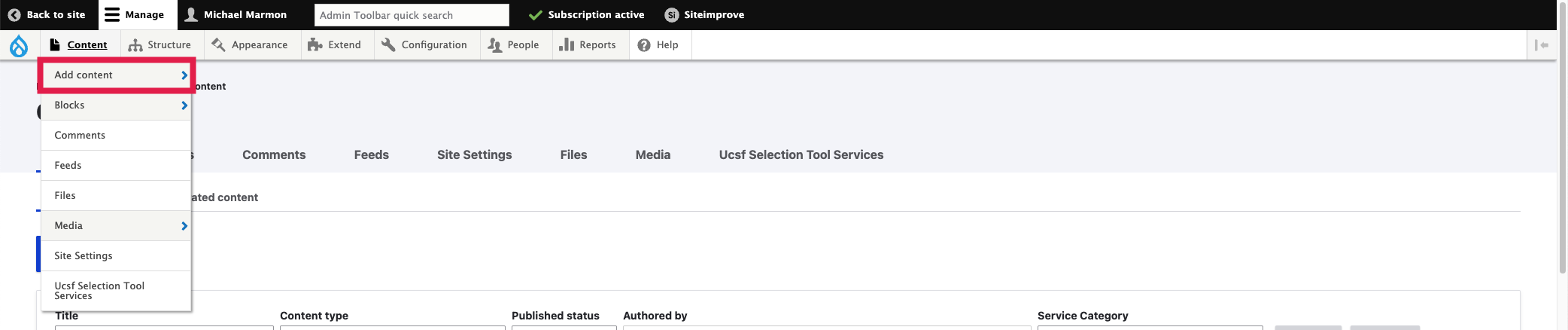
Select the Content tab at the top of your screen.

Step3
Select the Add Content option.
Step4
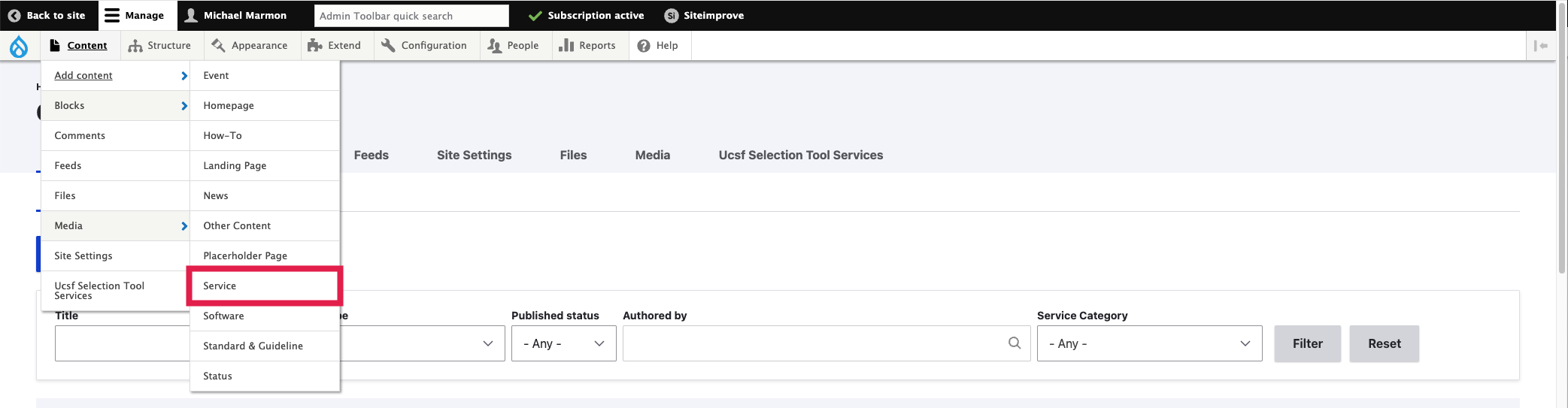
Select Service option
Step5
Add a Service Name.

Step6
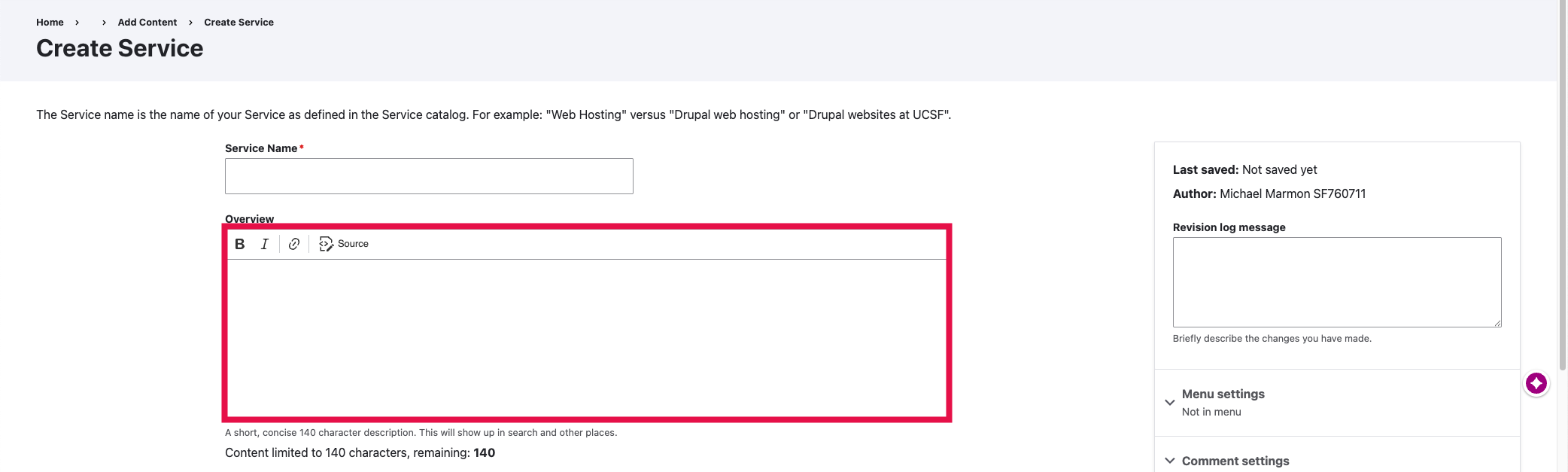
Add an Overview.
An Overview for a service will be included on the published version of the page and search results. An overview should be include a brief description of the service.
Step7
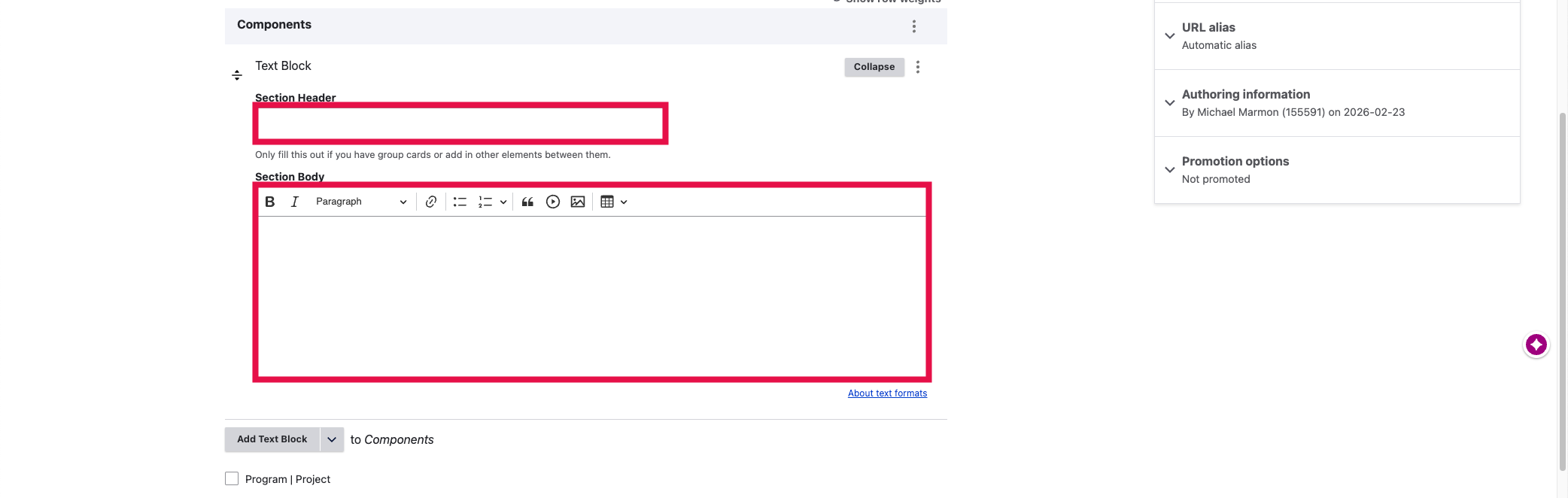
Add a Content Block Type.
Under the Components section, select the Add Text Block option before entering a Section Header and your Section Body content to add the section to the right-hand navigation. Within a Text block, you can add text, images, and videos among other options. You can also add Accordions and Step-by-step blocks to your Service Page as well.
Step8
Set the Impact Tier.

Step9
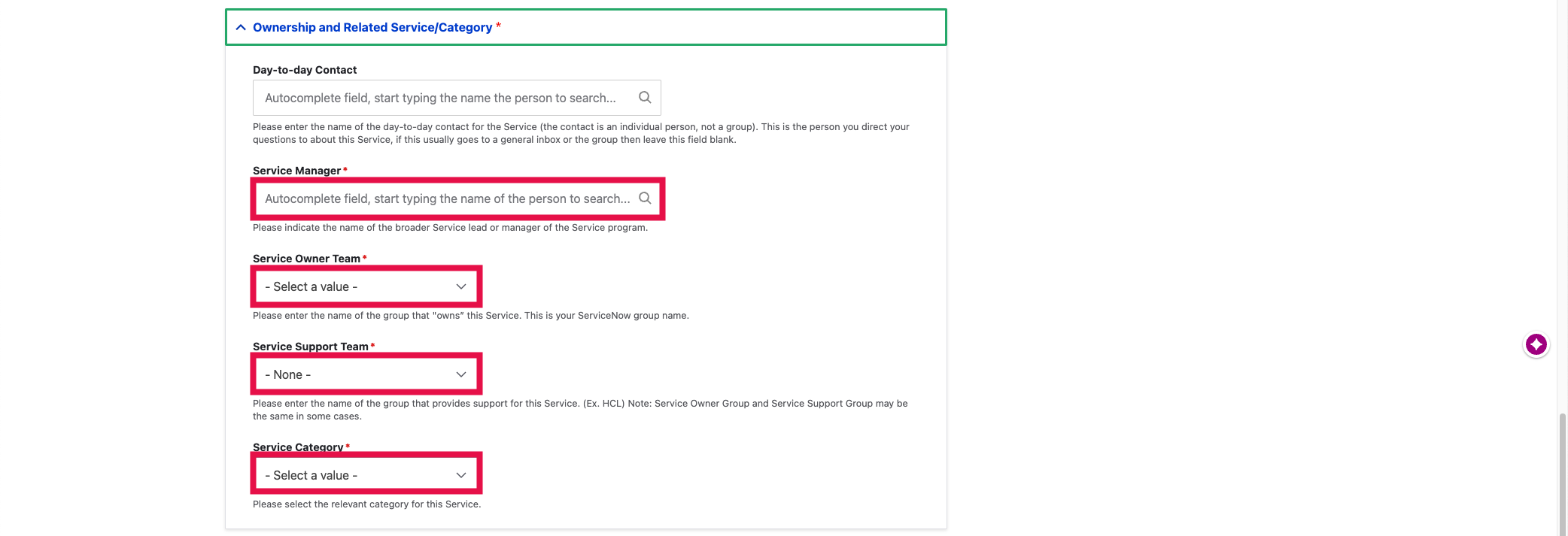
Set the Ownership, and Related Content/ Service/ Category information.
Within the Ownership and Related Content/Service/Category section, you will need to set the following fields:
- Service Manager - Indicates the Service lead or manager of the Service program.
- Service Owner Team - UCSF IT team that owns this service.
- Service Support Team - UCSF IT team that manages support for this service.
- Service Category - Type of service offering.
Step10
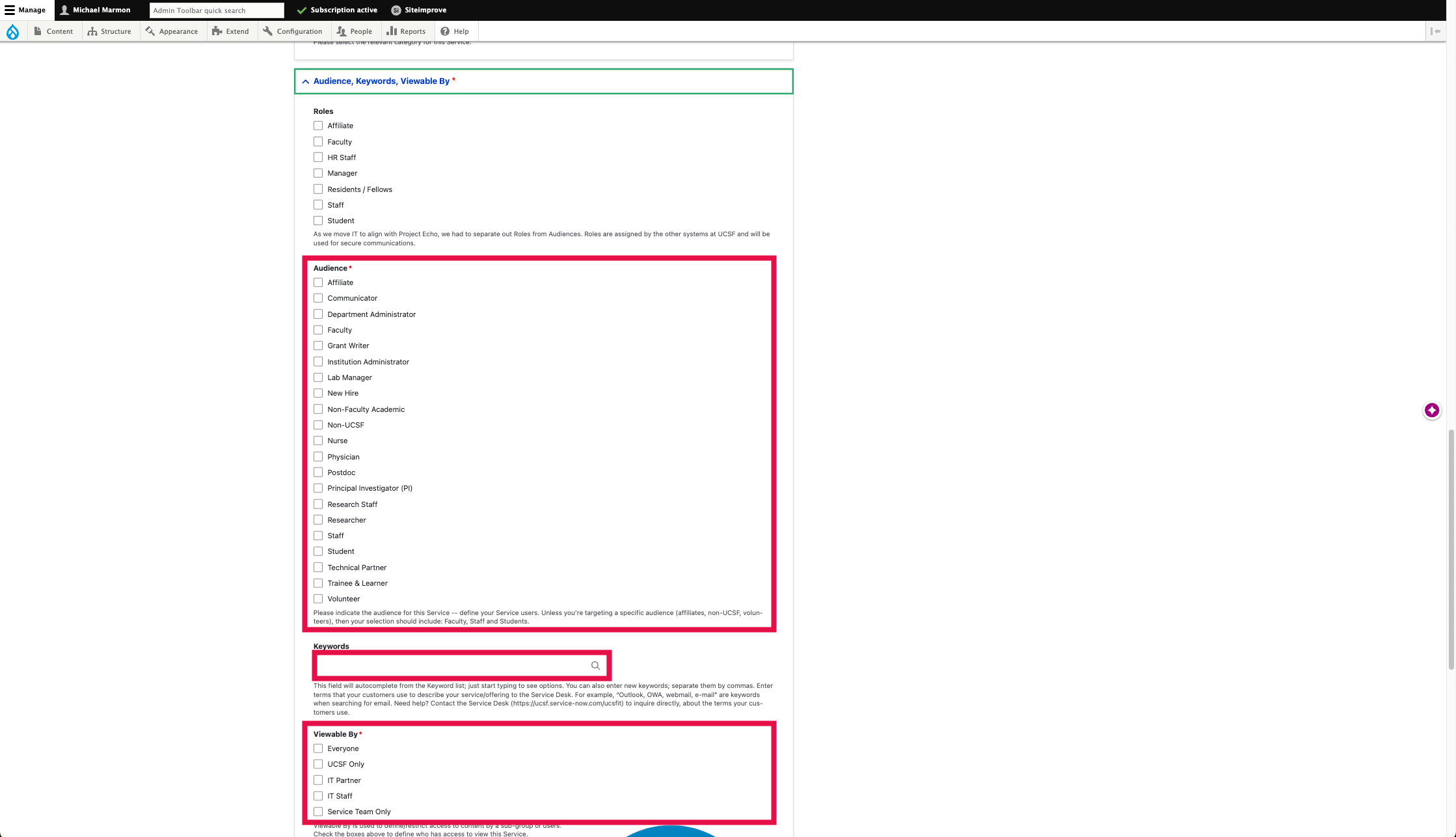
Enter the Audience, Keywords, and Viewable By information for the Service page..
- Keywords - Terms used to enhance how searchable your Service page article is within the IT Website. It is encouraged to add multiple keywords to your Service page content. (e.g., For Microsoft Word, keywords could include Microsoft Word, Microsoft, Word).
- Audience - This is the intended audience for the Service page and can include single or multiple audience types (e.g., Affiliate, Faculty, Staff, and Student).
- Viewable By - The Viewable By field will determine who can access your page. For information that is considered public, the page should be set to Everyone. Pages that are considered sensitive should be set to UCSF Only (e.g., Requires login) or Service Team Only.
Step11
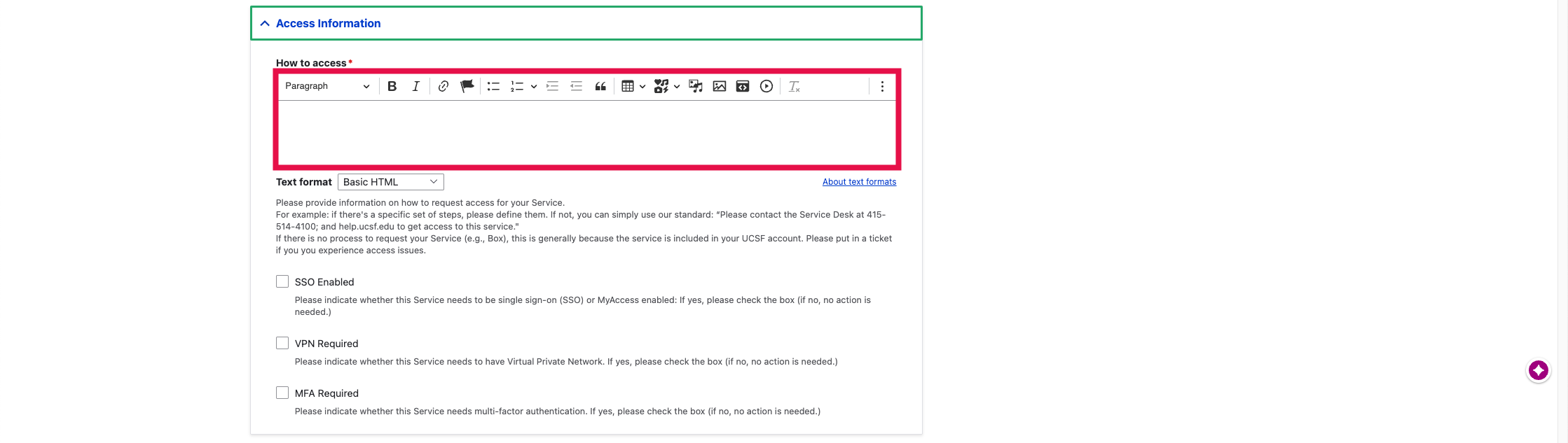
Set the How to Access section.
The How to Access section provides context for a user can access the service. If the Service requires users to use SSO (Single-Sign On), VPN, or MFA (Multifactor Authentication), select the applicable checkbox.
Step12
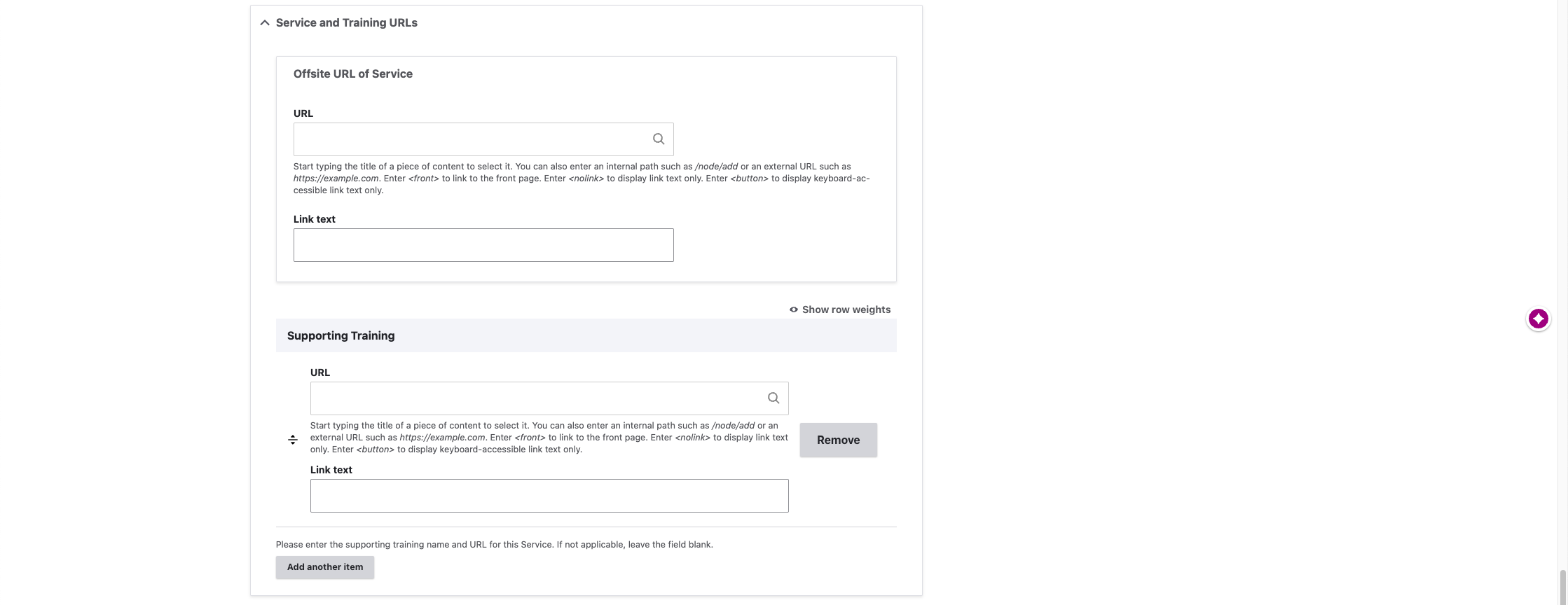
Add Service and Training URLs.
The Offsite URL of Service option allows you to link to the service's login page. Simply add the URL and the appropriate Link text for the Service.
If there is Supporting Training that you would like to highlight, add the URL and Link text within the Supporting Training section.
Step13
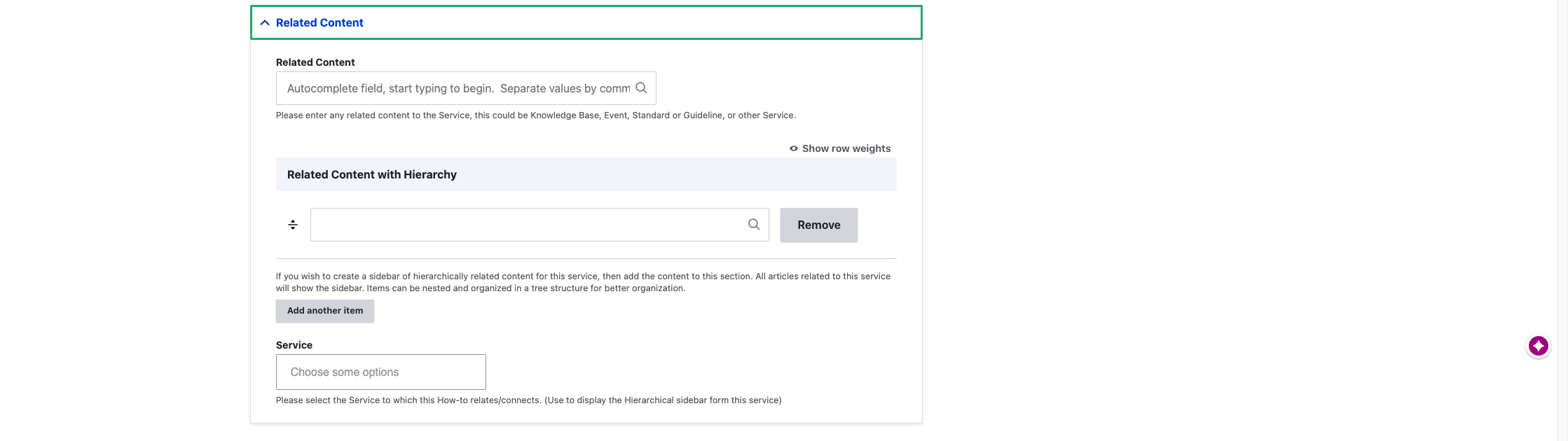
Enter Related Content.
Step14
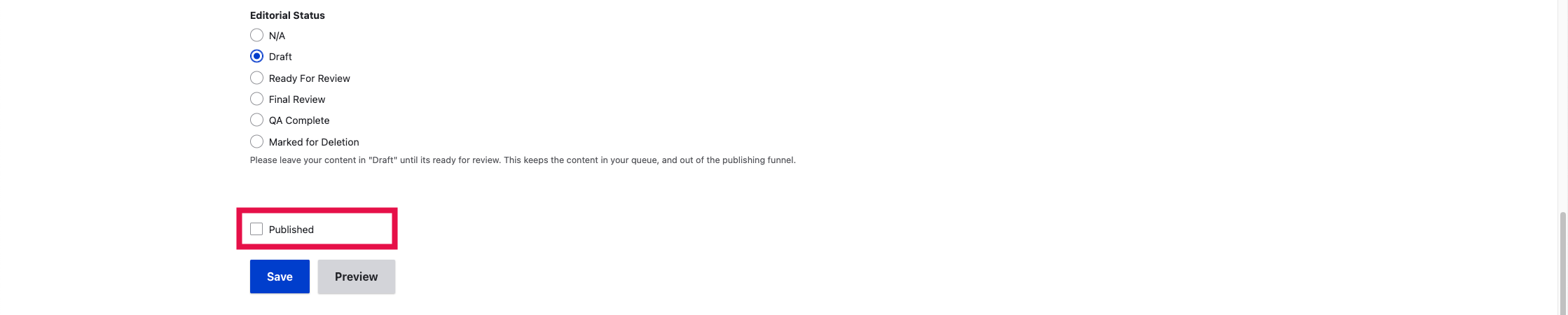
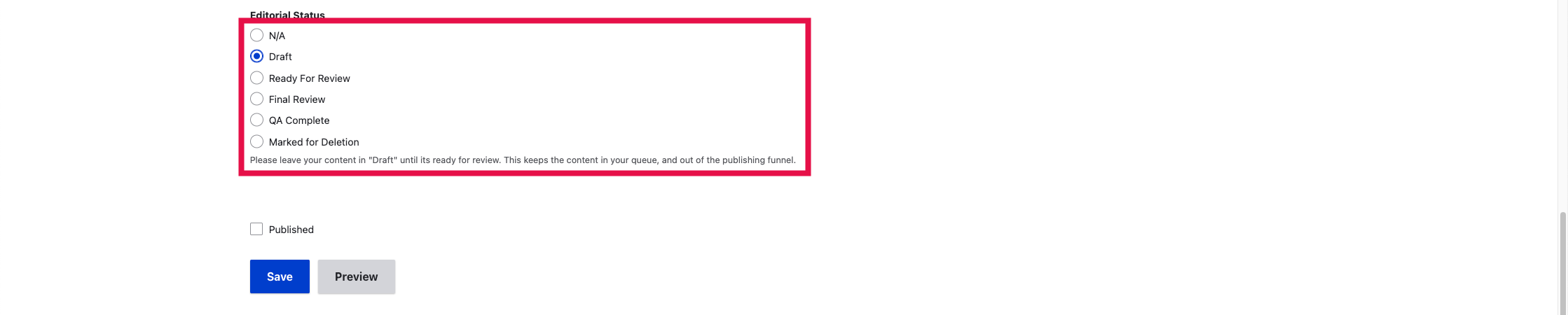
Set the Editorial Status.
When your content is ready for review, select the Ready for Review option in the Editorial Status section.
Step15
Save your Content.
Click the Save button to save the information for your Service page.

Step16
Publish your Service Page content.
Content can be published by selecting the Publish checkbox before clicking Save.
NOTE: The ability to publish content requires a distinct permission with the IT Website.