UCSF PowerPoint Templates
UCSF PowerPoint templates may include the following:
- UCSF-approved branding
- Accessible color palettes
- Standard fonts
- Approved slide layouts
- Accessibility-friendly formatting
Accessing UCSF Templates in Microsoft PowerPoint
Step1
Open Microsoft PowerPoint on your desktop
Step2
Select File to load the PowerPoint landing page.

Step3
Select New.

Step4
Locate the UCSF section and select the desired template.
NOTE: Additional templates may be added in the future.
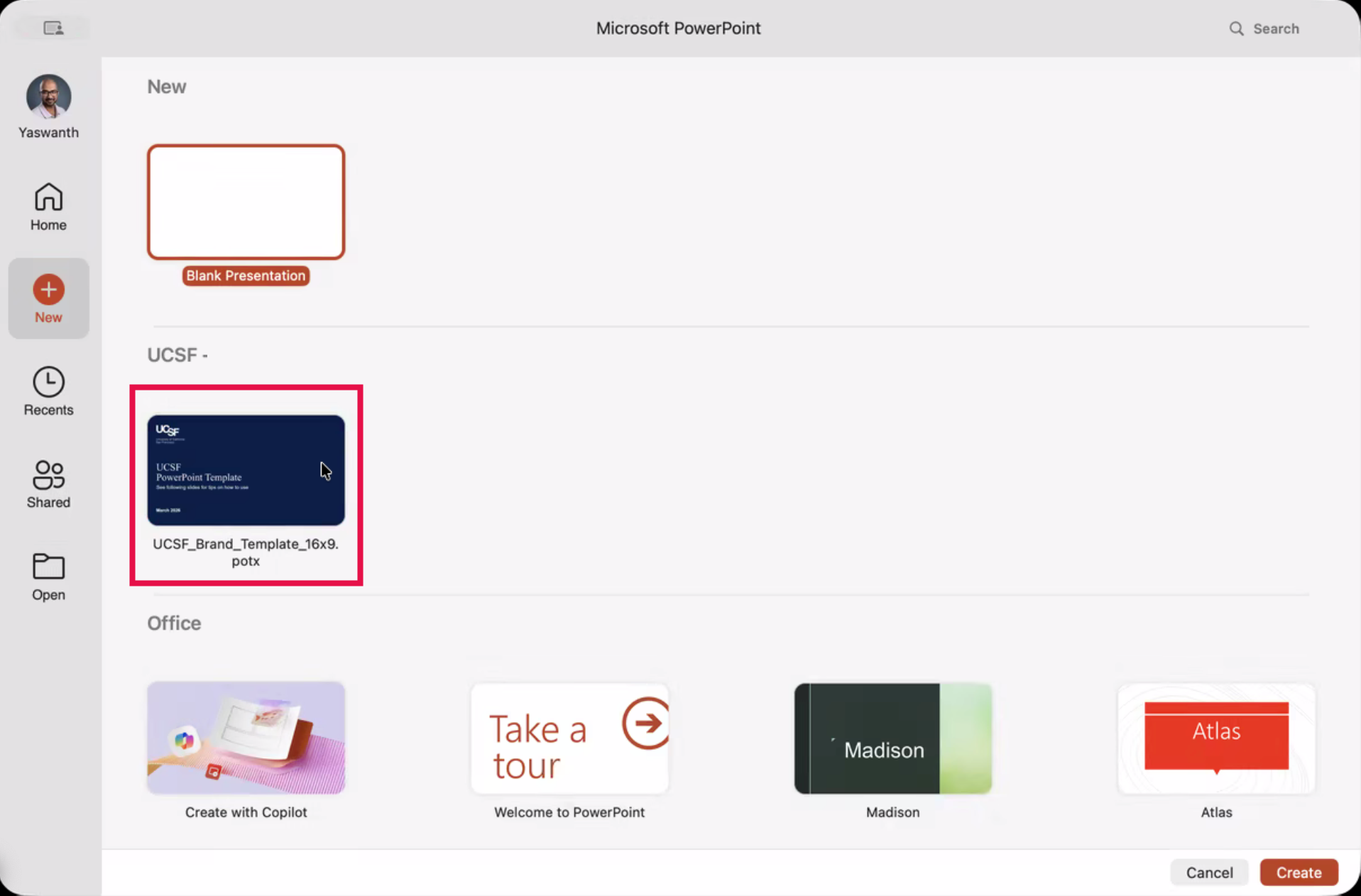
Step5
Click Create.
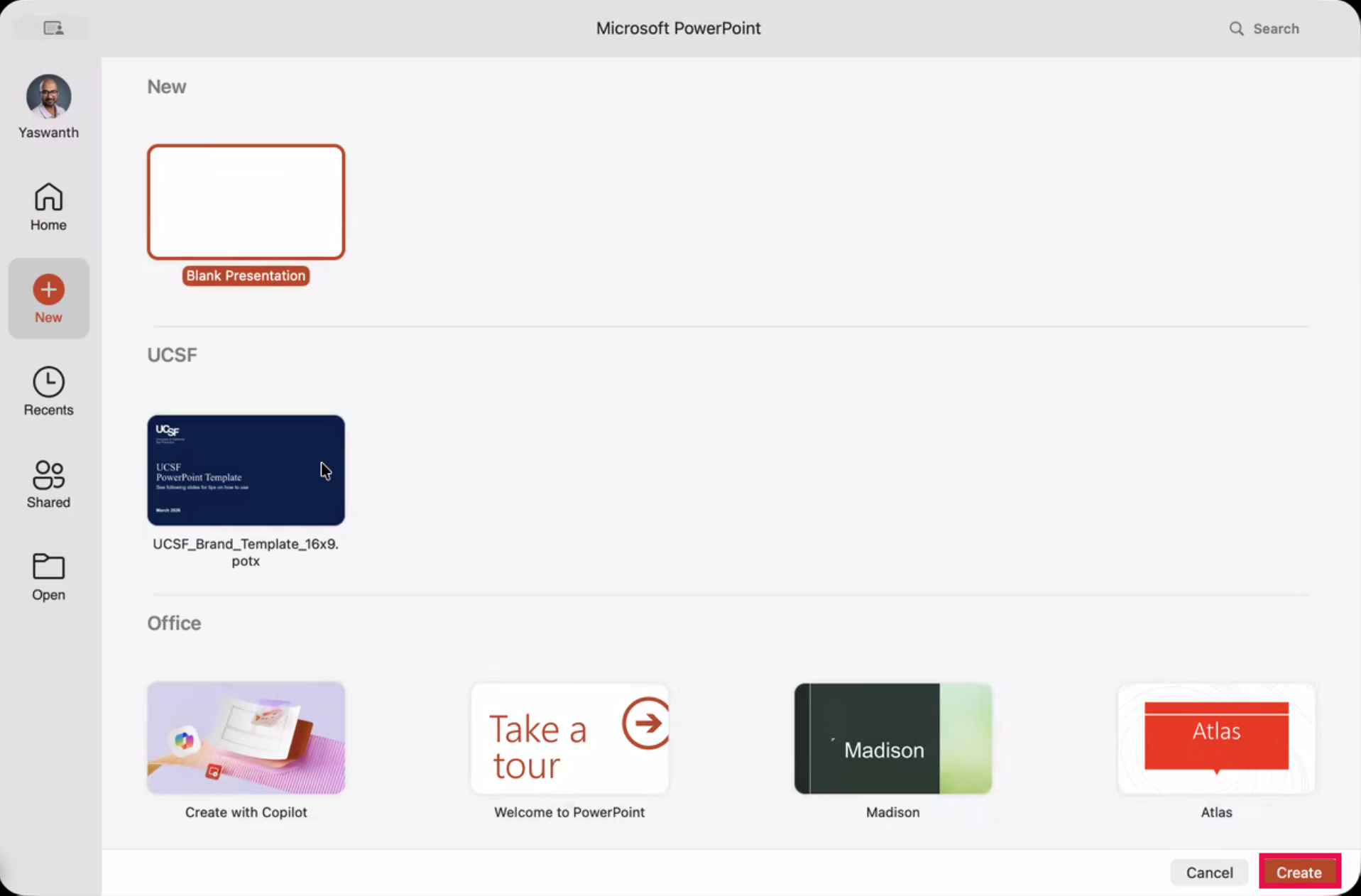
Step6
A new presentation will load with the selected UCSF template.

Step7
Select New Slide to add additional slides from the UCSF template.
