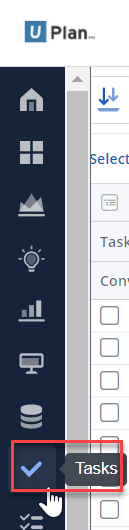
From the left-hand side menu, click on the Tasks link.
Note: if you need help logging in and getting to the Home menu, see How to Login
To help you easily find your tasks, select the view called My Tasks. This view has been set up to show tasks assigned to the logged in user (i.e. You!).
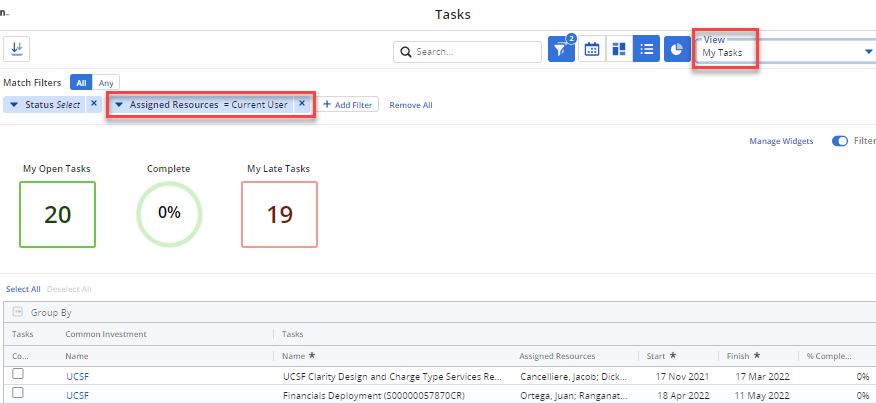
You will now see all tasks assigned to you. Make sure that you have a task showing here for any project where you need to bill time.

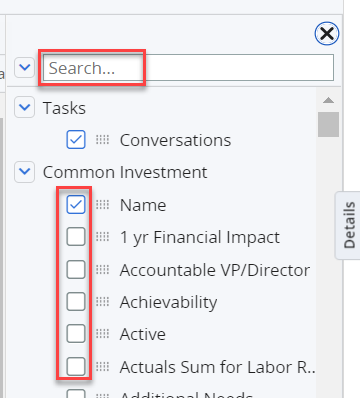
If you don't see all of the columns listed, select the Columns pane from the right-hand side.

Add the name of the column to the Search... field to find the column you are looking for.
Check or uncheck the box beside the field name to add or remove.
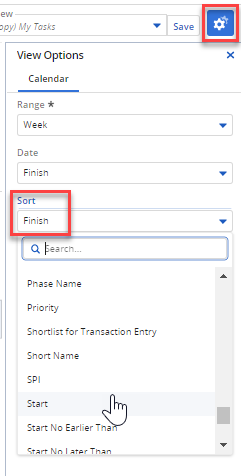
Click on the Calendar view to see tasks by chronological data. In the example below, we are looking at the calendar by task Finish Date.
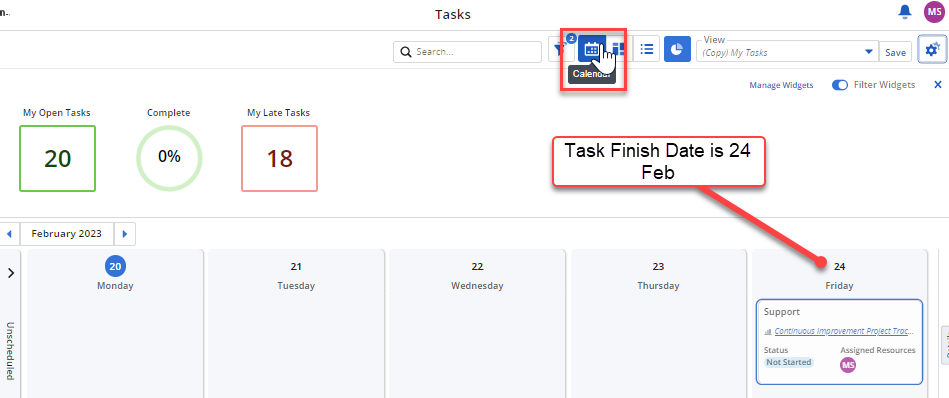
To change the way your tasks are displayed on the Calendar view, click on View Options and choose another attribute for the Sort field.