Are you planning to work on your files in OneDrive while your laptop cannot connect to the Internet, such as during air travel, commutes, or in areas with poor connectivity? If so, you can mark any files and folders in OneDrive to store a full copy locally on your computer at all times. This ensures you can view and edit important documents, presentations, or files, with changes syncing automatically once your laptop can connect to the Internet again.
To enable access of OneDrive files and folders offline, right-click or two-finger tap on the files or folders on your computer, and select "Always keep on this device". On mobile devices, you can tap the three dots next to a file and select "Make available offline". This ensures files are locally stored and sync changes when you reconnect to the internet.
To enable everything in your OneDrive to be available offline all at once, follow these instructions to accomplish that:
Macs
- Click on the OneDrive icon on the top menu bar, then click on the gear icon and select Preferences.
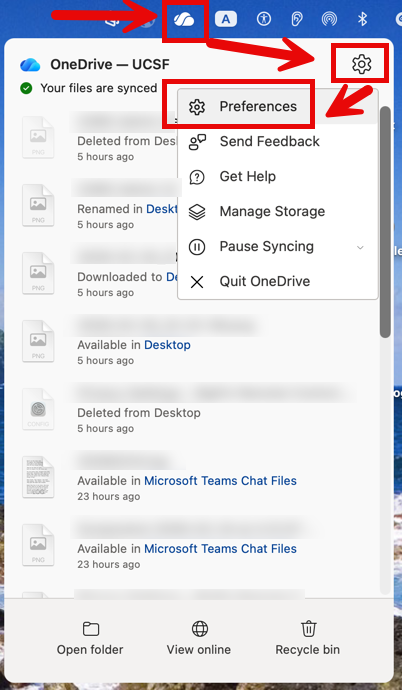
- Select Preferences, then click on Download all OneDrive files now
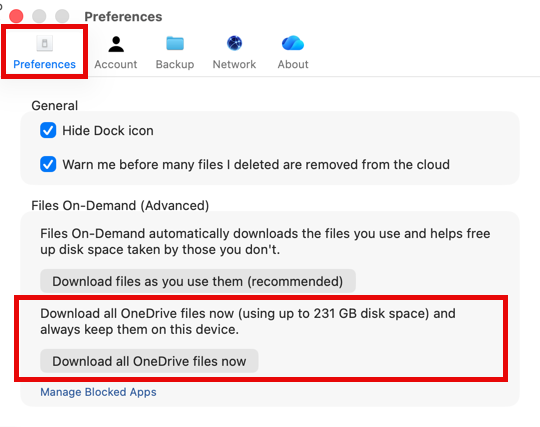
- Allow enough time for OneDrive to download a copy of everything from your OneDrive onto your computer.
Windows
In Windows, the "Download all files" feature is unavailable because "Files On-Demand" is enabled under the organization's policy. The setting will be greyed out. To opt out, please contact the Service Desk.
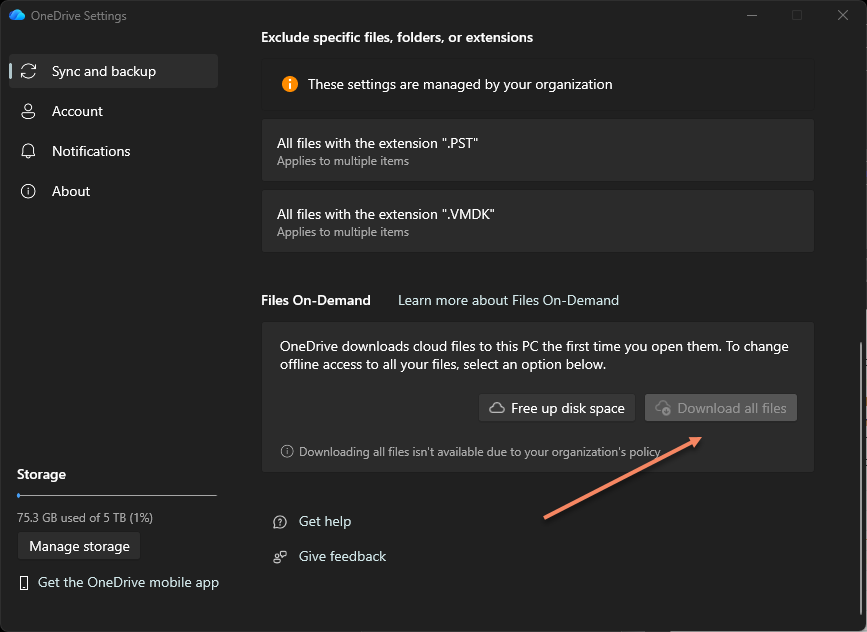
To access your files and folders offline, you will need to enable "Always keep on this device" for the folder.
Make sure your system is connected online and you are logged into OneDrive.
Select the folder you want to use offline, right-click and select "Always keep on this device".
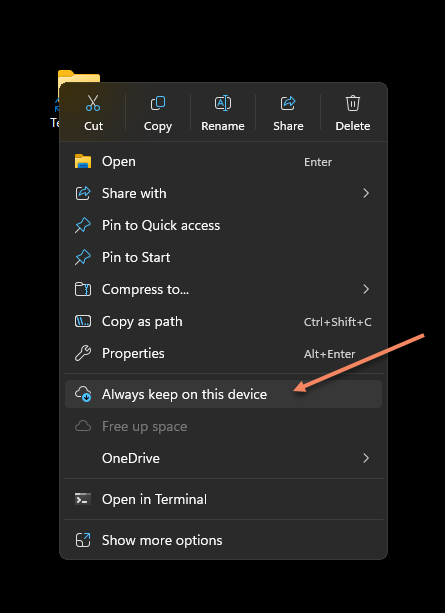
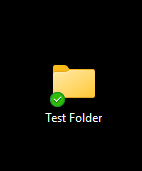
This will download the folder and keep it on this system. You should see a green check circle once it is enabled.