When you enter the wrong password too many times, your account will be locked out. You can use the UCSF Password Management Tool to unlock your UCSF account(s).
Navigate to the UCSF Password Management Tool. Enter either your 9-digit UCSF ID number (02xxxxxxx) or your UCSF email address.

Choose and complete the selected Authentication Method (e.g., Password, security questions, or password reset link).

Select the preferred Duo authentication method before authenticating with Duo.
NOTE: If you do not have a phone number for your Duo-registered device or the number appearing on-screen during this step is different than your current phone number. Please contact the USCF IT Service Desk at (415) 514-4100 for assistance to update or add a phone number to your account in Duo.
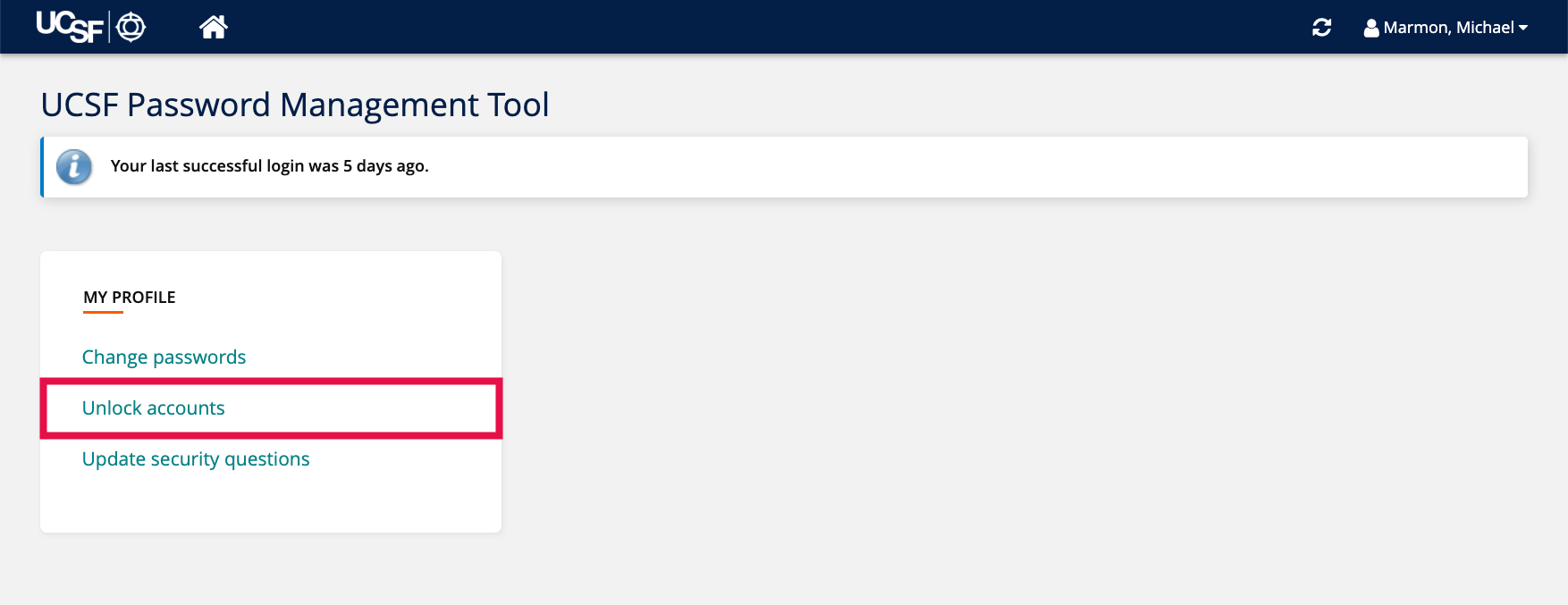
From the landing page, select Unlock Accounts.
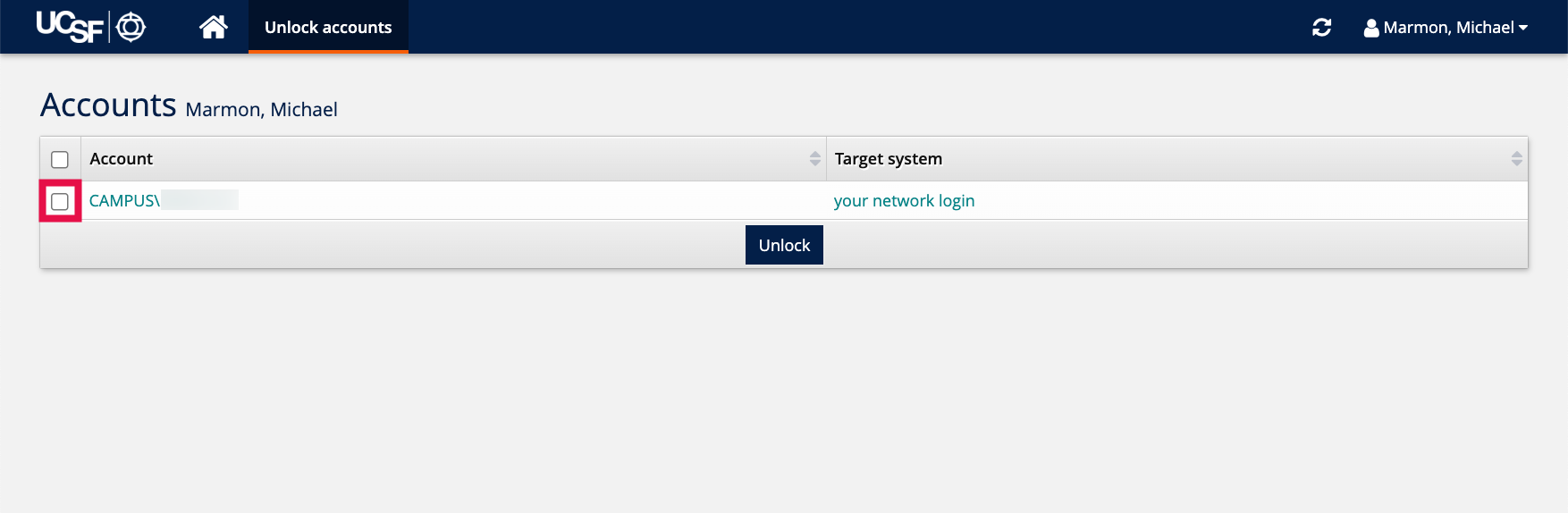
Check the box next to the account(s) you want to unlock, and click the Unlock button.
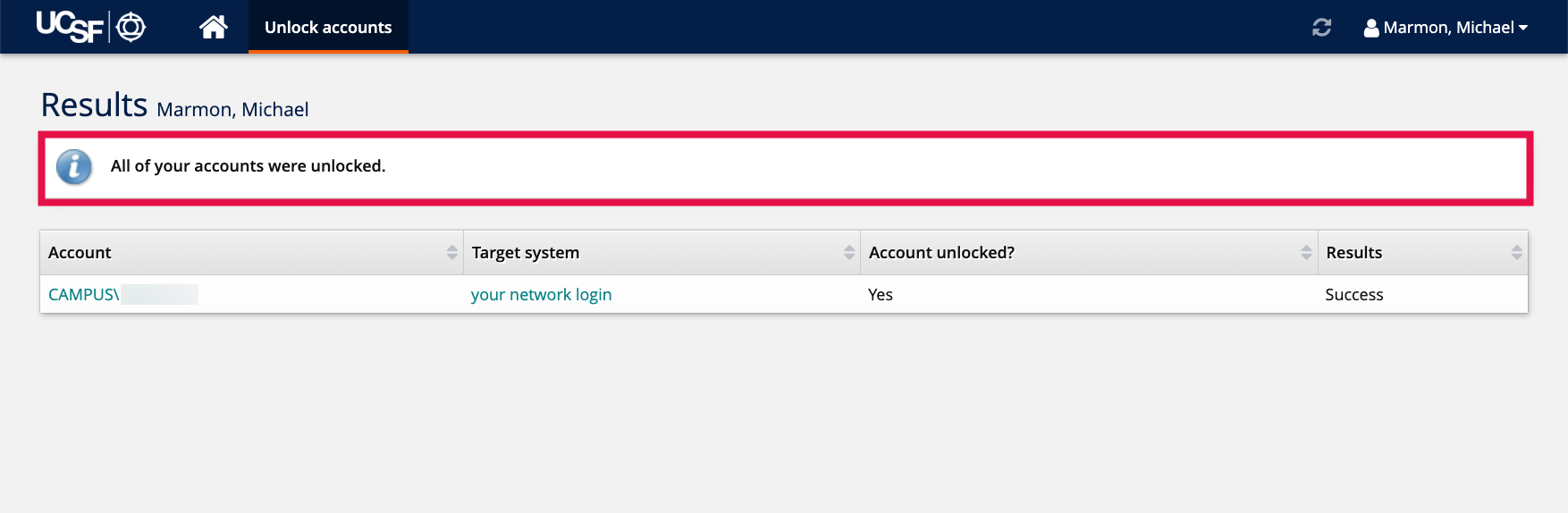
You will receive a notification that your account was successfully unlocked.