Overview
The UCSF Password Management Tool provides you with the ability to update your UCSF password.
The UCSF Password Management Tool provides you with the ability to update your UCSF password. Prior to changing your password, it is recommended to stop all your devices from connecting to UCSF resources (e.g., WiFi) linked to your account to avoid an account lockout.
You will be able to update your UCSF password within the UCSF Password Management Tool (Detailed below) or via a password reset link within the tool. NOTE: If you do not see the password reset link option when resetting your password, you may contact the IT Service Desk at (415) 514-4100 for assistance to address missing data in your profile.
Once you have updated your UCSF password, be sure to update the passwords of devices used to access the UCSF WiFi network to avoid an account lockout. Learn more about Updating your password to access the UCSF WiFi networks.
Navigate to the UCSF Password Management Tool. Enter either your 9-digit UCSF ID number (02xxxxxxx) or your UCSF email address.

Choose and complete the selected Authentication Method (e.g., Password, security questions, or password reset link).

Select the preferred Duo authentication method before authenticating with Duo.
NOTE: If you do not have a phone number for your Duo-registered device or the number appearing on-screen during this step is different than your current phone number. Please contact the USCF IT Service Desk at (415) 514-4100 for assistance to update or add a phone number to your account in Duo.
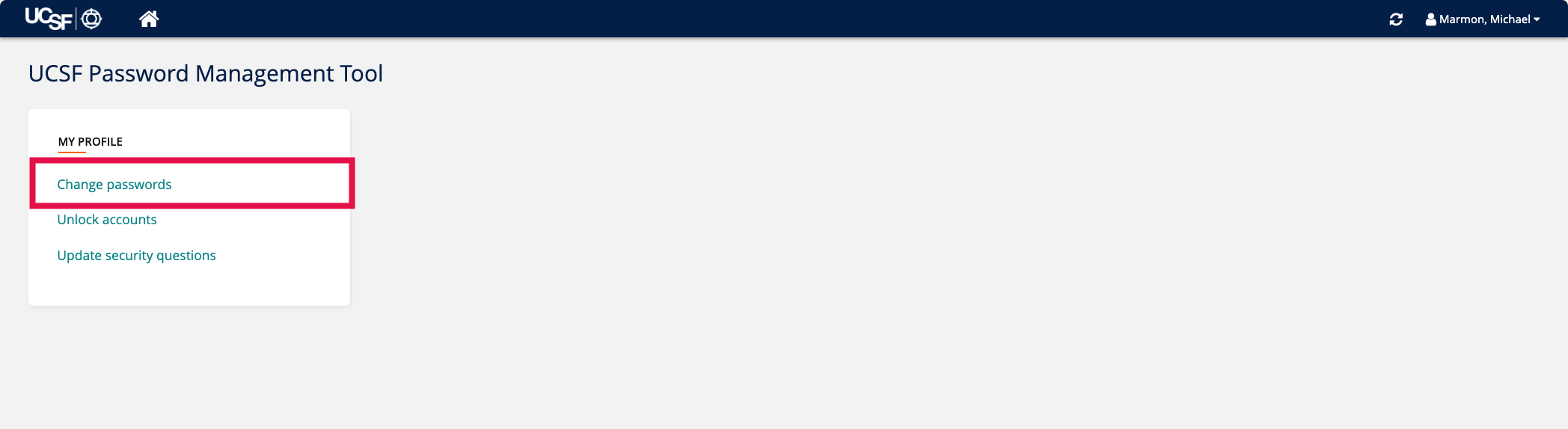
From the landing page, select Change passwords.
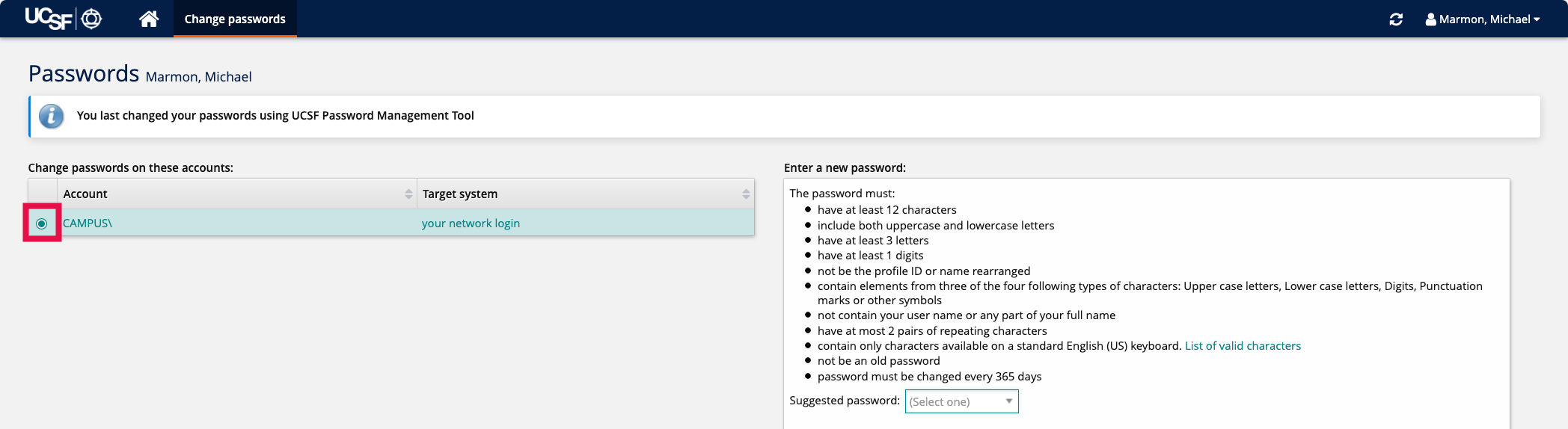
Select the checkbox(es) next to the account(s) that you would like to update the passwords for.
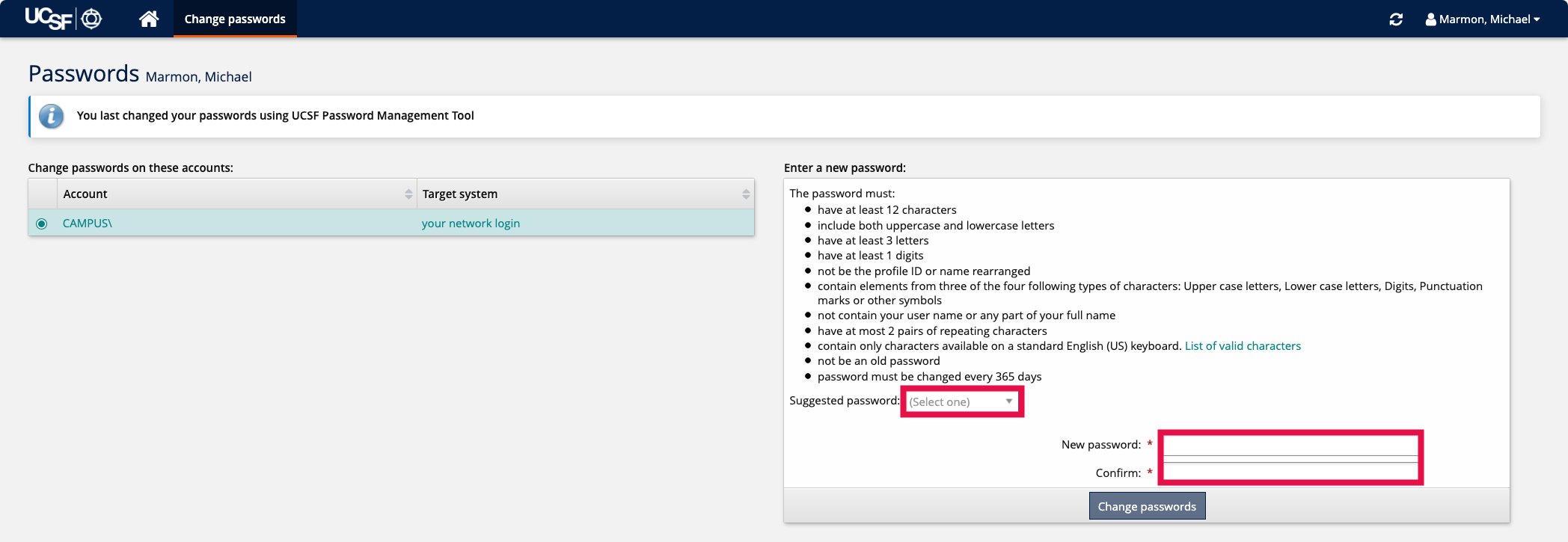
Select a Suggested password or enter a password that fits the minimum requirements for UCSF accounts. Learn more about UCSF password requirements.
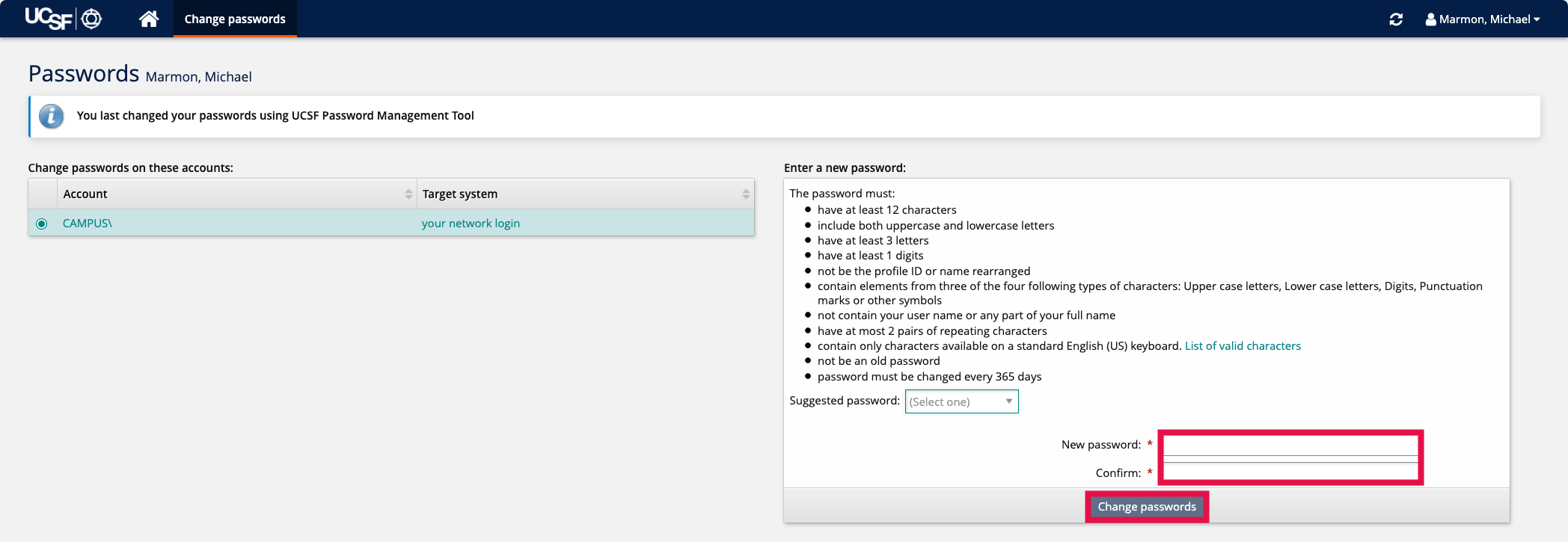
Enter the desired password in the New password and Confirm fields then select Change passwords.
A Confirmation screen stating that your password has been successfully changed.
NOTE: You will also receive a confirmation email that your password has changed as well.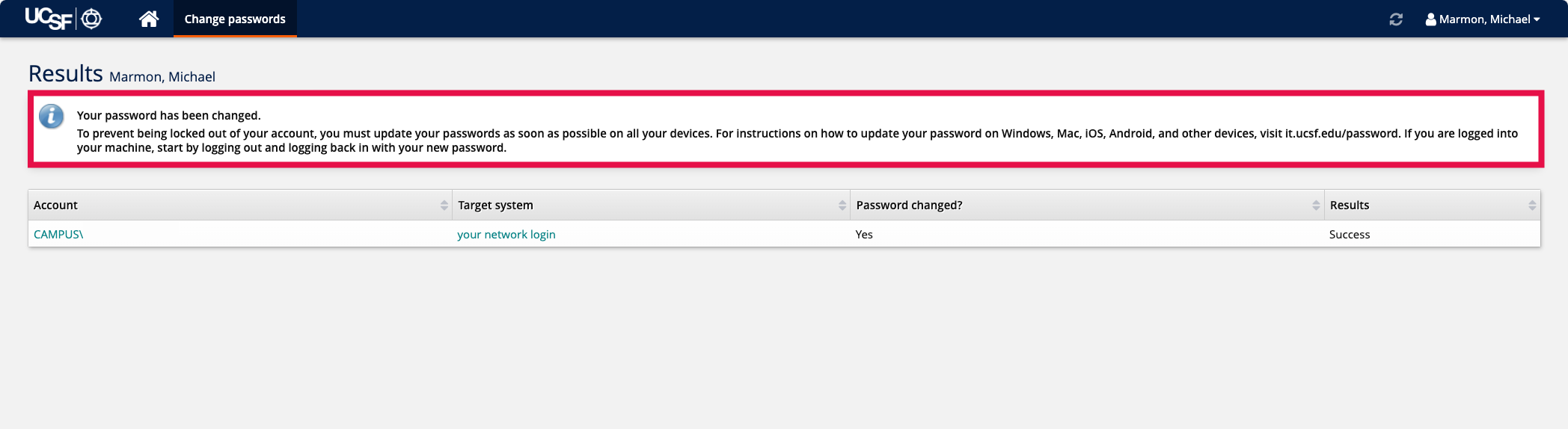
With your UCSF password updated, it is recommended that you log out of your computer before logging back in with your new password as well as update your password on other devices for WiFi, UCSF email and any other necessary applications.