Overview
Cisco Jabber is UCSF’s supported calling application for Windows, Mac, and mobile devices. It allows you to make and receive UCSF phone calls directly from your computer or mobile device using a single, easy-to-use interface.
How to access
Any user with a UCSF Active Directory account is able to request a Jabber softphone. To request a Jabber softphone or make changes to an existing Jabber softphone service, submit a Jabber softphone request.
Visit the UCSF Telephone Services page for detailed information about Cisco phones, Jabber softphones, voicemail, and other telephone services.
Support
There are multiple ways for you to get the help you need.
-
To request a Jabber softphone or make changes to your existing Jabber softphone service, submit a support request.
-
Having an issue with an existing Jabber account? Submit a repair request.
-
To learn about UCSF Telephone Services, visit the site or check out the Jabber FAQs below.
Frequently asked questions
Jabber softphone is a software application that lets you make and receive phone calls using your computer or mobile device instead of a physical desk phone. Jabber is only supported on mobile devices running iOS or Android and PCs running Windows or macOS.
To request a Jabber softphone or make changes to your existing Jabber softphone service, submit a support request.
In the Jabber application:
- enter your UCSF username (e.g., [email protected]) and email password.
- Click the Sign In button.
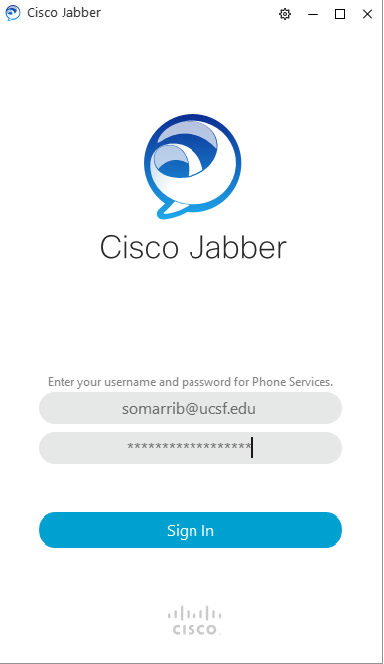
NOTE: If you sign out of Jabber after a successful login, it remembers your username in its cache. The next time you sign in, you should only need to enter your email password.
After a successful login, you should be able to see the Cisco Jabber home screen, which will look similar to the image below.
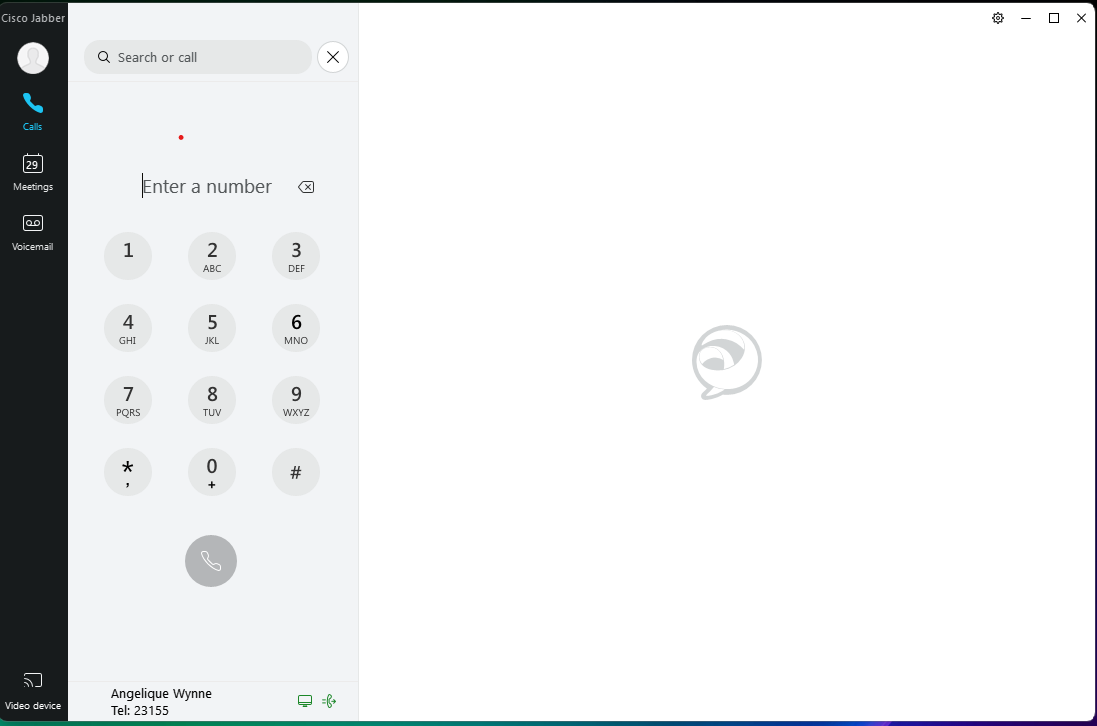
If, when trying to make an audio/video call, you're having issues searching contacts on your Jabber client search bar or you're unable to see the phone icon next to a contact:
- Click on the Settings wheel on the top right of your Jabber client.
-
Go to Help, then click on Show Connection Status (Help>Show Connection Status on Mac Client).
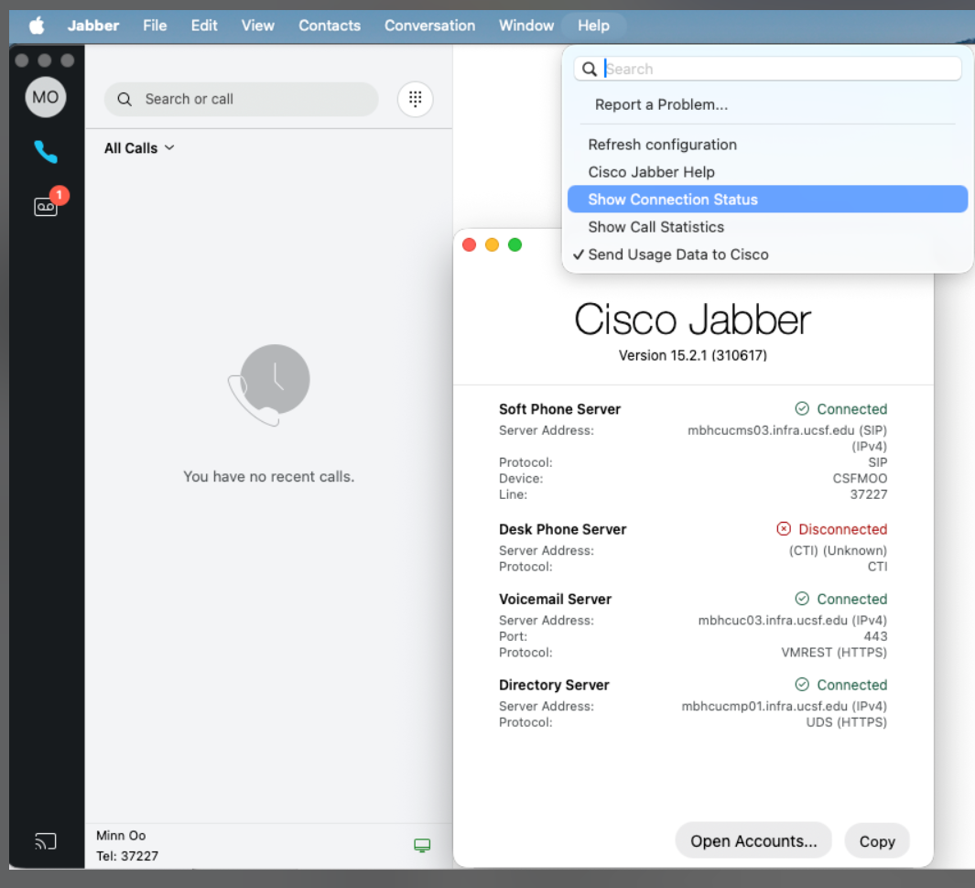
- Ensure that you have a green checkmark next to the Softphone section. Softphone service is responsible for Jabber client's audio/video capability, and Directory service allows you to search contacts within UCSF.
Making changes
- To fix either issue, you can sign out from the client, then sign back in.
- If the issue persists, contact the IT Service Desk at 415-514-4100 or open a ticket online at help.ucsf.edu.
NOTE: Jabber Reset will reset to the default configuration, deleting all your custom preferences as well as your phone history. Once reset, it cannot be reverted.
Saving contacts
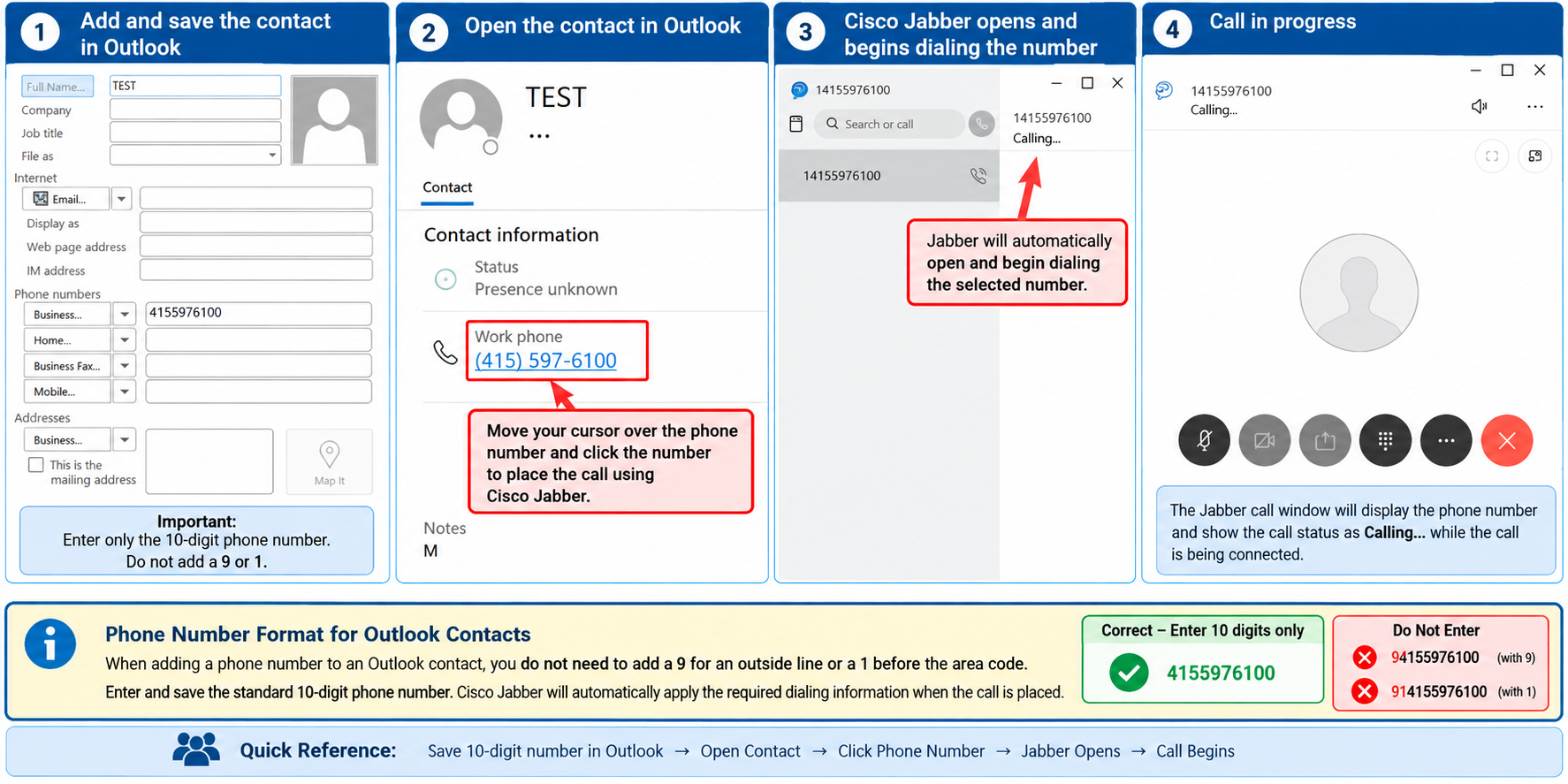
Cisco Jabber does not save personal contacts directly within the application. Use Microsoft Outlook Contacts to save and manage phone numbers you want to call again.
This also applies to incoming Jabber calls. If you receive a call from a number you want to save, add the caller to your Outlook Contacts for future use.
How to add a contact in Outlook
- Open Microsoft Outlook.
- Go to People/Contacts.
- Select New Contact.
- Enter the contact's name and other information as needed.
- Enter the contact's 10-digit phone number under the appropriate phone field, such as Business or Mobile.
- Select Save & Close.
Important: Enter only the 10-digit phone number
When saving a contact, do not add a 9 for an outside line or a 1 before the area code. Cisco Jabber will automatically apply the required dialing information when the call is placed.
| Example | |
|---|---|
| ✅ Correct | 4155976100 |
| ❌ Do not enter | 94155976100 — includes 9 |
| ❌ Do not enter | 914155976100 — includes 9 and 1 |
How to call a saved contact
- Open the saved contact in Outlook.
- Under Contact information, locate the phone number you want to call.
- Move your cursor over the phone number and click it.
- Cisco Jabber will automatically open and begin dialing the selected number.
- Jabber will display Calling... while the call is being connected.
Quick reference
Save Contact in Outlook → Enter 10-Digit Number → Open Contact → Click Phone Number → Jabber Opens and Dials
Remember: Use Outlook to save and manage contacts and Cisco Jabber to place calls. Save phone numbers using the standard 10-digit format without 9 or 1.
Mac users: Set Cisco Jabber as the calling application
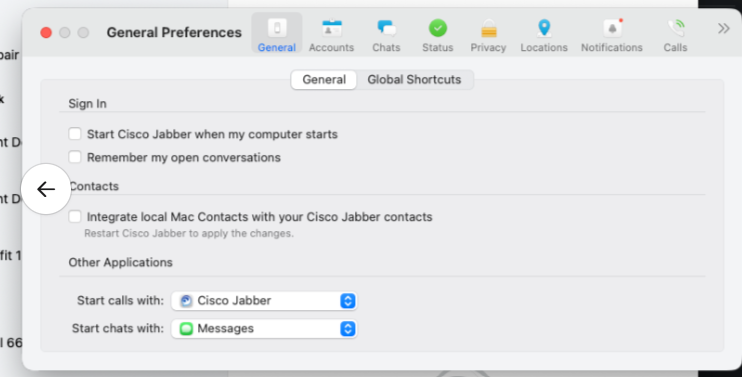
If you are using a Mac and clicking a phone number in Outlook does not automatically place the call through Cisco Jabber, you may need to update your Jabber settings.
- Open Cisco Jabber.
- From the menu, select Jabber > Settings.
- Select General.
- Under Other Applications, locate Start calls with:.
- Select Cisco Jabber from the drop-down menu.
- Close the Settings window and try clicking the phone number in Outlook again.
Mac tip: The Start calls with: setting must be set to Cisco Jabber for phone number links to open and dial using Jabber.
Navigation:
Jabber → Settings → General → Other Applications → Start calls with: Cisco Jabber
To troubleshoot connectivity issues:
- Test your network to check speed and verify a stable connection. Please visit an online network speed test website. Average speeds should be 25 Mbps.
- Multiple devices on the network will cause slow speeds and poor performance. Ensure network usage such as gaming and streaming is limited if you are experiencing poor network performance while using Cisco Jabber.
- Verify if you are working remotely from a PC or Mac that you are connected to UCSF's network by using remote VPN connection and Duo multi-factor authentication.
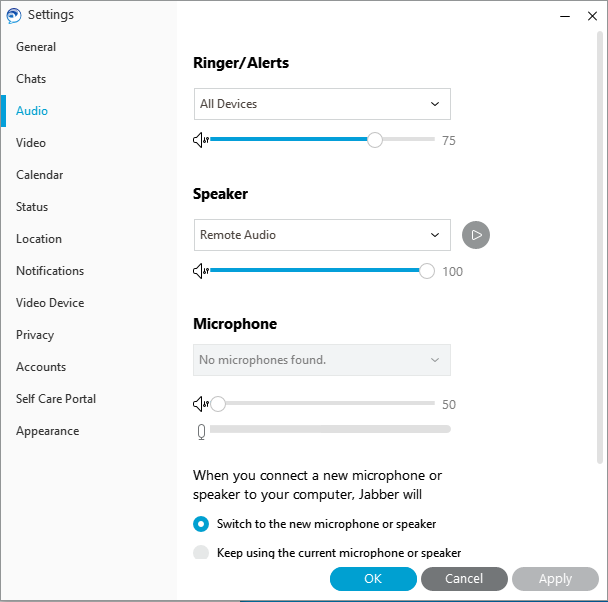
To troubleshoot audio issues, check the audio settings.
-
Open the Jabber application and click on the settings icon.

-
Verify the correct devices are selected for audio. Ensure the volume is high and none of the devices are muted.
Requirements and limitations
Jabber IM chat, Persistent Chat and Contacts were removed from the Jabber client Sept. 23, 2026.
UCSF’s approved messaging and collaboration platform for secure, persistent chat and collaboration is Microsoft Teams. Please visit the Microsoft Teams Service page for more information.