Overview
There are a few ways to search for person profiles in MyAffiliate: the Dashboard Table, the Profiles Section, and the Advanced Search Bar.
Introduction
Regardless of search method, your role will determine the affiliate profiles you can view:
- Cross-Functional Onboarding Administrators can view all affiliates.
- Identity Sponsors can only view affiliates for whom they are the Identity Sponsor.
- Affiliation-Based Onboarding Administrators can only view affiliates with the specific affiliation codes that they are granted the permissions to manage (e.g., VNDEMP).
Dashboard Table
The dashboard contains a COUNT table where you can select the Person tab. This shows only specific active affiliates based on your role. To view active affiliates you have permissions to view, follow these steps:
Step1
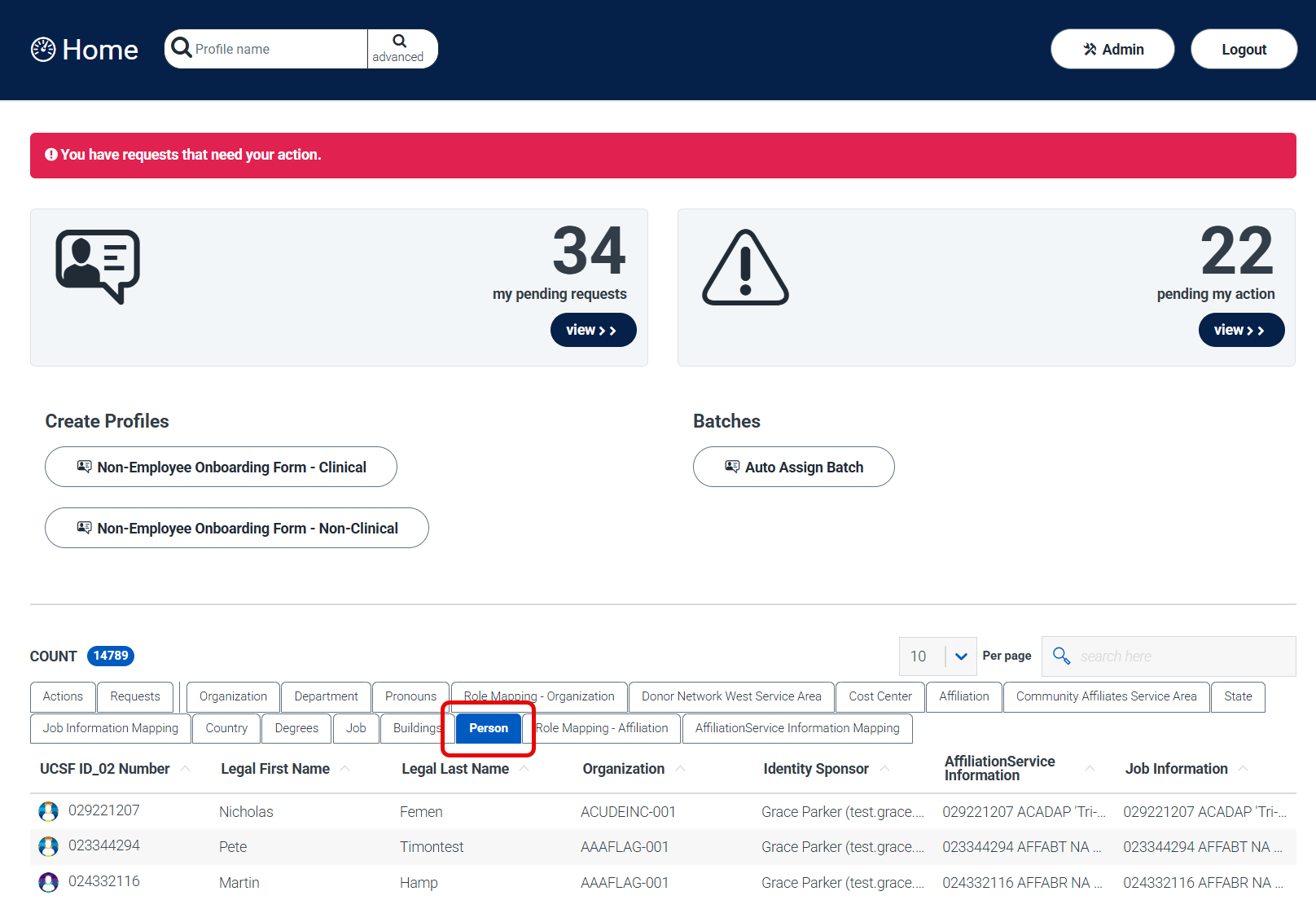
From the MyAffiliate dashboard, select the Person tab.
Step2
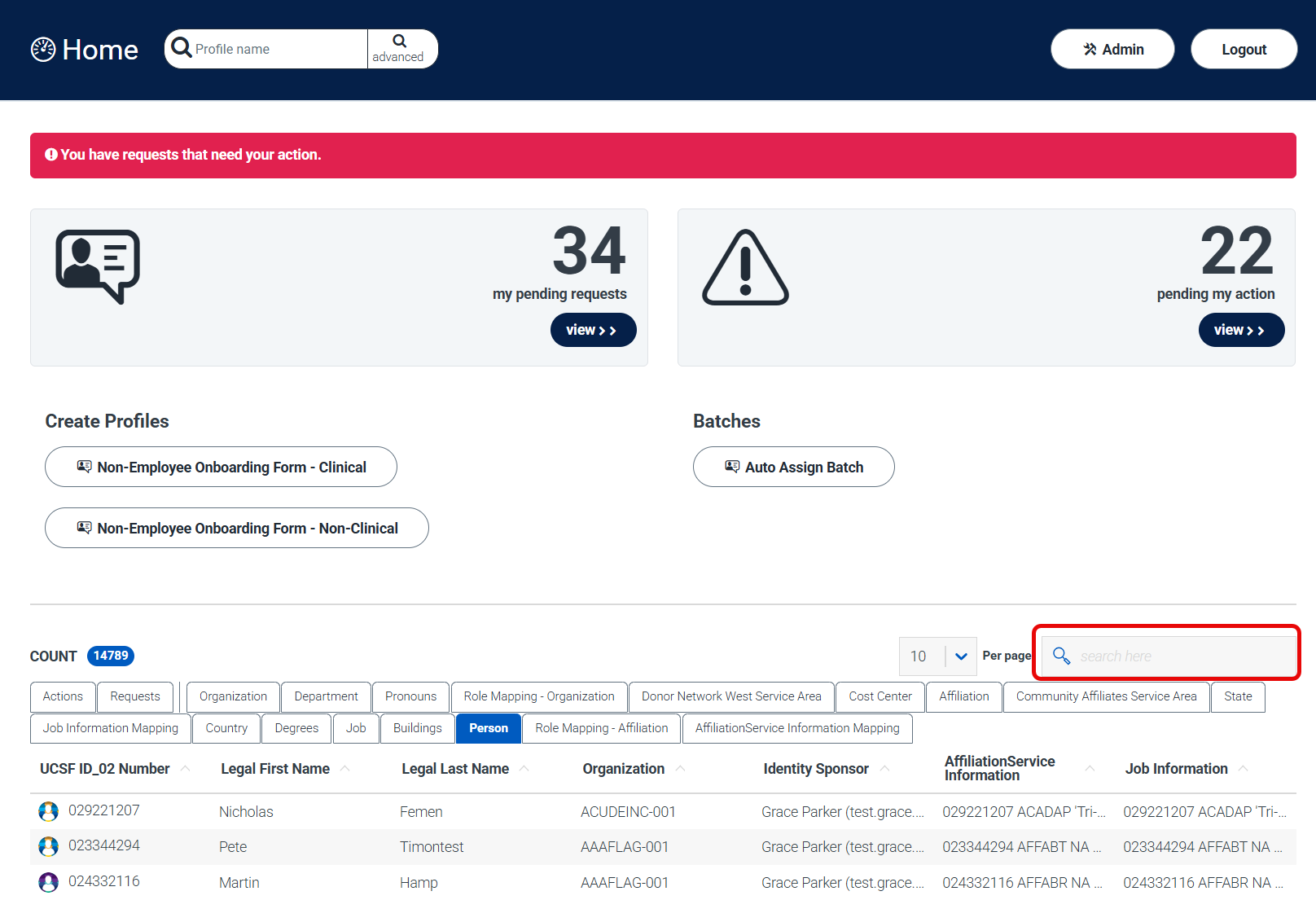
Filter Affiliates by entering their name in the search bar.
Profiles Section
To view both active and inactive affiliates based on your role in MyAffiliate, follow these steps:
Step1
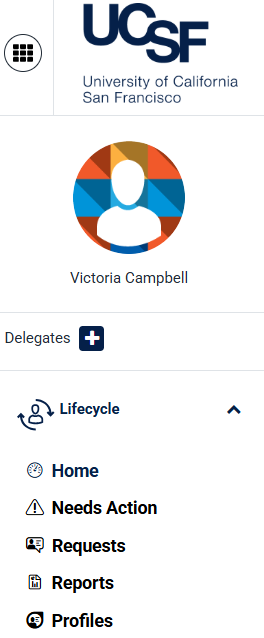
From the MyAffiliate dashboard, select Profiles from the left-hand menu.
Step2
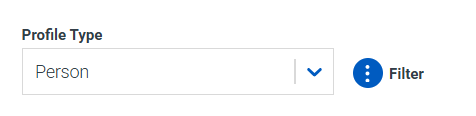
Select Person in the Profile Type field.
Step3
Filter affiliates by selecting Active, Inactive or All.

Step4
You can also filter by entering the affiliate name in the search bar.

Step5
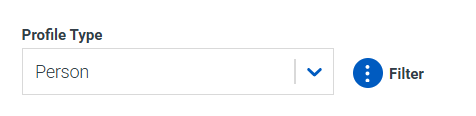
To filter further by your role, select the three dots to filter the results.
Step6
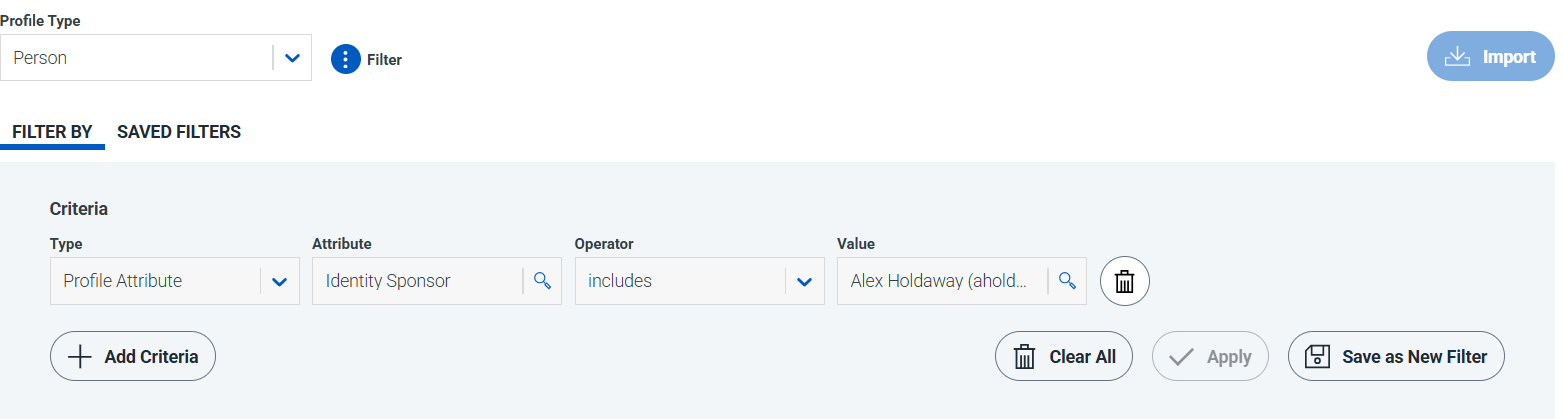
In the filter criteria field for Type, select Profile Attribute.
Step7
In the filter criteria field for Attribute, select either Clinical Identity Sponsor or Non-Clinical Identity Sponsor.
Step8
In the filter criteria field for Operator, select Includes.
Step9
In the filter criteria field for Value, type and select your name.
Step10
After all fields are complete, select Apply.
Step11
To save the filter for future use, select Save as New Filter.
Step12
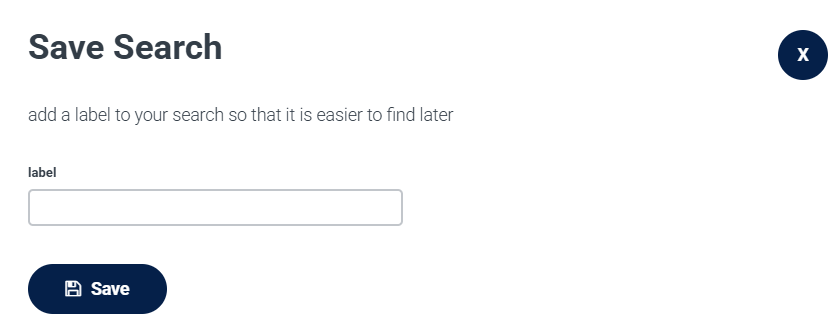
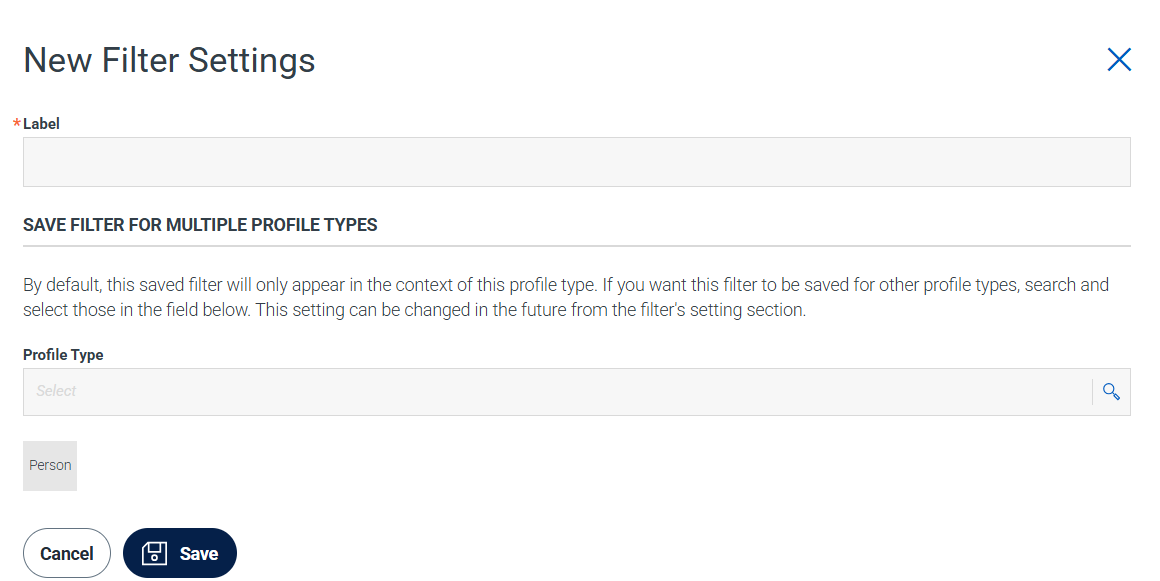
Enter a filter label in the Label field and select Save.
Advanced Search Bar
To search for affiliates by profile attributes like UCSF ID number, follow these steps.
Step1
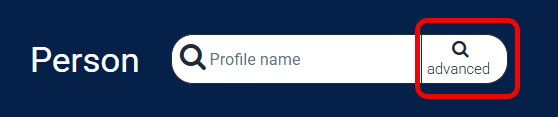
From the MyAffiliate dashboard, select Advanced Search.
Step2
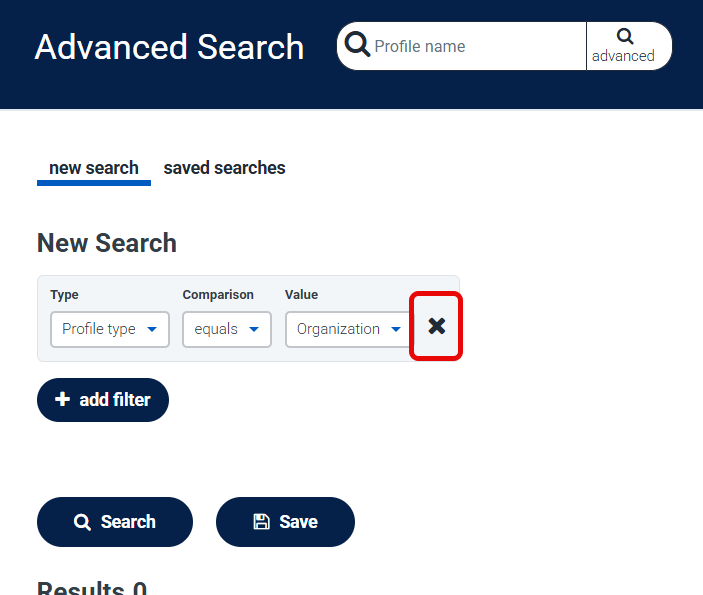
Reset the search by clicking X.
Step3
Create a new search by clicking Add Filter.
Step4
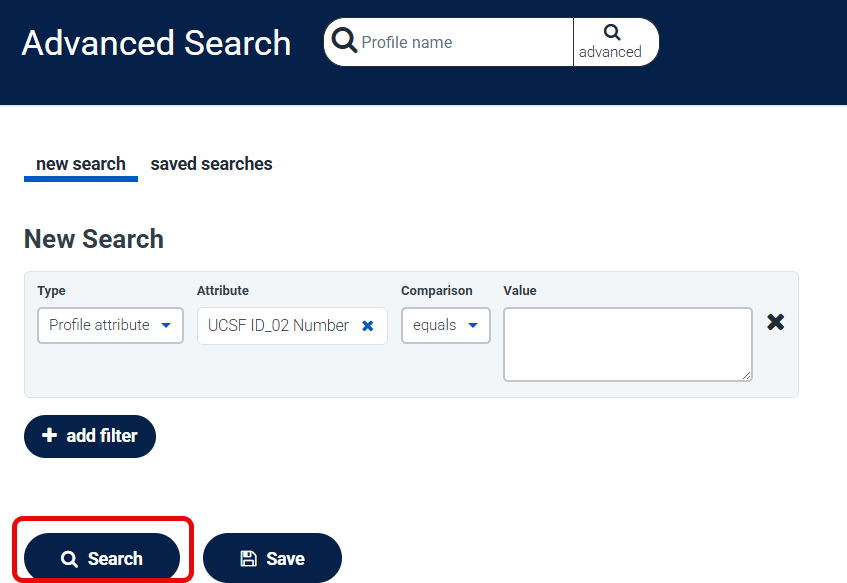
In the filter criteria field for Type, select Profile Attribute.
Step5
In the filter criteria field for Attribute, select the attribute you want to search (e.g., UCSF ID_02 Number).
Step6
In the filter criteria field for Comparison, select Equals.
Step7
In the filter criteria field for Value, type the UCSF ID Number.
Step8
After all fields are complete, select Search.
Step9
To save the filter for future use, select Save.
To save the filter for future use, select Save.