MyAffiliate allows Identity Sponsors to add a delegate in instances where they will be out of the office. When an individual is designated as a delegate, they can perform all Identity Sponsor functions. When a delegate is assigned, the delegate receives all new requests, and the Identity Sponsor receives none. Delegates do not receive items already in the Identity Sponsor’s queue before the delegation was set. If an Identity Sponsor is out unexpectedly and you require system administrator intervention to re-route anything, please submit a ServiceNow ticket to the IAM team.
Follow the steps below or review the how to assign and update a delegate video.
Assign a Delegate
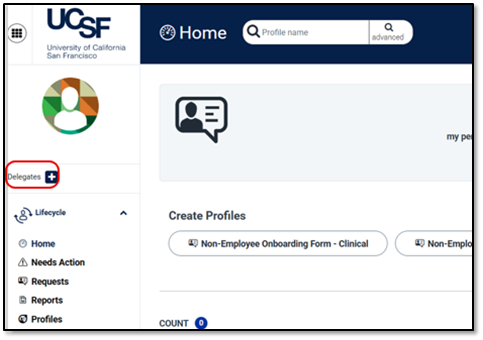
From the MyAffiliate dashboard, click the plus (+) sign next to Delegates.
- In the New Delegate dialog window, enter the Name of the desired delegate NOTE: Enter a space first to browse a list of delegates.
- Select the Person to designate as your delegate.
Under the Expires? Heading, select the Yes or No.
NOTE: If no, then delegate access will persist until you cancel it. If yes, you will set a date in the Expiration Date field, which will remove delegate access on the date entered.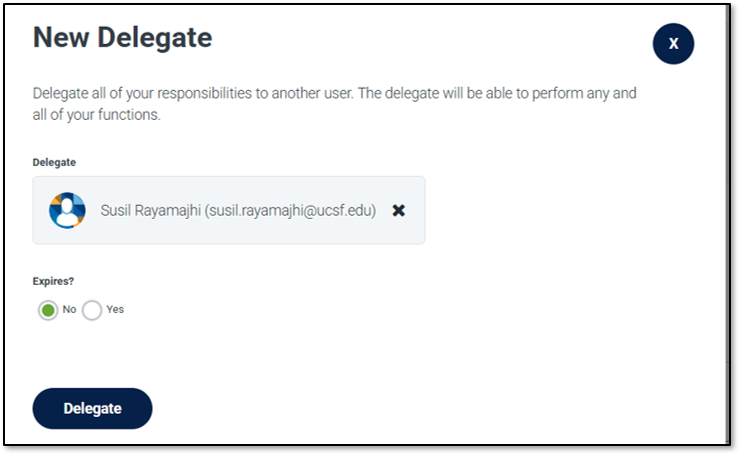
- Click Delegate to submit.
Updating a Delegate
From the MyAffiliate dashboard, select Delegates.
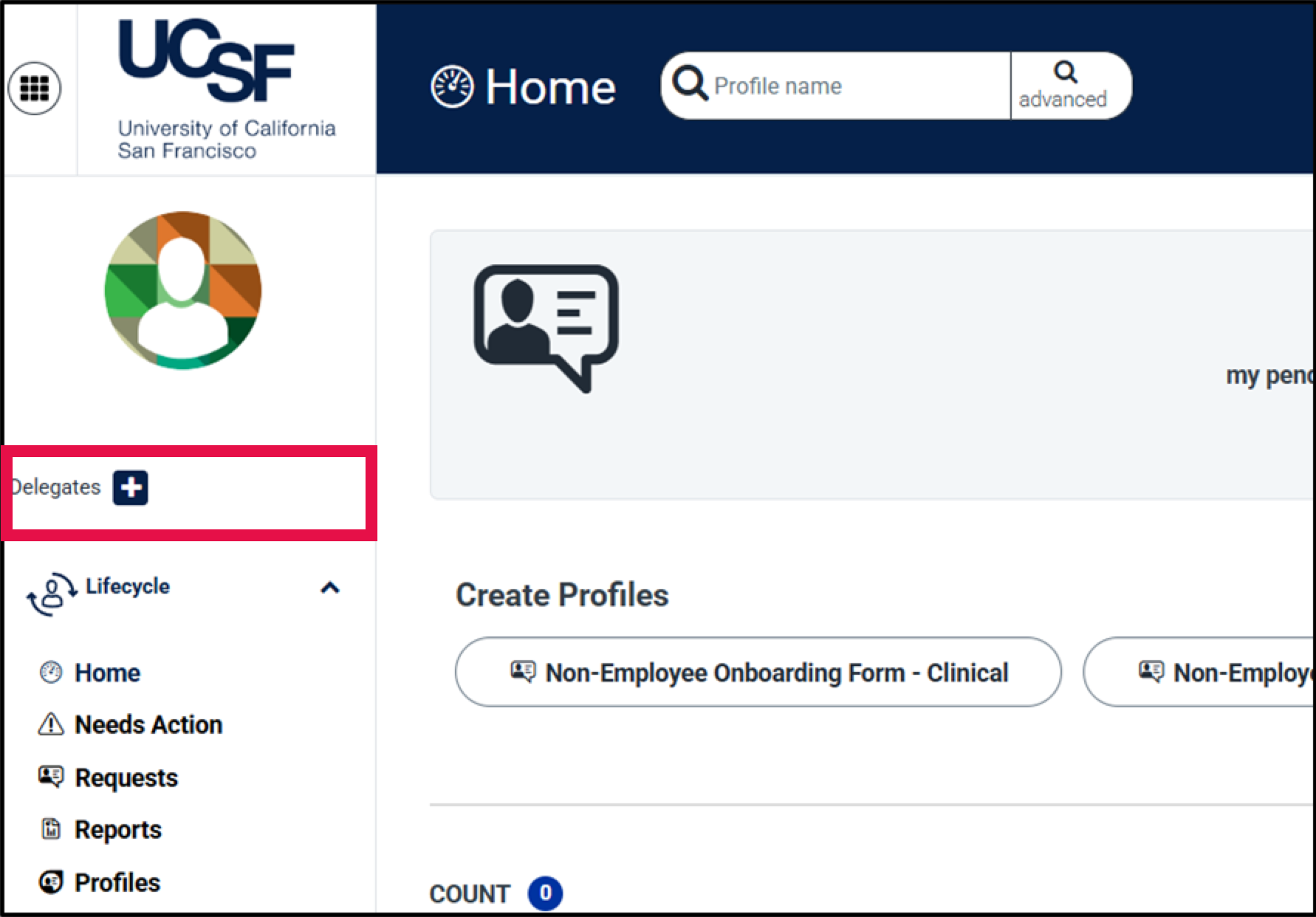
- Select the Delegate access to be updated.
- In the Update Delegation dialog window, you can either set an expiration date, modify an existing expiration date, or end delegation.
- Click Update Delegation to submit your changes.