This section, and the collaborator role and portals, are relevant to Community Affiliates and Donor Network West. These features allow select non-employees to manage other non-employees from their same affiliation. The following section includes the steps to invite non-employees to the collaborator portal where they can manage other non-employees in their affiliation and service area.
Follow the steps below or view this video on how to invite collaborators.
Inviting Collaborators in MyAffiliate
- From the MyAffiliate Lifecycle portal dashboard, navigate to and select the profile of the person you want to invite to the Collaborator Portal.
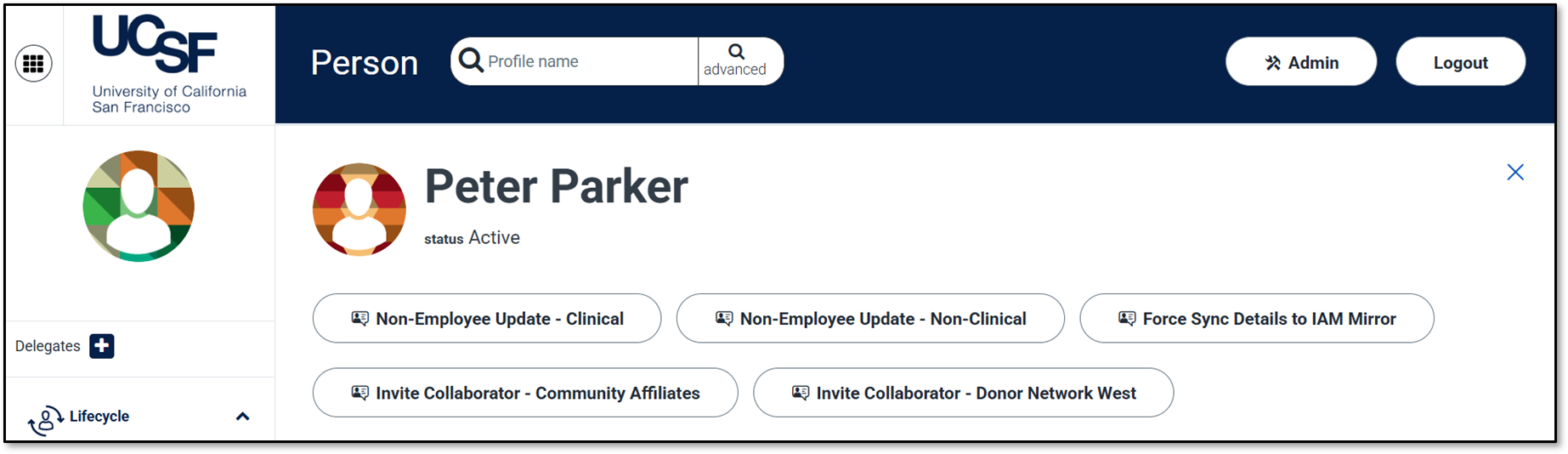
From the non-employee's profile page, select either Invite Collaborator – Community Affiliates or Invite Collaborator – Donor Network West.
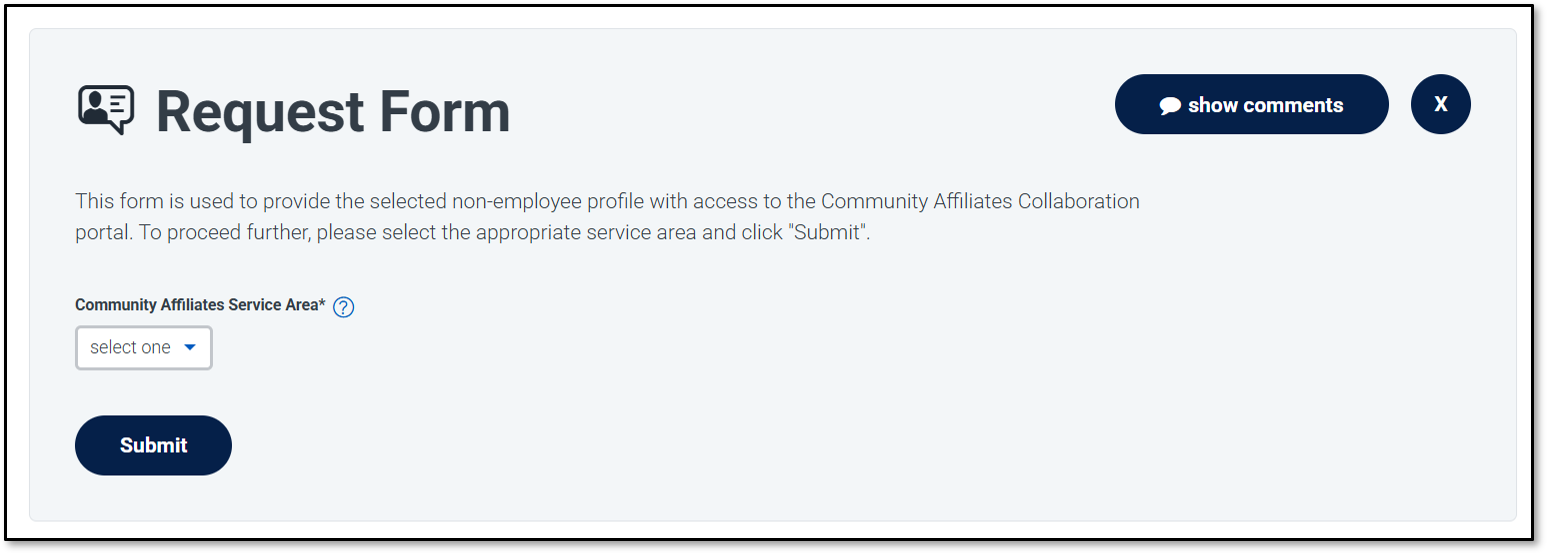
On the Invite Collaborator screen, select the appropriate Service Area, then click Submit.
- The MyAffiliate Lifecycle portal dashboard will reload.
- You’ll receive an email notification once the non-employee’s Identity Sponsor approves the collaborator invite request.
- Complete the required steps outlined in the email notification.
- For Community Affiliates, once the steps are completed, share the link to the Community Affiliates collaborator portal with the non-employee. Their login credentials will be their UCSF username and password.
- For Donor Network West, once the steps are completed, share the link to the MyAffiliate Donor Network West collaborator portal with the non-employee. Their login credentials will be their UCSF username and password.