At times, an existing non-employee's profile will need to be updated. Most updates will fall in one of the following categories: Personal Information, Job Information, or Affiliation Information. Updating affiliate information can be a multi-step process. Please follow the instructions below carefully.
This page will assist you with updating the following elements of Non-Employee information.
Update Personal Information
At times, an existing non-employee's profile will need to be updated. Most updates will fall in one of the following categories: Personal Information, Job Information, or Affiliation Information. Updating affiliate information can be a multi-step process. Please follow the instructions below carefully.
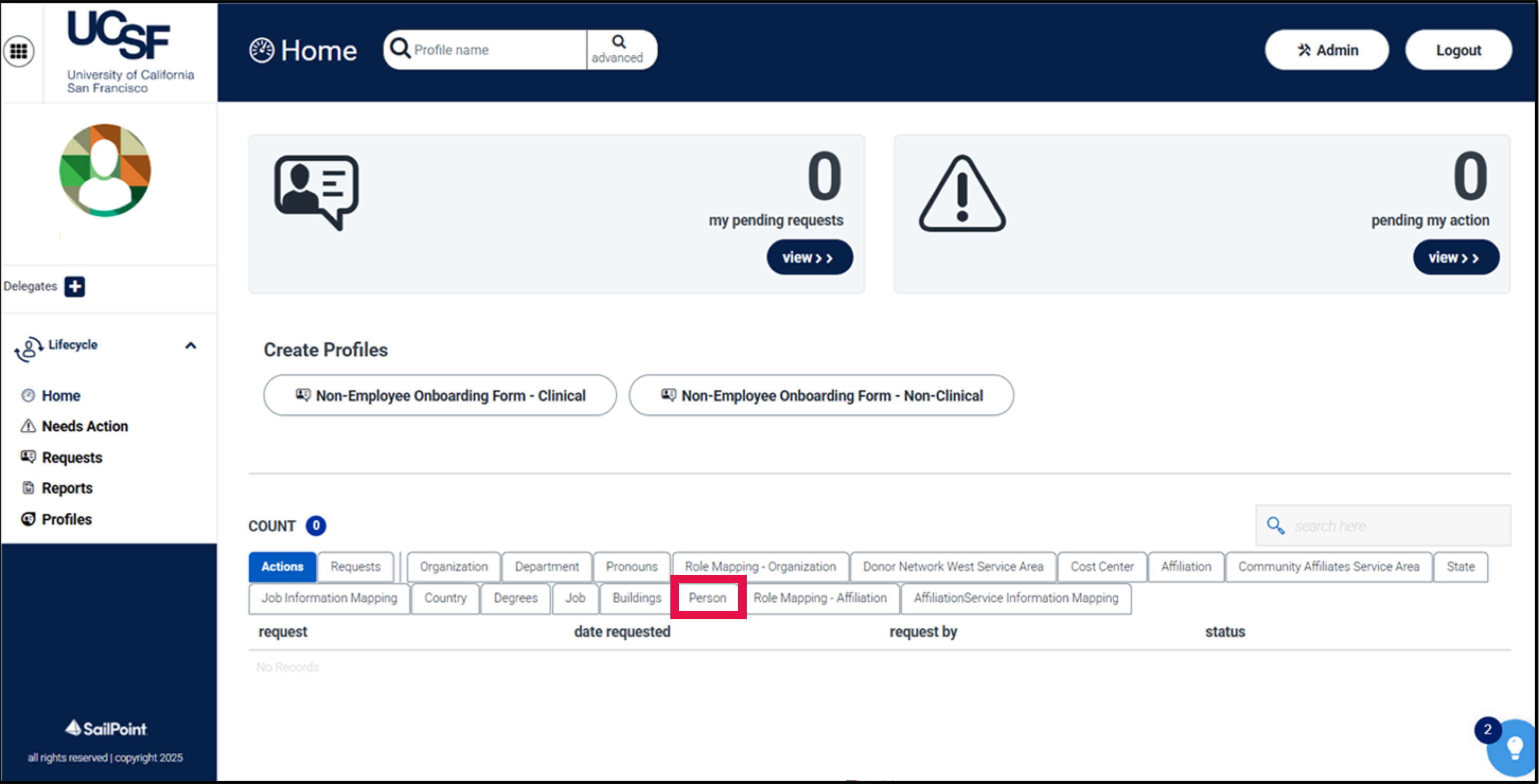
From the MyAffiliate dashboard, select the Person tab.
Navigate to and select the non-employee profile to be updated. On the Affiliate’s profile, click Non-Employee Update – Clinical or Non-Employee Update – Non-Clinical.
NOTE: For Clinical non-employee updates, select the Non-Employee Type and service area before clicking Submit.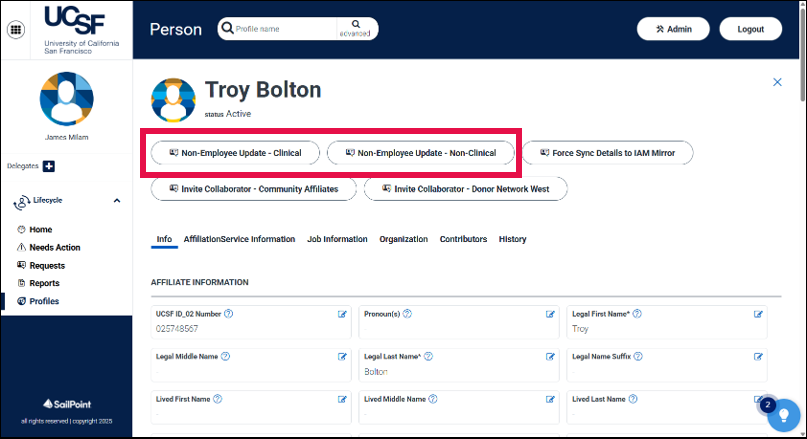
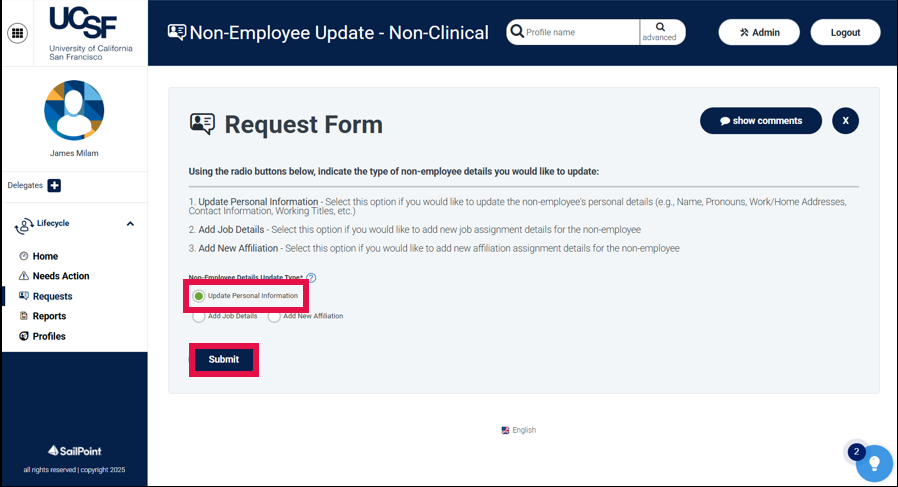
On the Request Form screen, select Update Personal Information, then Submit.
- Update the desired elements of the non-employee’s personal information before clicking Submit.
- The request will then be sent to the Identity Sponsor for review and approval. If you are the identity Sponsor, the request will be processed automatically.
Add New Affiliation and Service Area
This workflow is used to add new affiliation assignment details for a non-employee (e.g., Affiliation Code, Start Date, End Date, AD account, and email address). A new affiliation should be added before adding job details. Affiliates can have more than one affiliation but only one affiliation of the same type/code. If an affiliatedoes the same job (using the same affiliation code) for multiple departments, you should create an additional job within the affiliation.
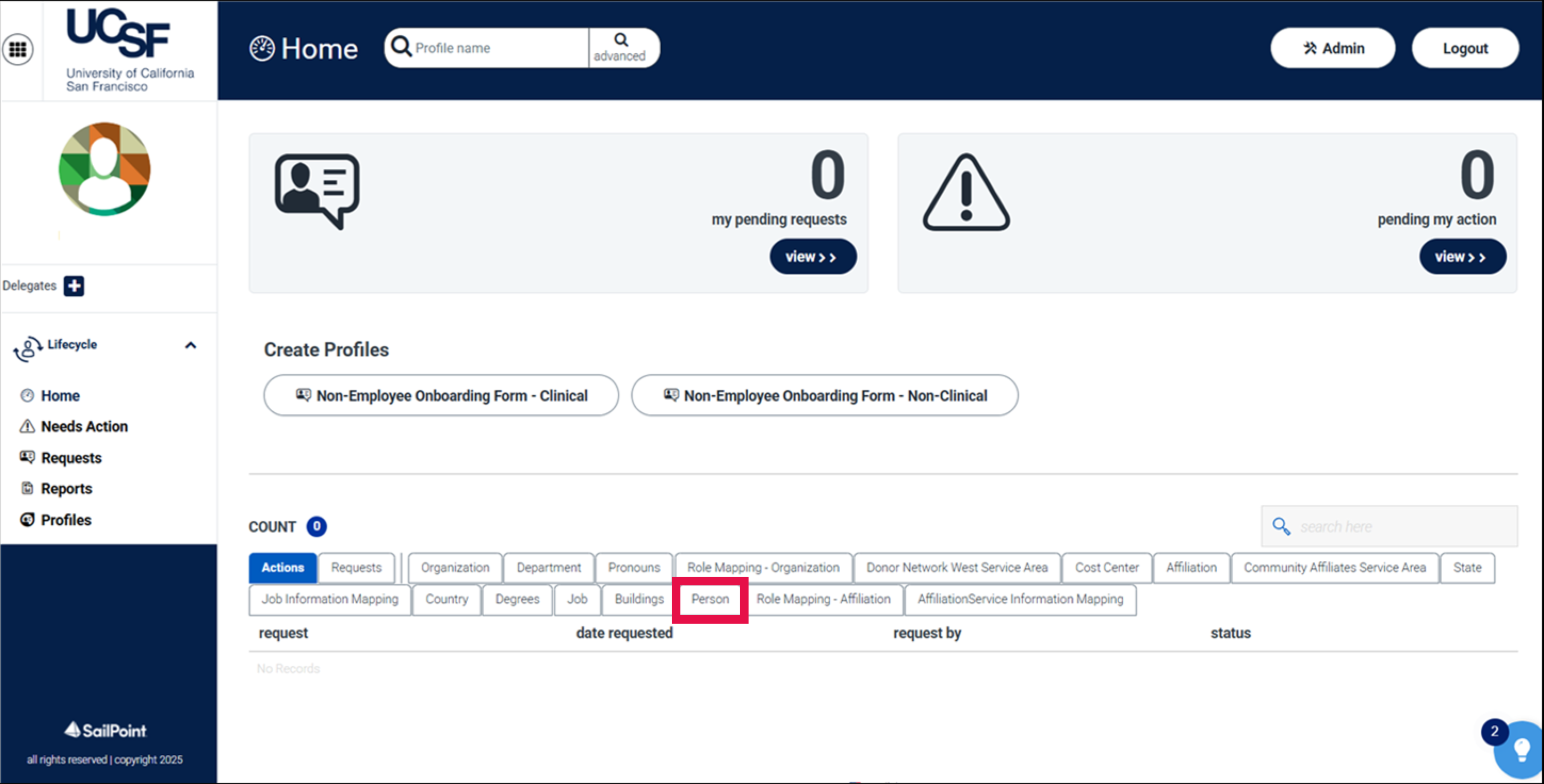
From the MyAffiliate dashboard, select the Person tab.
- Navigate to and select the non-employee profile to be updated.
On the Affiliate’s profile, click Non-Employee Update – Clinical or Non-Employee Update – Non-Clinical.
NOTE: For Clinical non-employee updates, select the Non-Employee Type and service area before clicking Submit.
On the Request Form screen, click Add New Affiliation before clicking Submit.
- Add the applicable affiliation and service area details before clicking Submit.
- The request will then be sent to the Identity Sponsor for review and approval. If you are the identity Sponsor, the request will be processed automatically.
Add Job Details
This workflow is used to add new job assignment details for a non-employee, including Department, Cost Center, and Job Code/Title. The job assignment function is useful when an affiliate does the same job (using the same affiliation code) for multiple departments. The user would have one affiliation code, and multiple jobs within that affiliation code.
From the MyAffiliate dashboard, select the Person tab.
- Navigate to and select the non-employee profile to be updated.
Select the Affiliation Service Information Tab on the affiliate’s profile.
NOTE: Document the affiliate’s existing affiliations, as job details can only be added to existing affiliations. If an affiliation is missing, it will need to be added first before job details can be entered.
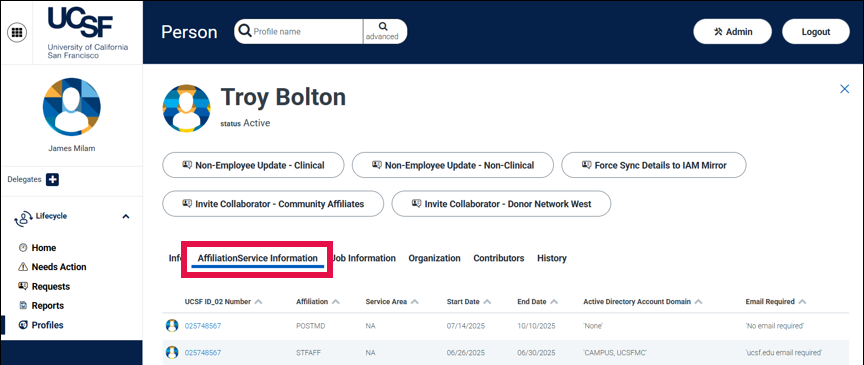
On the profile page, click Non-Employee Update – Clinical or Non-Employee Update – Non-Clinical.
NOTE: For Clinical non-employee updates, select the Non-Employee Type and service area before clicking Submit.
- Select Add Job Details, then Submit.
Add the affiliate’s job details associated with the applicable existing affiliations documented earlier.
- Click Submit to commit your changes.
- The request will then be sent to the Identity Sponsor for review and approval. If you are the identity Sponsor, the request will be processed automatically.
Update Job Information Details
This workflow is used when you need to edit the department, cost center, or job code/title for an affiliate.
From the MyAffiliate dashboard, select the Person tab.
- Navigate to and select the non-employee profile to be updated.
From the affiliate’s profile, select the Job Information tab.
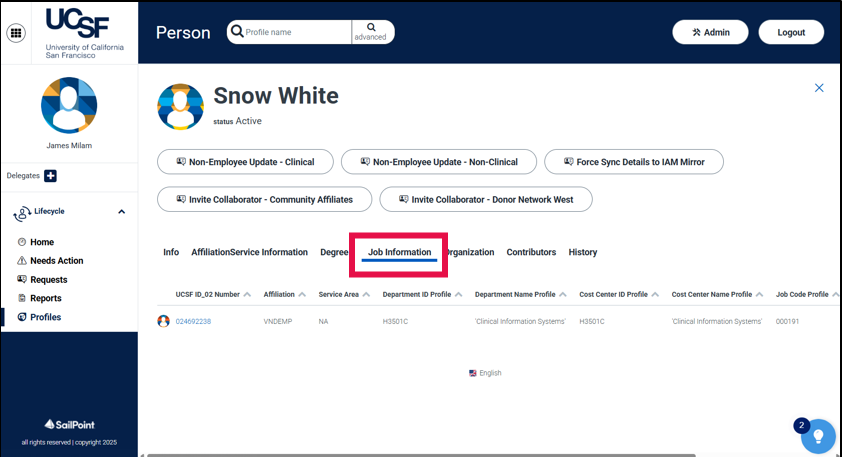
- Select the job information record to update the corresponding job information details.
On the Job Information Mapping page, select Non-Employee Existing Job Information Update.
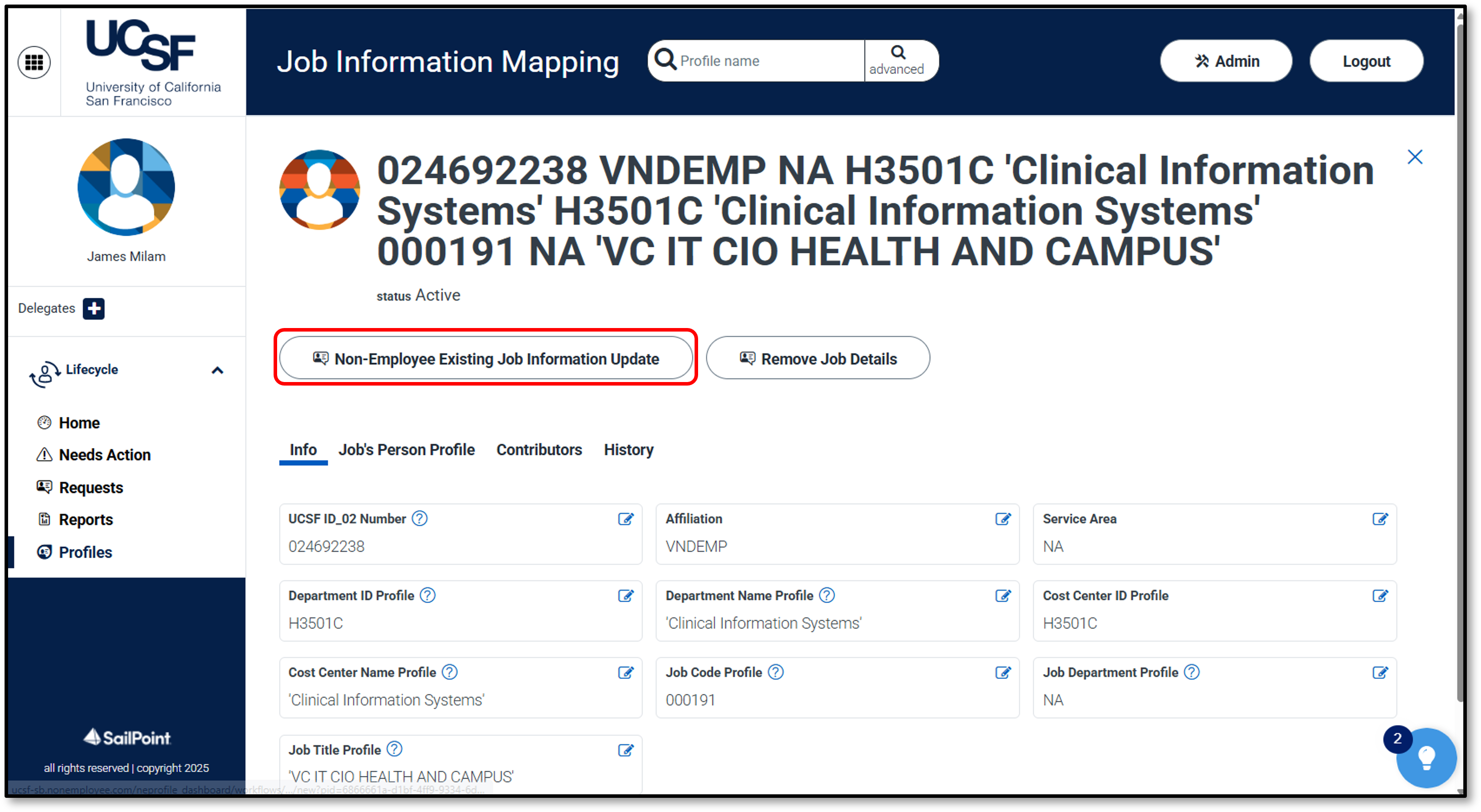
- Update the information to be changed (e.g., Department, Cost Center, Job Code, Job Title) before clicking Submit.
- The request will then be sent to the Identity Sponsor for review and approval if you are an onboarding administrator or collaborator. If you are the identity Sponsor, then the request will be processed automatically.
Update Existing Affiliation Details (Including Start and End Dates)
This workflow is used when you need to edit the start or end dates, add or remove an AD account, and add or remove an email address. Please note that this only works for active affiliates. If you need to edit any of this information on an inactive affiliate, they will need to be reactivated first. To update the affiliation for an affiliate, follow the steps below:
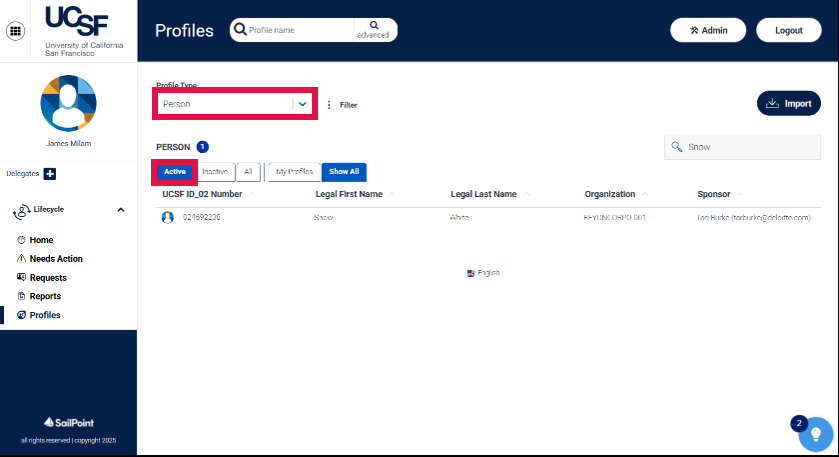
From the dashboard, click Profiles on the left navigation menu.
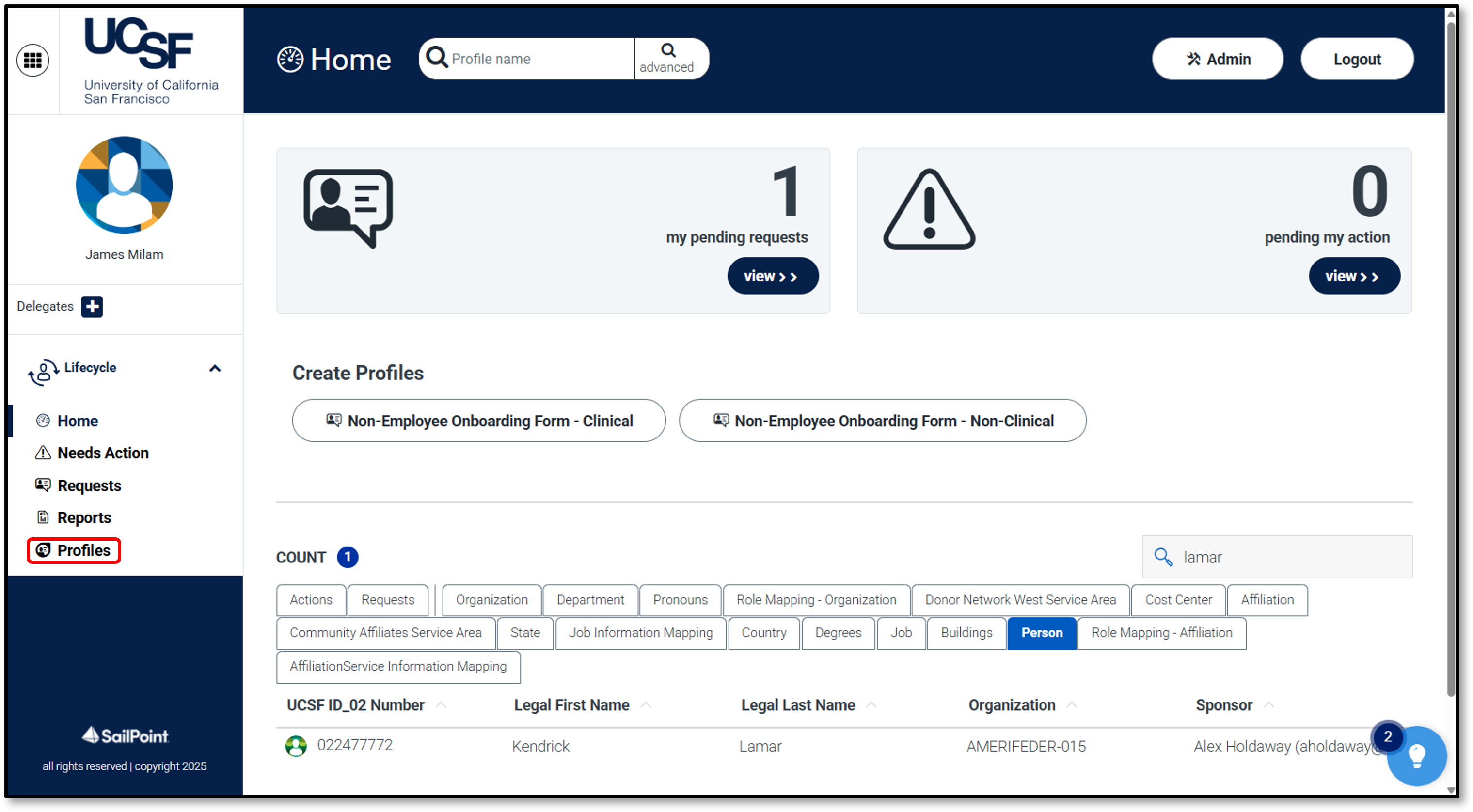
- On the Profiles page, verify that the following are set:
- The Profile Type drop-down is populated with Person.
The Active button above the search results in the upper left is selected.
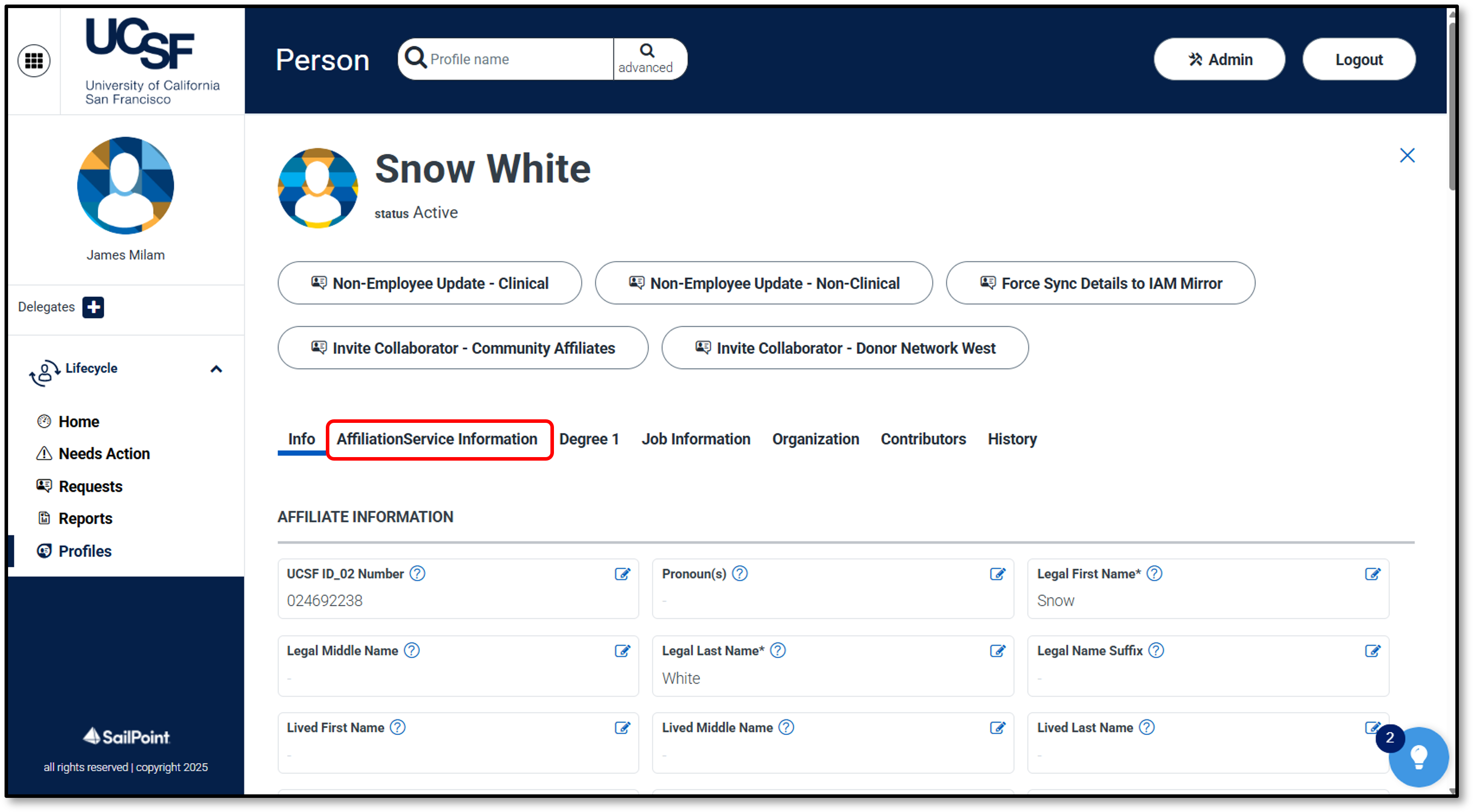
On the Person page, select the Affiliation Service Information tab.
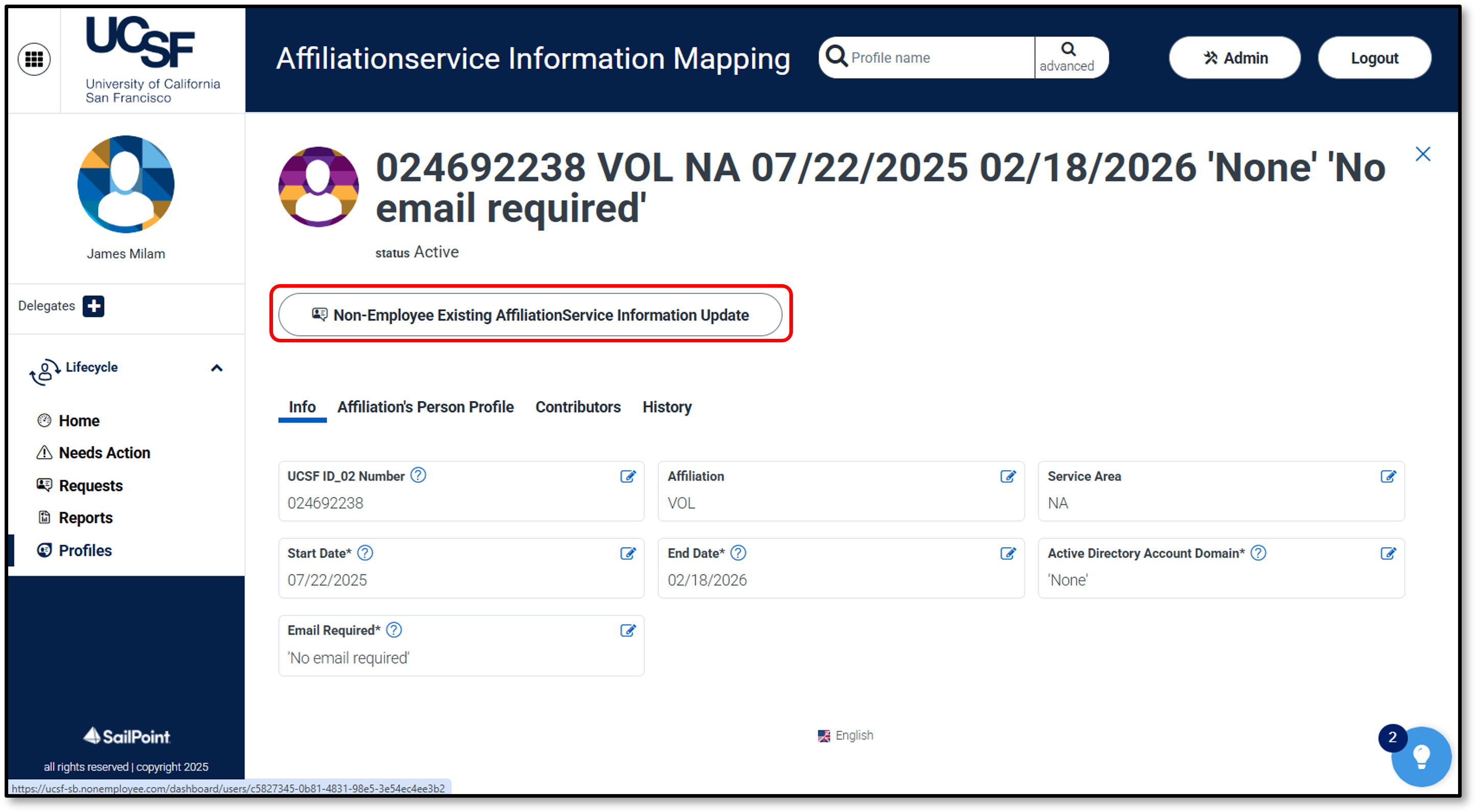
On the Affiliation Service Information Mapping page, select Non-Employee Existing Affiliation Service Information Update.
Update the fields in the form like start or end date, add or remove an AD account, or add or remove an email address. Once the desired changes are entered, click Submit.
NOTE: An affiliate’s start date and end date can be updated only if the date is today or in the future. You cannot edit these fields if the date has already passed. Once added, affiliations cannot be removed from a user's profile. The affiliations will remain on the profile but will expire upon their end date.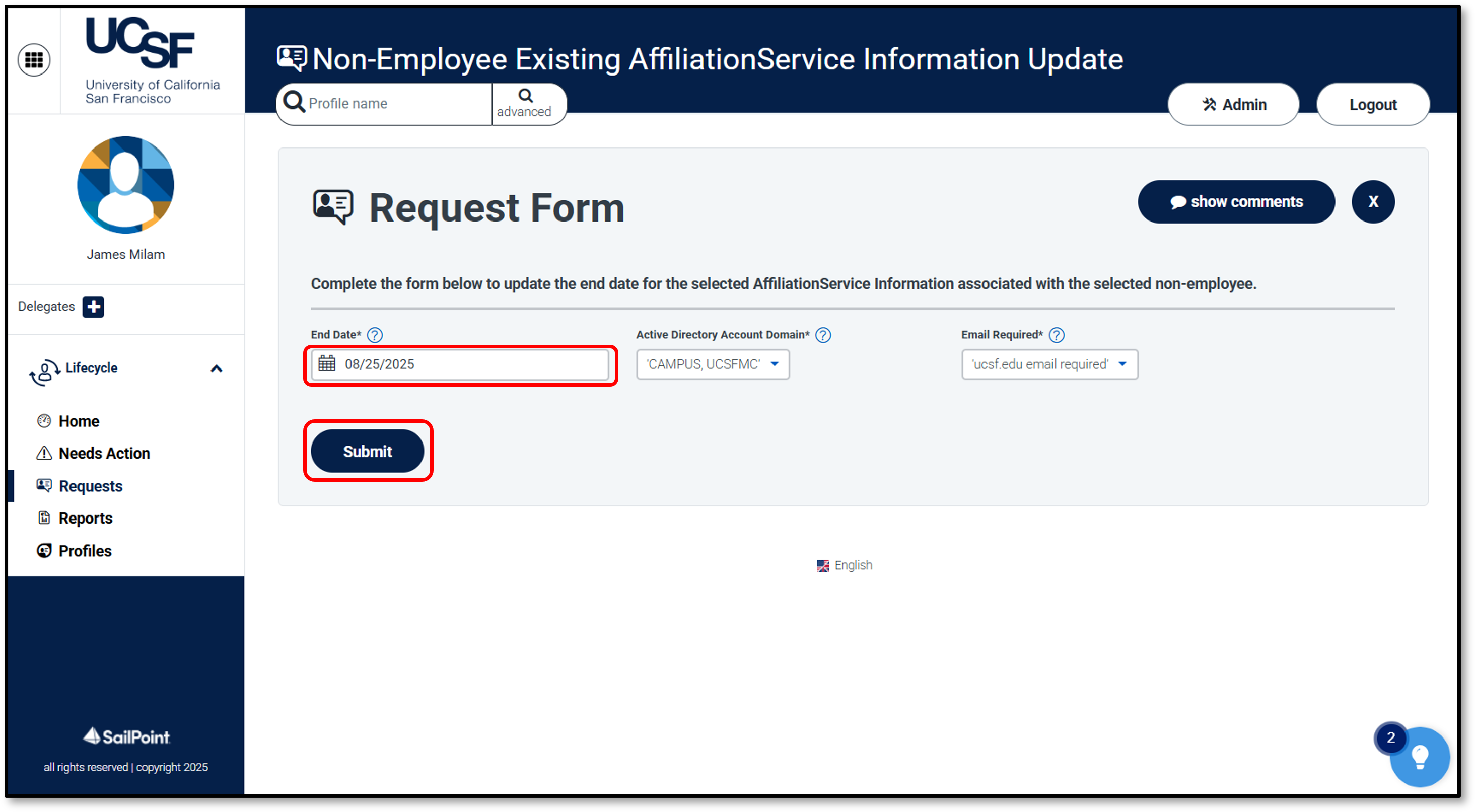
- The request will then be sent to the Identity Sponsor for review and approval. If you are the identity Sponsor, the request will be processed automatically.
Remove Job Information Details
This workflow is used when you need to remove a job (Department, Cost Center, Job Code/Title) from an affiliate.
From the MyAffiliate dashboard, click the Person tab.
- Navigate to and select the non-employee profile to be updated.
Select the Job Information tab before selecting the job information record to be removed.
On the Job Information Mapping page, click Remove Job Details.
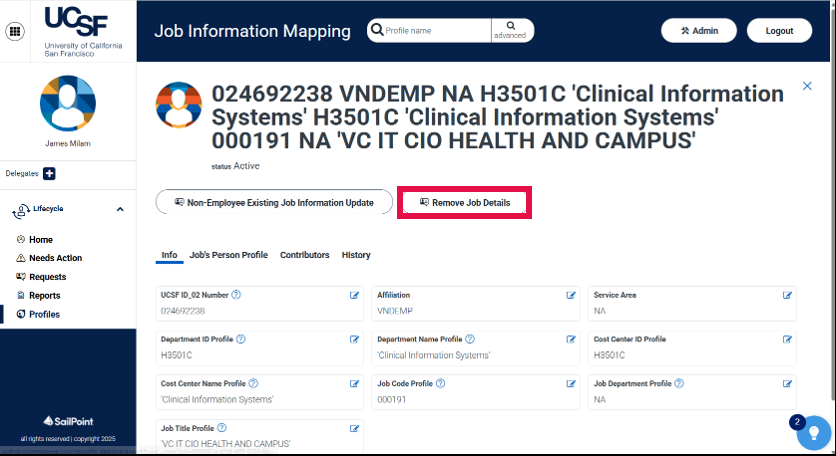
- The Remove Job Details screen will load. Click Submit.
- The request will then be sent to the Identity Sponsor for review and approval. If you are the identity Sponsor, the request will be processed automatically.
Change Identity Sponsor
As part of the data migration from Hitachi Bravura to MyAffiliate, all current affiliates were assigned a UCSF Identity Sponsor. If you were assigned affiliates for whom you are not the appropriate sponsor, you should change the sponsor.
From the MyAffiliate dashboard, click the Person tab.
- Navigate to and select the non-employee profile to be updated.
Select Non-Employee Sponsor Update – Clinical or Non-Employee Sponsor Update – Non-Clinical.
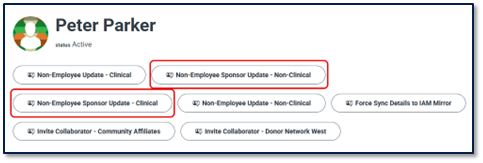
- Select a new Identity Sponsor from the dropdown list then click Submit.
NOTE: If you do not see the appropriate Identity Sponsor in this list, it means they have not been assigned the proper role. They first need to request the Identity Sponsor role through this ServiceNow form before you can assign them an affiliate. - The request will then be sent to the Identity Sponsor for review and approval.