Overview
PDFs must be accessible to all users.
Start here | When is a PDF complex? | Creating a new accessible PDF or updating an existing one | Tools and resources | FAQs
Start here: What should I do with my existing PDFs?
Use this checklist to determine the best approach for any PDF:
1. Remove it if possible
Outdated or unnecessary PDFs should be removed. You may also consider temporarily removing high-risk PDFs until they are remediated and compliant.
Visit the Archiving Web Content and Accessibility Compliance page for information on archiving your older or inactive materials.
2. If the PDF still needs to remain, prioritize fixes in Siteimprove
- In Siteimprove's PDF audit, review the Machine-readable and PDF Tags column. A green checkmark means those requirements are met, and a red X means it is not.

- Start by fixing PDFs that have red Xs in both columns. Next, fix PDFs that have an X in one of the columns. The goal is to have green checkmarks in both for all PDFs.

- Then use the Clicks on PDFs – Last 30 days column to prioritize your work. Focus first on PDFs with the highest number of clicks.
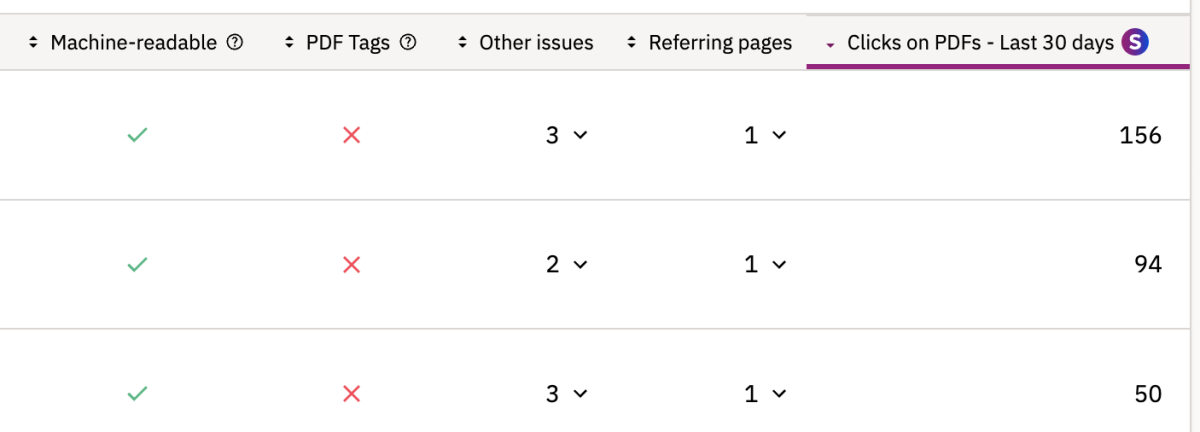
- Green checkmarks in these columns do not mean the PDF is fully accessible. If the PDF is still flagged in Siteimprove, review the Other issues column and address those as well. These issues are typically less critical but still need to be resolved.

3. Convert it to a webpage
Convert the PDF to a webpage when possible. This is often the most accessible and maintainable option.
4. Regenerate from the source file
If you have the original file (Word, PowerPoint, Canva, etc.):
- Fix accessibility issues using built-in accessibility checkers
- Export using "Save As" or "Export to PDF"
- Do not use "Print to PDF"
5. Try remediation tools
Try our Remediate PDF Tool, but be aware:
- It has limitations, especially for complex PDFs
- It may introduce new errors
- Manual review is still required
6. Use a vendor
For complex PDFs or when the original file is unavailable:
- Vendors specialize in accessibility remediation (tagging, tables, reading order, testing)
- This ensures compliance but involves cost
See:
- Campus Life Services Communications - Document and Media now supports the review and remediation of PDFs, Word documents, and other digital files. *Preferred service. No PO needed.
- Accessibility vendors
- Guide to estimating remediation costs
7. Provide an accessible alternative
If full remediation is not feasible, provide an equivalent accessible version:
- A webpage version
- A structured Word document
- A plain-text file
If multiple versions are provided:
- Keep them in sync
- Treat the accessible version as primary
- Cross-link both versions
When is a PDF complex?
Some PDFs are difficult to remediate due to their structure or content. Your PDF may be complex if it includes:
- Multi-column or non-linear layouts
- Tables with merged cells or missing headers
- Forms or interactive elements
- Scanned or partially scanned content
- Images that contain essential information
- Deeply nested or inconsistent tags
- Custom fonts or unusual encoding
If your PDF meets these conditions, you may need to use a vendor.
Creating a new accessible PDF or updating an existing one
If you are creating or updating a PDF, follow these requirements:
Structure and Content
- Use a clear structure with useful headings or slide titles
- Ensure logical reading order
- Use sufficient color contrast
- Use readable fonts (UCSF Font Guide)
- Avoid animations
Tags
- Check to make sure the PDF is tagged. Open File Properties (Command + D on Mac, Ctrl + D on Windows) and look for "Tagged PDF. If it says "No", the document needs to be tagged.
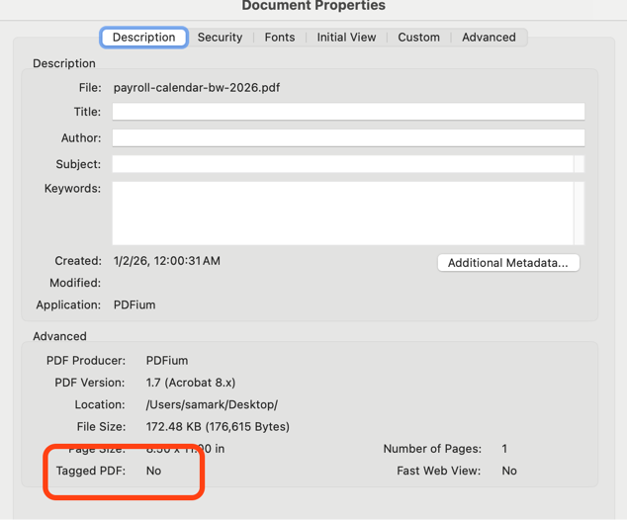
- If the PDF is not tagged, follow these steps: https://webaim.org/techniques/acrobat/reviewing#accessibilityTags
Tip: If you are having trouble tagging, check your Acrobat Preferences and make sure the "Enable cloud-based auto-tagging for accessibility" option is unchecked.

Real Text
- Ensure the PDF contains real text. Check by trying to select text in the document.
- If text cannot be selected, the file is likely an image. To fix this, follow these steps: https://helpx.adobe.com/acrobat/desktop/create-documents/scan-documents-to-pdfs/edit-scans.html
Images
Document properties
- Include a meaningful document title and metadata
- Watch: PDF metadata video
Navigation
Tools and resources
Use these tools to help identify and fix accessibility issues. Passing a checker does not guarantee accessibility.
- LinkedIn Learning Path curated for UCSF PDF creators (internal to UCSF only, you must use your UCSF login credentials).
- PDF Accessibility from WebAIM
- Adobe Acrobat Accessibility Checker
- Siteimprove PDF Validator
- PAC Accessibility Checker (PC Only)
- PAVE 2.0 AI-powered PDF remediation tool
- ITFS has limited Adobe Acrobat Pro licenses for supported users. Request an Adobe Acrobat Pro License using this ServiceNow form
FAQs
How do I save an accessible PDF?
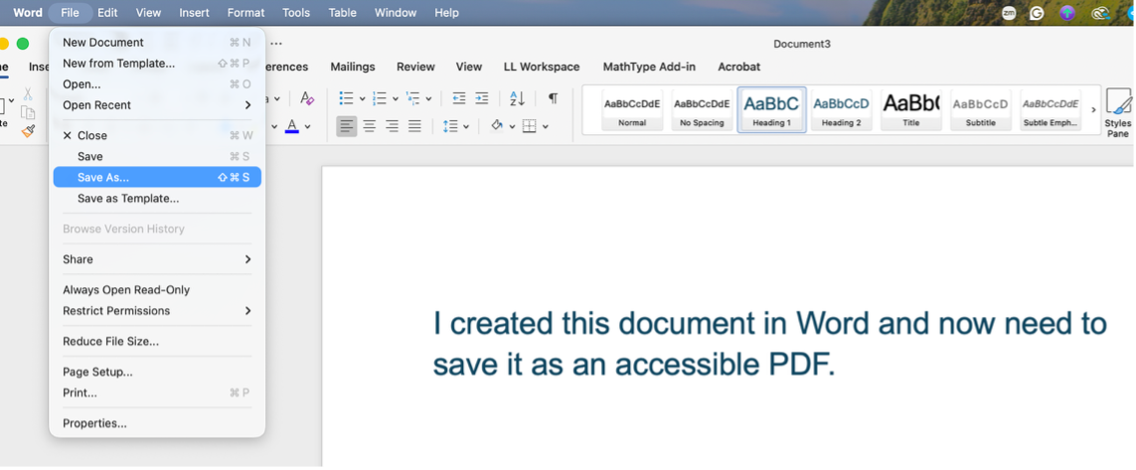
To create an accessible PDF, use Word's "Save As" or "Export to PDF" option instead of "Print to PDF". Saving or exporting preserves important accessibility features like tags, headings, and document structure, which are lost when using print methods. On the PC, make sure "Document structure tags for accessibility" is checked

How should tables be structured?
Accessible tables should include clearly defined column headers so screen readers can correctly interpret the data. According the WebAIM, header cells help users understand the relationship between data cells and their corresponding labels. For more detailed guidance, refer to WebAIM's Creating Accessible Tables and the W3C Tables Tutorial.