Videos used "to engage with University programs and services" must meet WCAG 2.1 Level AA standards. These requirements apply universally to all videos, regardless of the language in which they are provided, including languages other than English.
Why captions?
- Captions increase comprehension of content, especially if the dialogue is spoken quickly, if there are background noises, and for English-as-a-second-language viewers.
- Supports viewing in sound-sensitive environments, such as libraries and public spaces.
Do I need transcripts?
- Transcripts, text versions of the video content, can serve as an alternative to watching the video, can be easily searched, and cater to different learning styles.
- Transcripts are only required for pre-recorded audio-only, for example podcasts.
Steps for video accessibility
Step 1. Inventory
Create an inventory of your department's audio and video assets.
Tip: Download this Accessibility Tracking Template with Examples spreadsheet and make it your own.
Check these places:
- Your inventory on your website using the "media" category in Siteimprove's inventory module.
- Your site's file system (CMS) for audio and video that are behind a login or require VPN.
- Box, Teams, and SharePoint.
- Official UCSF social media.
Step 2. Assess
Videos need:
- Captions. Look for accuracy of proper names of people, programs, medical terminology, and UCSF buildings.
- Audio descriptions. Videos at UCSF need audio descriptions if they include important visual content that is not conveyed through the audio alone. Audio descriptions can be a separate narration track that explains visual elements, such as actions, settings, or text displayed on the screen, which are essential for understanding the video. This ensures accessibility for individuals who are blind or have low vision.
- For example, if a video shows a chart or a visual demonstration without explaining it verbally, an audio description must describe these elements so viewers relying on audio can fully comprehend the content.
Resource: Providing Audio Descriptions for Videos (UCOP / EAC)
Additional Guidance: Audio Description Requirements
- Rule of Thumb: In general, videos on UCSF websites should include audio description. Older videos that exist only on YouTube or social media may be exempt if they qualify as archived content.
- 10 Things You Need to Know (Quick Guide)
- If your video is on a UCSF website, it must be accessible. This includes captions and audio descriptions.
- Captions ≠ Audio Description. Captions capture spoken words. Audio description explains important visual content.
- Audio description is required for new videos going forward. After April 26, 2027, plan for audio descriptions as part of your standard workflow.
- “Archive” videos are treated differently—but with limits. “Archive” status requires clear labeling and separation. These are older videos created before April 26, 2027. They should be used only for historical or record-keeping purposes. A video is not considered archived just because it is old—it must be clearly labeled as archival and not actively used or promoted.
- YouTube and social media are the only platforms where the archive exception may apply. Backlog/archive videos that exist only on YouTube or social media (and are not embedded on a UCSF website) may not need retroactive audio descriptions.
- If an archive video is embedded on a UCSF website, it DOES need Audio Descriptions. This applies even if the video is hosted on YouTube/social media and created before April 26, 2027.
- Most teams will need “extended audio description.” This allows the video to pause so visuals can be fully described.
- There is no central UCSF service doing this for you. Each unit is responsible for its own compliance.
- Using a vendor is the recommended approach. Tools like ViddyScribe can generate and help you edit audio descriptions.
- Budget for it. Expect roughly $7–12 per minute of video.
Decision Tree (Do I Need Audio Description?)
Start here:
- Will this video be posted or embedded on a UCSF website?
- No → Continue
- Yes → You will likely need Audio Descriptions (go to Step 4 to confirm)
- Is the video only on YouTube or social media (not embedded on a website)?
- Yes → Continue
- No → Continue
Is the video part of your backlog/archive (created before April 26, 2027)?
- Yes → Continue to 3a
- No → Audio Description IS required
3a. Does the video truly qualify as “archived”?
- Clearly labeled as archived (title/description/context)?
- Separated from current/active content?
- Not embedded on a UCSF website?
- Not used for training, education, or services?
- Yes to ALL → Audio Description likely NOT required (exception applies)
- No to ANY → Treat as active content → Audio Description IS required
- (For website content) Does the video include important visual information not explained in narration (e.g., charts, on-screen text, demonstrations, or actions not described aloud)?
- No → Audio Descriptions may not be necessary (confirm if unsure)
- Yes → Continue
- Can a viewer understand the full content without seeing the visuals?
- Yes → Audio Descriptions may not be needed
- No → Audio Description IS required (likely extended AD)
Key takeaway:
- Website = Audio descriptions are required (even for backlog/archive, including YouTube embeds)
- YouTube/social only = backlog/archive exception applies (until 4/26/27)
- After 4/26/27 = plan for audio descriptions in all new videos
FAQ (Plain Language)
- Q: What is audio description?
- A: It’s narration that explains important visual elements (like charts, actions, or on-screen text) for people who cannot see them.
- Q: Isn’t that already covered by captions?
- A: No. Captions cover spoken audio. Audio description covers what is seen but not said.
- Q: Do all videos need audio description?
- A: Most videos on UCSF websites do. Videos that are only on YouTube or social media may be exempt if they are part of the backlog/archive.
- Q: Do all internal UCSF videos require audio descriptions?
- A. It depends. Internal reference materials used by a limited group of employees do not require audio description unless they are posted or made available online (even to internal audiences), or if the material is covered by an exception. However, videos used for training, instruction, university programs, services, or published on a UCSF website should be evaluated for accessibility requirements.
- Q: Do student-created videos for class assignments require audio description?
- A: Generally, no. Student-created videos submitted solely to complete a class assignment are not typically required to include audio description. However, if the video is later published on a UCSF website, used as instructional content, or otherwise distributed by UCSF, accessibility requirements—including audio description—may apply.
- Q: What does “archive” mean?
- A: Videos created before April 26, 2027. These may not require retroactive audio descriptions—but only in limited cases.
- Q: Can I treat a video as “archived” just because it’s old?
- A: No. To qualify as archive/backlog, the video must be clearly labeled as historical, separated from current content, and not actively used or promoted. Otherwise, it should be treated as active content and requires accessibility compliance.
- Q: When does the archive exception NOT apply?
- A: If the video is embedded on a UCSF website, it does require audio descriptions, even if:
- It’s hosted on YouTube
- It was created before April 26, 2027
- A: If the video is embedded on a UCSF website, it does require audio descriptions, even if:
- Q: Will YouTube eventually support audio description tracks?
- A: Most video platforms do not currently support selectable audio description tracks. YouTube does offer standard audio description functionality for select accounts. They may roll it out more broadly in the future.
- Q: How do people access the audio-described version today?
- A: Most teams:
- Create a second audio description version of the video
- Add a link next to the original video on the website and in the YouTube description of the original video
- A: Most teams:
- Q: What is “extended” audio description?
- A: It pauses the video to allow time to describe visuals more fully.
- Q: How do I create audio description?
- A: The recommended approach is to use a vendor (e.g., ViddyScribe).
- Q: Can I do this myself?
- A: You can, but it’s not recommended unless you have time and expertise.
- Q: How much does it cost?
- A: Roughly $7–12 per minute of video.
- Q: Is there a UCSF team that does this for us?
- A: No—each unit is responsible for its own compliance.
Audio files need:
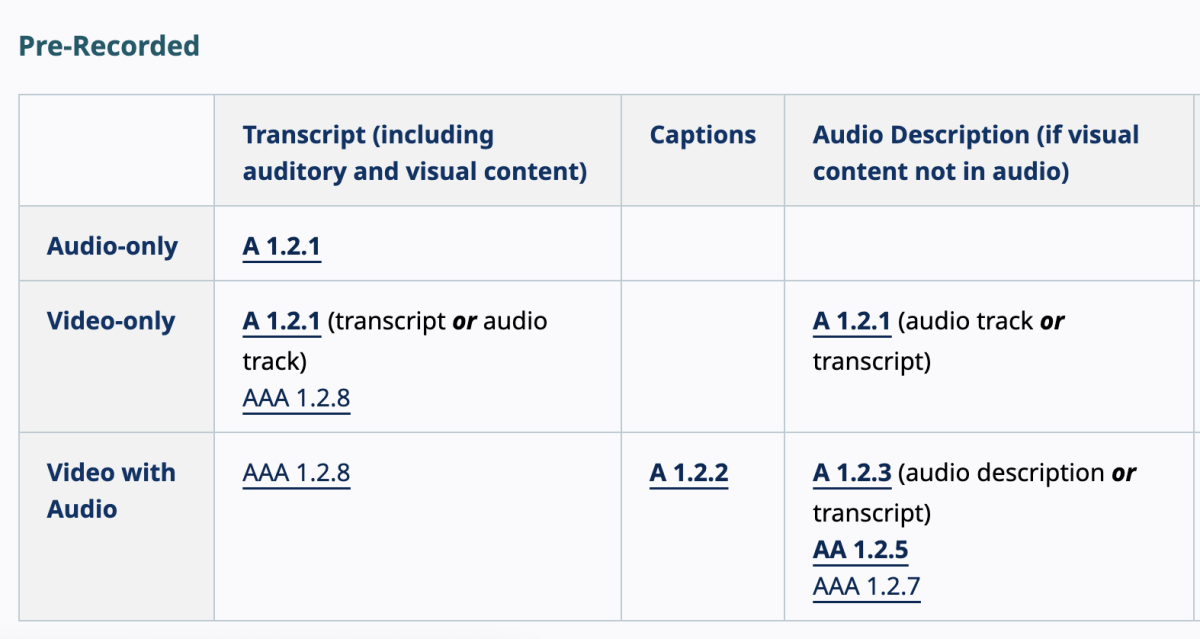
- Transcripts. Transcripts for audio-only content are written versions of everything spoken or heard in the audio file. They include all dialogue, speaker identification, and relevant sound effects (e.g., “[applause]” or “[phone ringing]”). Transcripts make audio content accessible to individuals who are deaf or hard of hearing and also serve as a searchable, text-based alternative for anyone who prefers reading over listening.
Source: WC3 Standard
Step 3. Prioritize fixes
Fix public-facing, most-viewed audio and video first.
Tip: Some of your content may qualify as an exception. Learn more about exceptions in the ADA.gov Fact Sheet.
Step 4. Fix the issues
For audio and video fixes, decide whether your department will do the work and/or if you need vendor services.
For free DIY captioning, YouTube offers an easy-to-use captioning interface with YouTube’s Creator Tools. For Vimeo users, visit Vimeo’s Captions and Subtitle Help Center.
Tip: capture transcripts during the recording so they can be repurposed for captions.
- For vendor outsourcing, see the Accessibility Vendor page and How to Estimate Remediation Costs. YouTube and Vimeo also offer paid services.
Step 5. Check your compliance
Once you've made fixes, please check again:
- If your videos were remediated by a vendor, you are responsible for their work.
- If proper names and medical-related content are included, double-check they are accurate.
Tip: Watch the video with the captions on, at an increased playback speed if desired, and check that there are no critical errors.
Step 6. Confirm Caption Accuracy for Accessibility Compliance
To document accessibility compliance for your video(s), the DACP team asks content owners to confirm that captions are fairly accurate so we can maintain a record for auditing and compliance purposes.
- Review the captions on your video(s):
- Make sure the captions accurately reflect the spoken words, including correct spelling of names, technical terms, and punctuation.
- Ensure captions appear in sync with the audio.
- Include non-speech audio cues when relevant (e.g., “music playing,” “applause”).
- If automatic captions were used (e.g., generated by YouTube, Vimeo, or another platform), they must be manually reviewed and corrected so they are accurate and complete.
- Reply to our accessibility compliance email with a brief confirmation statement, such as:
- "I have reviewed the captions for [Video Title or URL] and can confirm that fairly accurate captions exist for this content."
Note: This reply will be kept in our records as documentation that the captions have been reviewed and confirmed.
Resources
- Easy way to create accessible videos with audio (Pope Tech)
- Description of Visual Information (W3C)
- Providing Audio Descriptions for Videos (UCOP EAC)
- Making Audio and Video Media Accessible (W3C)
- Planning Audio and Video Media (W3C)
- Subtitle (Caption) Guidelines (BBC)
- Transcripts and captioning University of California Electronic Accessibility Committee (EAC)
- A University Guide to Budgeting and Auditing for ADA Video Compliance, from 3Play Media
includes downloadable ADA Title II checklist