Overview
To ensure that you have access to your Box files on the desk, you will need to transition from Box Sync to Box Drive prior to Dec. 31. This page will demonstrate the process for completing this transition on Windows and Mac workstations.
Transitioning from Box Sync to Box Drive on Windows
Step1
Unistall Box Sync from workstation.
Be sure to sync your files in Box Sync prior to uninstalling the application.
Step2
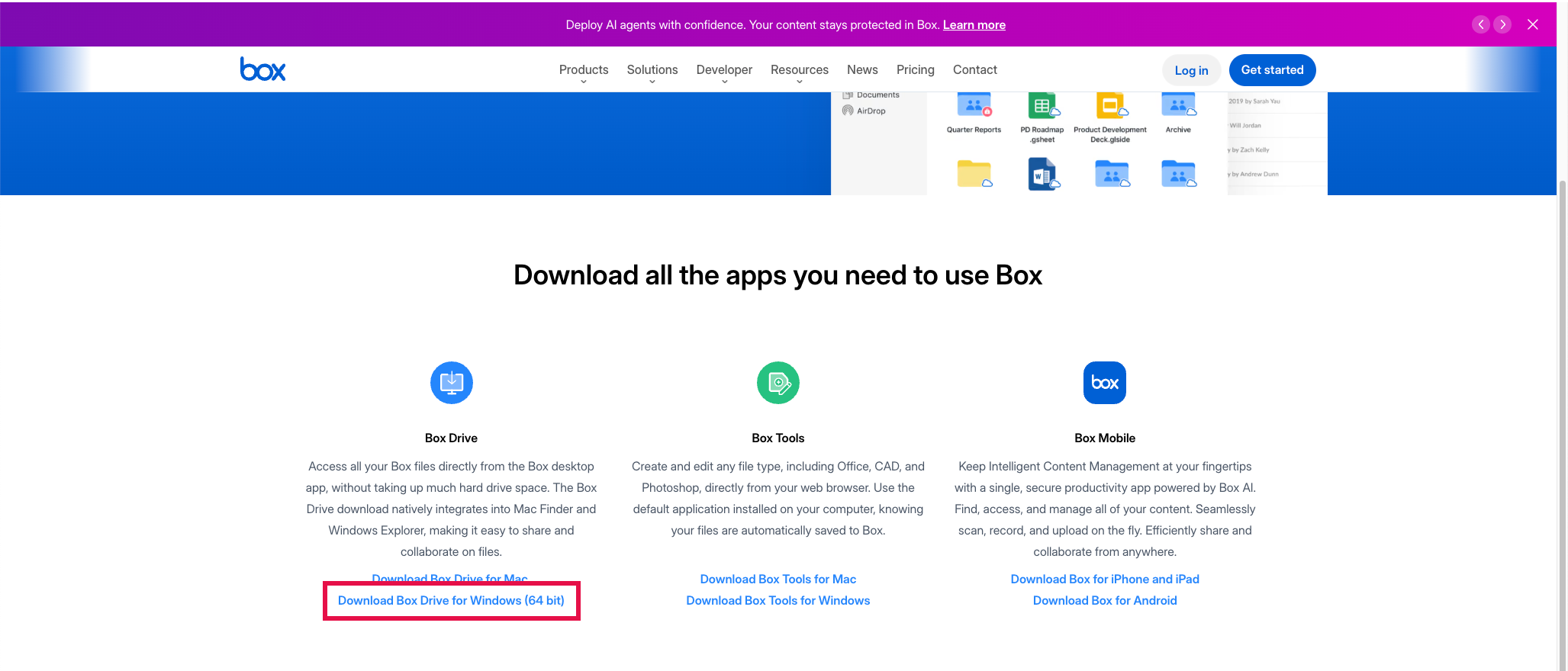
Download Box Drive for PC.
Navigate to the Box App Downloads page and select Download Box Drive for Windows (64 bit).
Step3
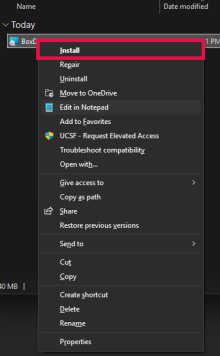
Install Box Drive on workstation.
Navigate to and right-click on the Box Drive installer before clicking Install.
Step4
Click Log In before entering your UCSF credentials.
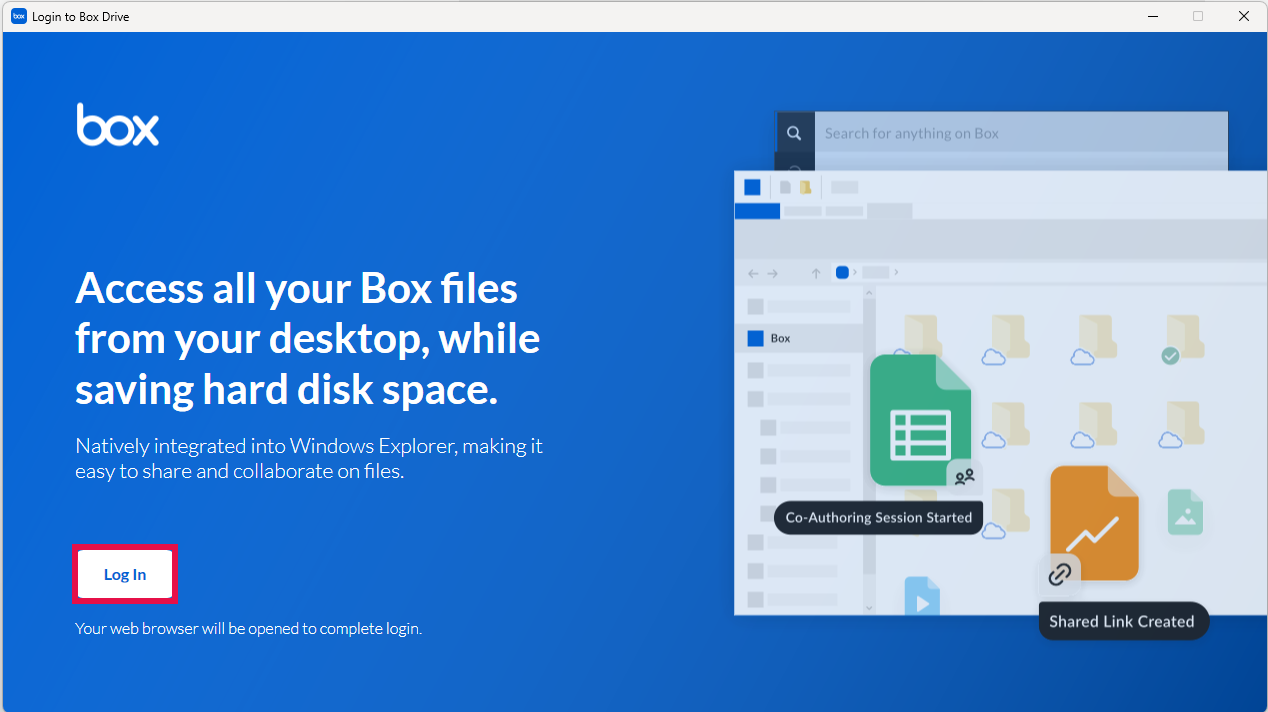
If prompted with This site is trying to open Box message after logging in, click Open.
Step5
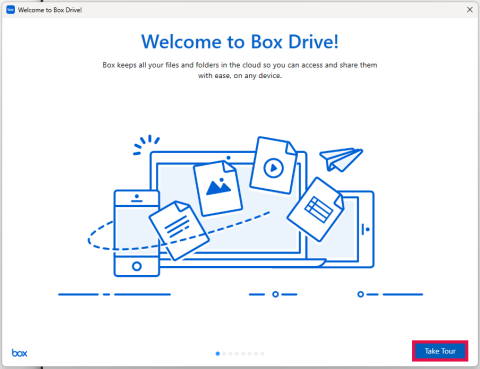
Complete on-screen prompts to complete Box Drive installation.
On the Welcome to Box Drive! screen, select Take Tour to complete the Box Drive installation.
Transitioning from Box Sync to Box Drive on Mac
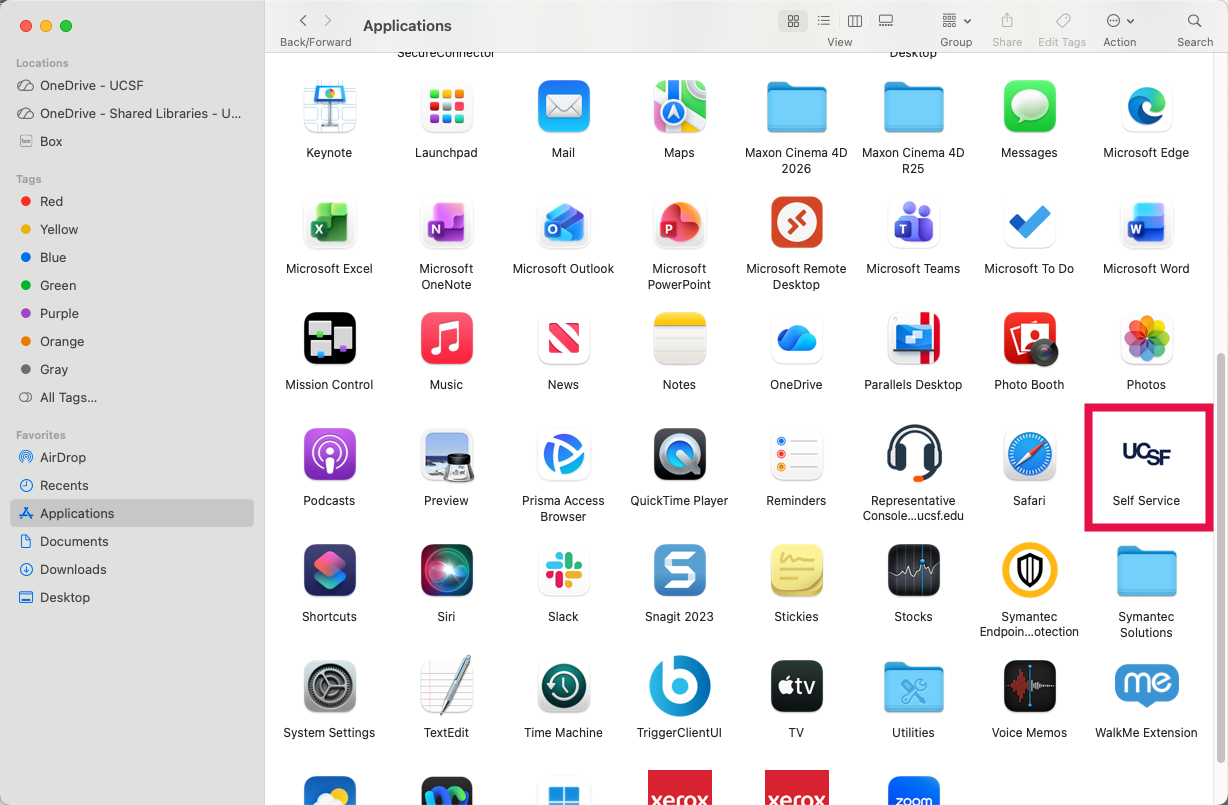
Step1
Access Self-service on your Mac workstation.
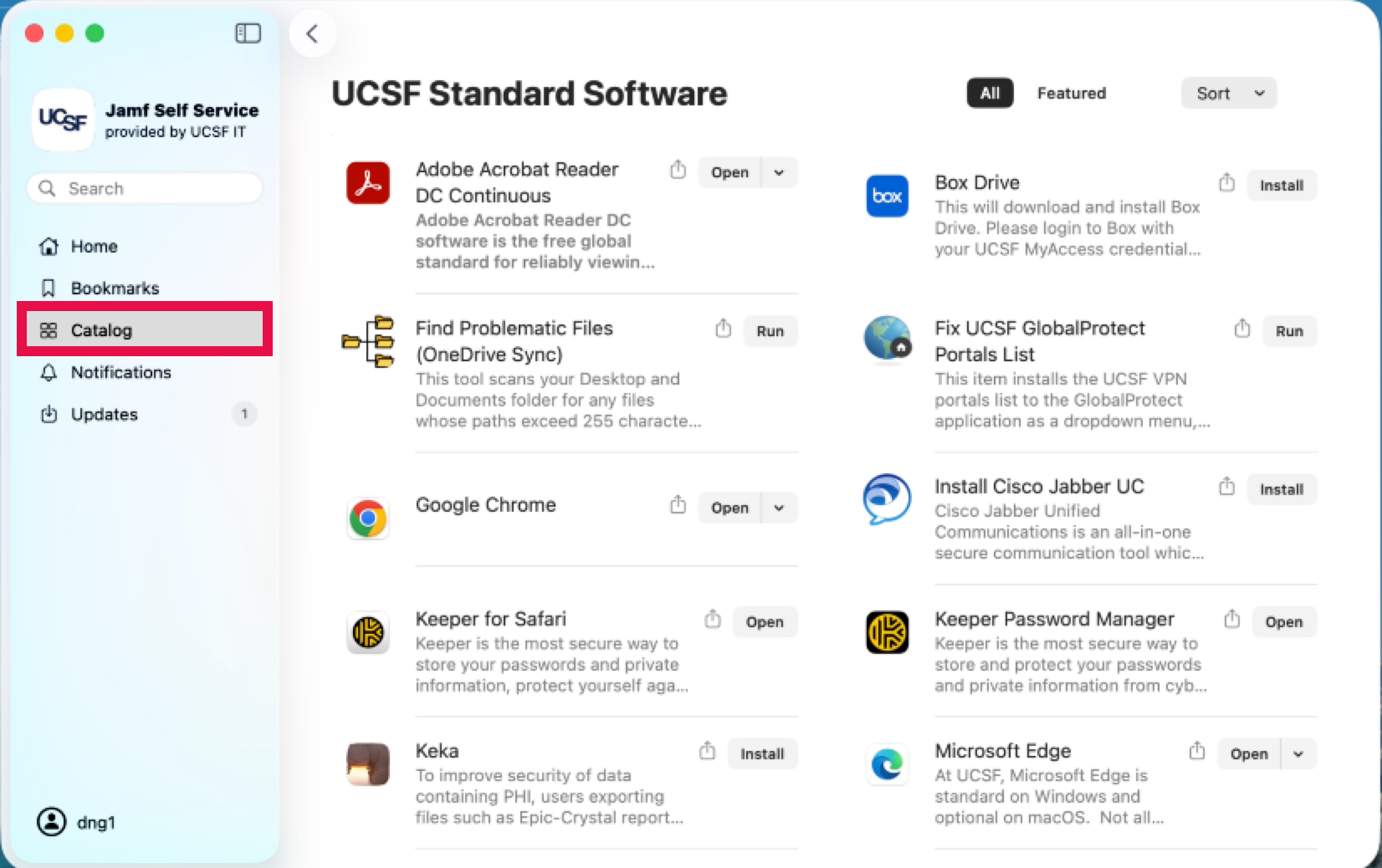
Step2
Select Catalog.
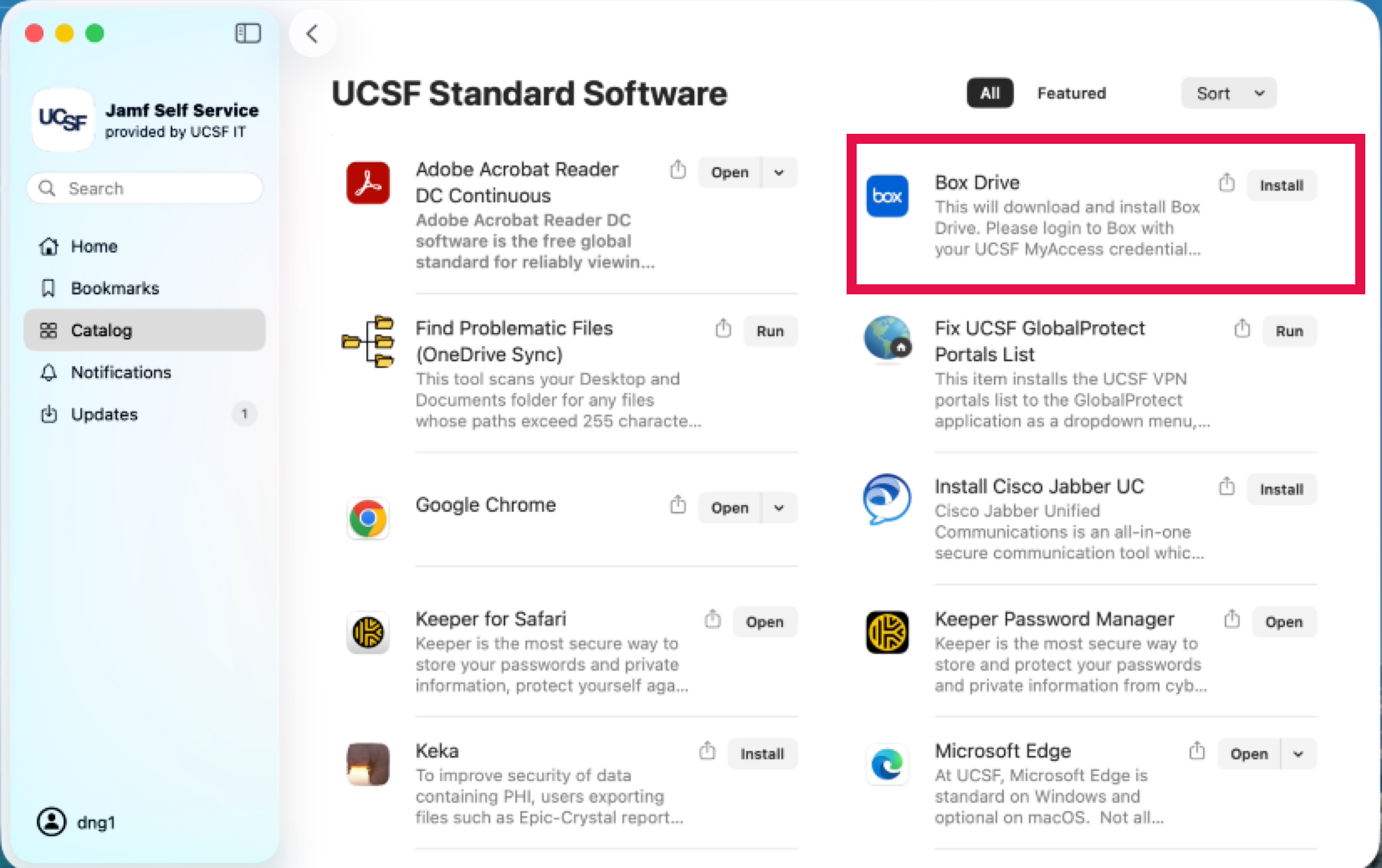
Step3
On the UCSF Standard Software screen, select Install next to Box Drive.
Step4
Click Log In before entering your UCSF credentials.
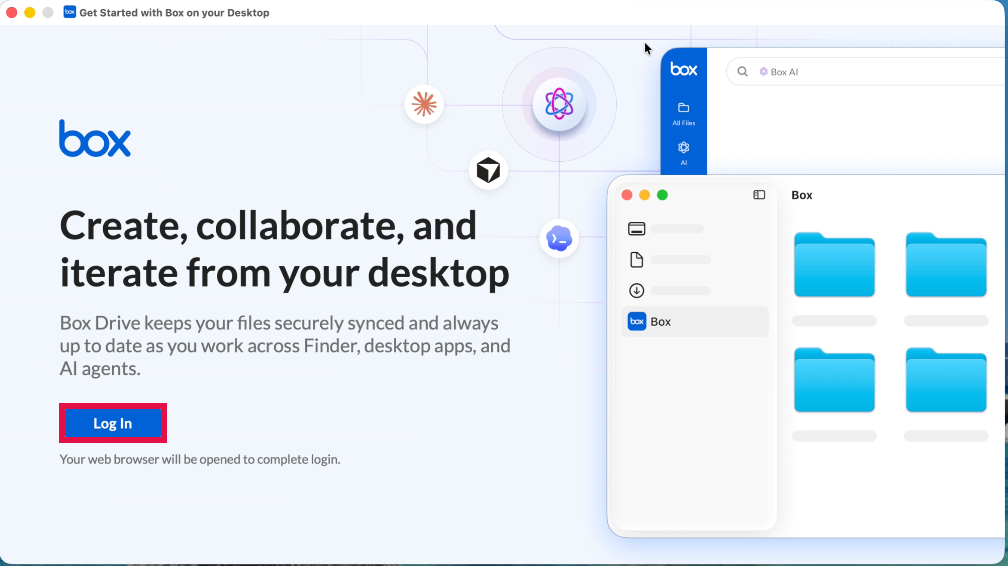
If prompted with This site is trying to open Box message after logging in, click Open.
Step5