Overview
New in macOS Tahoe: Menu bar customization
Apple has introduced new menu bar customization options in macOS Tahoe, giving users more control over what appears at the top of their screen. This update makes it easier to keep the menu bar organized and quickly access commonly used settings and controls.
With macOS Tahoe, users can manage menu bar items from System Settings, allowing them to add or remove icons based on their preferences.
To learn about the customization, visit the step-by-step instructions on the Apple website by clicking here.
Menu Bar Icons Related to UCSF Security Suite
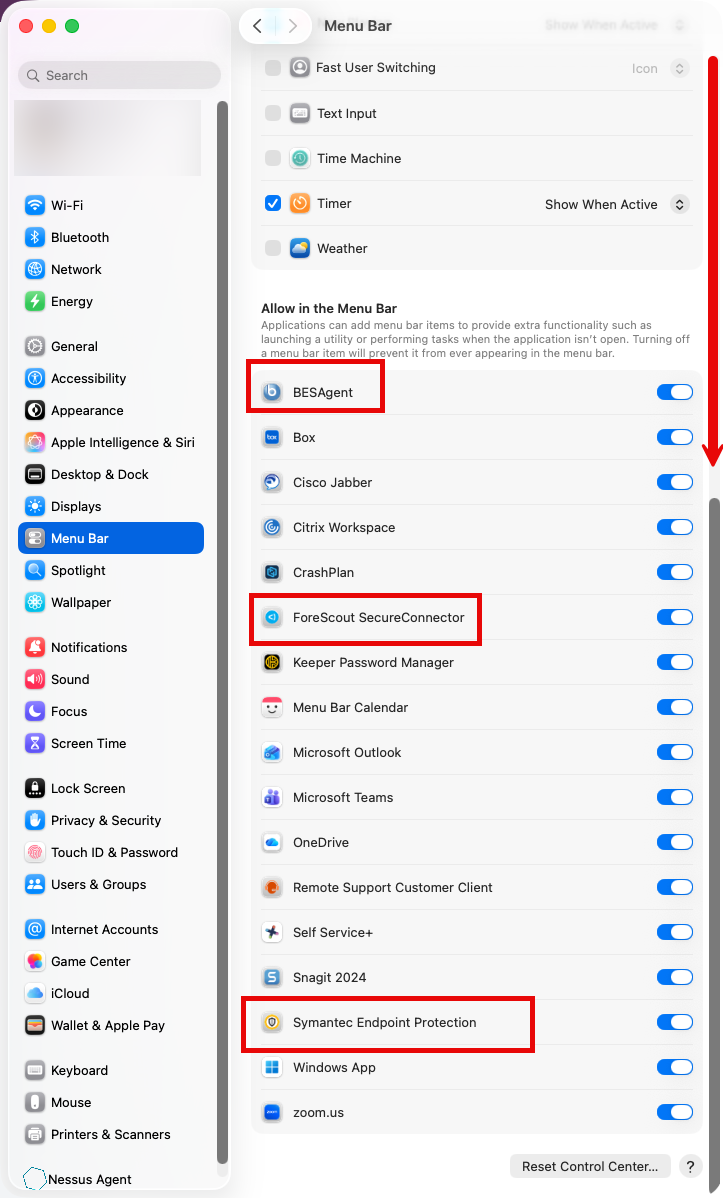
The following menu bar icons are related to the UCSF Security Suite, as highlighted in the example below:
- BESAgent - part of BigFix
- ForeScout SecureConnector - part of Network Access Control (NAC) that periodically verifies your computer's eligibility to connect or remain connected to UCSF's secured network
- Symantec Endpoint Protection - UCSF's official software for protection from malware
IMPORTANT: Users who chose to hide any of the above icons are solely responsible for informing IT support staff during remote support sessions with their computers over the phone, as the required icons will not be visible to help confirm your computer's compliance with UCSF's minimum security standards.