Overview
On My Computer refers to Outlook data stored locally on your Mac rather than in your Outlook mailbox. New Outlook for Mac now supports importing On My Computer data from Legacy Outlook.
Open the Outlook application on your Mac. You will need to be on the New Outlook to do this. You can confirm this by checking in the top right hand corner of your client - there is a New Outlook toggle switch.

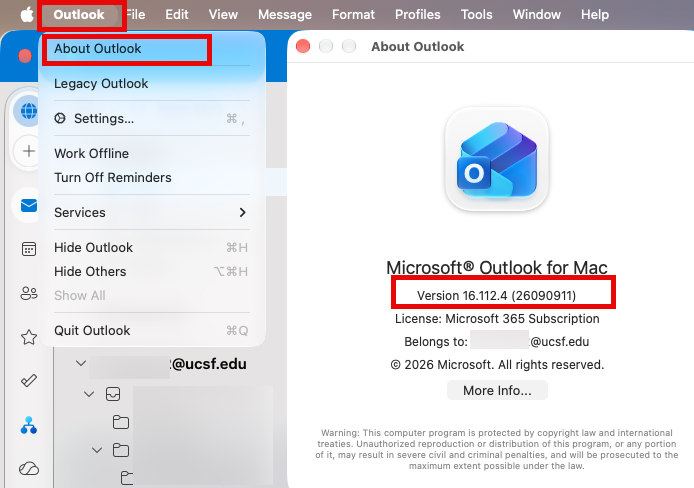
1. Navigate to Outlook > About Outlook and confirm that your Outlook is on version 16.68 (Build 22111400) or later.
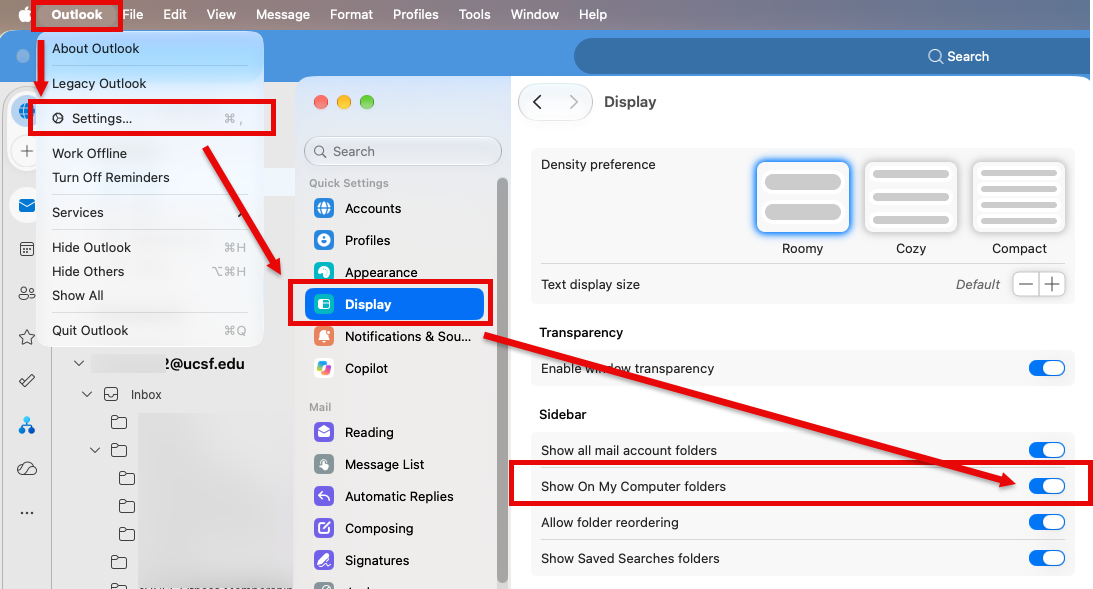
2. Navigate to Outlook > Settings > Display and confirm that Show On My Computer folders is turned on.
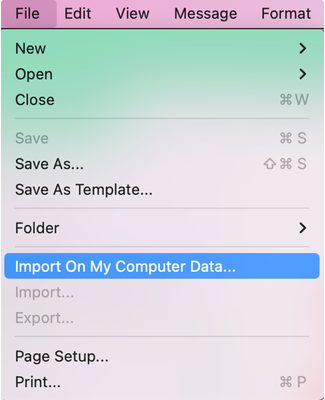
3. Once open, Select File -> Import On My Computer Data
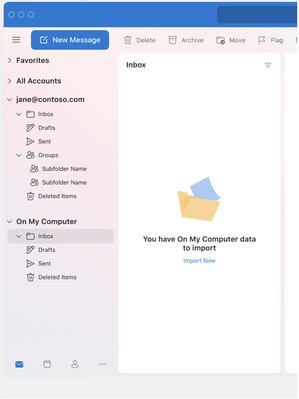
- Alternatively, you can also go to the On My Computer folder and click the Import Now link:
4. The import may take some time depending on the size of your data. Once it is done, you will get the screen below:
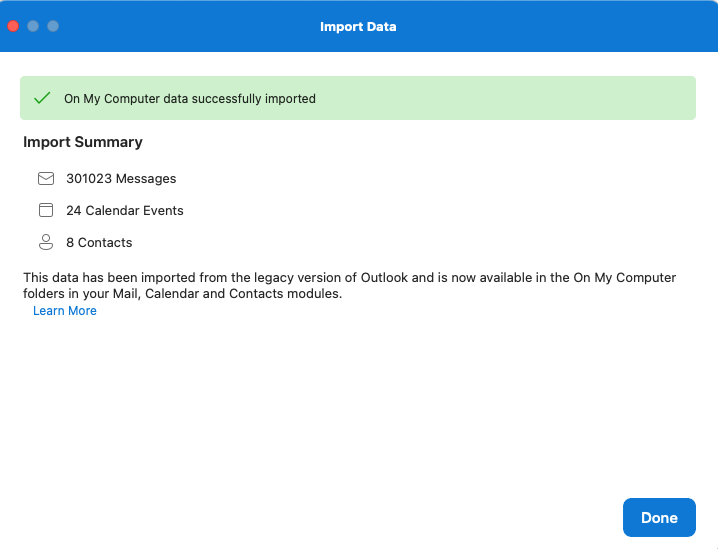
5. Click Done. You will now be able to access all of your "On My Computer" files in the New Outlook.